
WooCommerce review moderation without a team: the queue, the shortcuts and what to automate
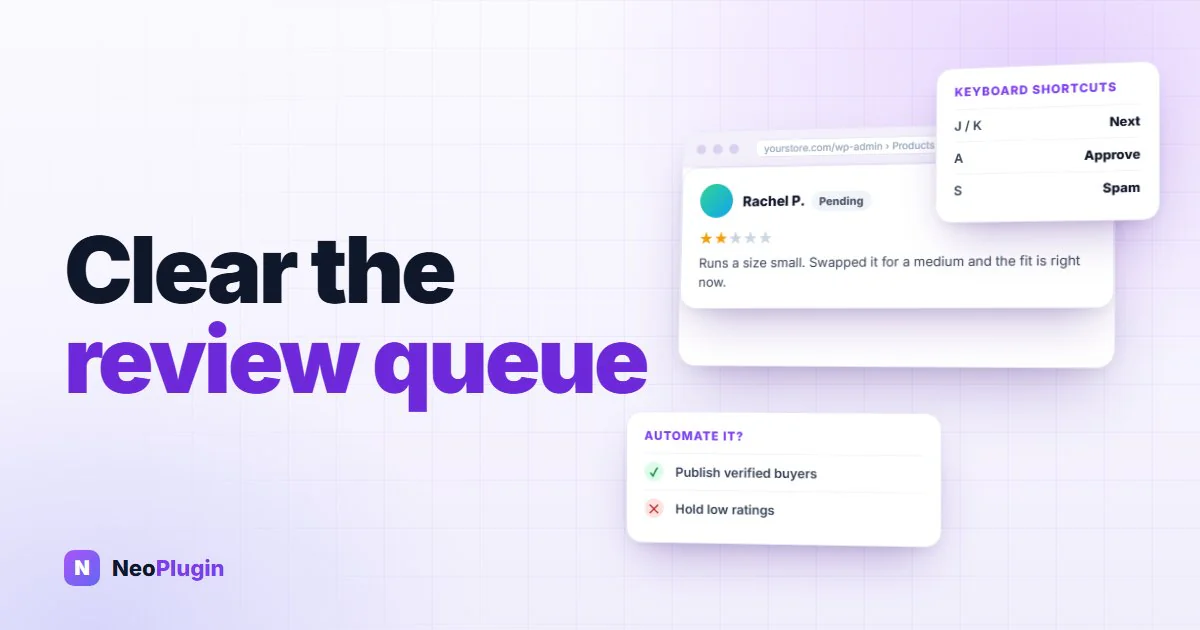
Every review a customer leaves waits for someone to read it. On a store run by one or two people, that someone is you, and the queue grows faster than the time you have for it. Most of what slows WooCommerce review moderation down isn't the reviews; it's clicking through them one at a time.
This guide is the workflow side of our guide to WooCommerce product reviews: the screen you moderate in, the shortcuts and bulk actions that clear it, a short daily routine, what you can safely automate and the one thing you must never automate. Keeping spam out of the queue in the first place is a separate job, covered in our post on review spam.
Everything below was checked against the code of WordPress 7.1.4 and WooCommerce 11.1.2. The tests ran on a local store with a throwaway customer account and order, deleted afterwards.
Quick answer. WooCommerce review moderation is deciding which product reviews go live, and when. It happens under Products → Reviews, not in Comments. Click Pending, mark obvious spam as spam, then tick the rest and use Bulk actions → Approve. Switch on WordPress's comment keyboard shortcuts in your profile and you can approve, spam and trash with single keys. You can safely publish reviews from verified buyers automatically, as long as the rule ignores the star rating. Never let a rule hold back or hide a review because it is negative: in the US that can break the FTC's rule on consumer reviews.
The short version
- The queue is under Products → Reviews. WooCommerce removes product reviews from the Comments screen, and the menu shows how many are waiting.
- Keyboard shortcuts work there. Turn them on in your profile, then A approves, S marks spam and J/K move between reviews.
- One approved review publishes the rest. By default, once an account has one approved comment, every later review from it goes live without you, on any product.
- The moderation email has no star rating. It names the product and the reviewer and gives you Approve, Trash and Spam links, but you can't triage it by rating.
- Automate on facts, never on ratings. "This customer bought it" is a safe rule. "Hold anything under three stars" is review suppression.
- Approving a review isn't neutral. It updates the product's rating and, with a rewards plugin, can pay out points that unapproving doesn't take back.
Why reviews wait for you
A WooCommerce review is a WordPress comment on a product, so WordPress's comment rules decide whether it goes live or waits. Out of the box, three of them can hold a review, all under Settings → Discussion:
- First-time reviewers wait. Comment author must have a previously approved comment is on by default.
- Reviews with links wait. Two or more links by default; our spam post argues for one.
- Moderation words hold a review. Anything on the Comment Moderation list, matched inside words.
And if Comment must be manually approved is ticked, every review waits, whatever else is true.
The first rule has a side effect most store owners never notice. WordPress checks whether the account has any approved comment on the site: a review of another product, or even a blog comment. Once it has one, every later review from that account is published immediately, on any product, bought or not. We saw it in testing: a customer whose first review we had approved went on to review a product they had never ordered, and it went live straight away. On a fresh account, the same review was held.
That's usually fine. It's how WordPress keeps the queue short for regulars. But it means the queue is mostly first reviews, and a regular customer's reviews skip you entirely.
The screen you moderate in
Go to Products → Reviews. WooCommerce filters product reviews out of Comments, so the Comments screen only shows blog comments; a review queue that looks empty there may be full here. The Reviews menu item carries a red count of reviews waiting, the same bubble Comments has.
The screen has the tools you need, and most people use only the first:
- Pending at the top shows only what's waiting. Start every session there.
- Filter by rating (one to five stars), by type (reviews or replies) and by product, from the dropdowns above the table.
- Sort by rating by clicking the Rating column heading, and search the review text with the search box.
- Bulk actions: Approve, Unapprove, Mark as spam and Move to Trash; in the Spam and Trash views, Not spam, Restore, Delete permanently and an Empty Spam or Empty Trash button.
- Row actions under each review: Approve, Reply, Quick Edit, Edit, Spam and Trash. Reply and Quick Edit open in place, without leaving the list.
Show more than 20 at a time. The Reviews screen has no Screen Options setting of its own for this. It uses the one from Comments: open Comments, click Screen Options at the top right, raise Number of items per page, and the Reviews screen follows. A longer page means fewer page loads and bigger bulk actions.
Turn on the keyboard shortcuts
WordPress has had keyboard shortcuts for comment moderation for years, and WooCommerce loads them on the Reviews screen too. They're off by default and per user. Go to Users → Profile, tick Keyboard Shortcuts: Enable keyboard shortcuts for comment moderation, and save.
| Key | What it does |
|---|---|
| J / K | Move to the next / previous review (they go on to the next page at the end) |
| A | Approve the highlighted review |
| U | Unapprove it |
| S | Mark it as spam |
| D | Move it to the trash (deletes it permanently in Spam and Trash) |
| R | Reply, inline |
| Q | Quick Edit, inline |
| E | Open the full edit screen |
| X | Tick the highlighted review's checkbox |
| Shift + X | Tick or untick every review on the page |
| Shift + A / S / T / U | Approve, spam, trash or unapprove every ticked review |
Shortcuts are switched off while you're typing in a field, so a reply never approves anything by accident. With them on, a pending queue becomes J, read, A until it's empty, and the mouse only comes out for a reply.
A short daily routine
Once a day, while the queue is small, is cheaper than once a week. Old reviews lose their value to the customer who wrote them, and a held review is a customer waiting to see their words appear. Here's an order that keeps each decision to one question.
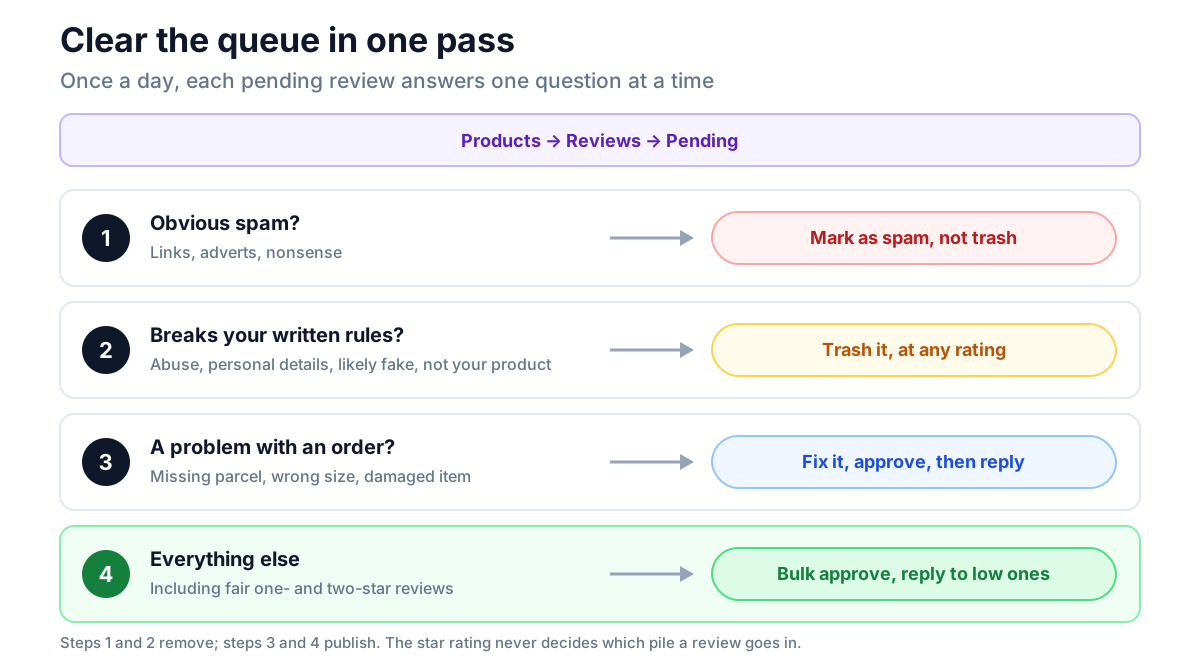
1. Spam first. Links, adverts, nonsense. Use Mark as spam rather than Trash, so a spam filter such as Akismet learns from it and WordPress keeps the record. Spam is the only step where speed matters more than reading.
2. Reviews that break your rules. Abuse, another person's phone number or address, a review you reasonably believe is fake, a review of something you don't sell. Remove these whatever their rating, and only these; a rule that removes one-star reviews but would have kept the same text at five stars isn't a rule. More on that below.
3. Order problems. A missing parcel or a wrong size is a support ticket that arrived as a review. Fix it from the order, then approve the review and reply with what you did. Our post on replying to negative reviews covers the wording.
4. Everything else: approve in bulk. Tick the whole page (Shift + X, or the checkbox in the header), choose Approve, apply. Then filter by one and two stars and reply to what needs a reply. Approving and replying are separate jobs; doing the reply first is how a queue stalls.
What the moderation email gives you, and what it doesn't
With Email me whenever a comment is held for moderation ticked (Settings → Discussion), WordPress emails you when a review is held. For product reviews, WooCommerce changes two things: the email goes only to the site's administration email address (Settings → General), never to the product's author or anyone else, and its link to the full queue points at Products → Reviews instead of Comments.
The email we captured in testing contained the product name and link, the reviewer's name, email address and IP address, the review text, and three links: Approve it, Trash it, Spam it. Each opens a confirmation screen in your admin.
What it doesn't contain is the star rating. You can't tell from your inbox whether a held review is five stars or one, so you can't triage by email. Use the email as a nudge to open the queue, not as the place to moderate.
One more email you may be getting: when a review is published straight away, and Email me whenever anyone posts a comment is ticked, WordPress tells the product's author, the account that created the product. On a store where a former staff member created half the catalogue, those emails go to them.
What approving a review actually does
Approving is more than making text visible:
- The product's rating updates. WooCommerce recalculates the average, the review count and the count per star when a review's status changes, so approving a one-star review moves the number shoppers see, and the stars in Google with it.
- The "verified owner" label was already decided. WooCommerce checks whether the reviewer bought the product when the review is submitted, not when you approve it. Approving later doesn't change it. Our post on verified owner reviews explains the check.
- Rewards can pay out. If reviews earn loyalty points, the usual trigger is approval. Unapproving or trashing the review afterwards doesn't necessarily take the points back, so read before you approve, not after.
What you can safely automate: publishing verified buyers' reviews
The fastest queue is one that never fills. Reviews from customers who bought the product are the ones you would approve anyway, so a rule that publishes them on arrival saves the most time for the least risk. It's also a rule about a fact, the purchase, not about what the review says.
The snippet below does exactly that, and nothing more. It runs after all of WordPress's own checks and only steps in when a review is held. It then checks three things:
- it's a product review, not a reply;
- the reviewer is signed in and has bought the product;
- the review passes every one of WordPress's hold rules except the first-time-reviewer rule.
So a buyer's review with a link, a moderation word or manual approval switched on still waits for you, and a review a spam filter has caught stays caught. The star rating isn't read at all.
<?php
/**
 * Publish product reviews from verified buyers without waiting for approval.
 * Every other hold rule (links, moderation words, manual approval) still applies,
 * spam and trash verdicts are never overridden, and the rating is never read.
 */
add_filter( 'pre_comment_approved', function ( $approved, $data ) {
	// Only step in for a held review; leave spam, trash and errors alone.
	if ( 0 !== $approved && '0' !== $approved ) {
		return $approved;
	}
	if ( 'review' !== ( $data['comment_type'] ?? '' ) || ! empty( $data['comment_parent'] ) ) {
		return $approved;
	}
	$product_id = (int) ( $data['comment_post_ID'] ?? 0 );
	$user_id    = (int) ( $data['user_id'] ?? 0 );
	if ( ! $user_id || 'product' !== get_post_type( $product_id )
		|| ! function_exists( 'wc_customer_bought_product' )
		|| ! wc_customer_bought_product( '', $user_id, $product_id ) ) {
		return $approved;
	}
	// Re-run WordPress's hold rules without the first-time-reviewer one.
	$off = static function () { return '0'; };
	add_filter( 'pre_option_comment_previously_approved', $off );
	$passes = check_comment(
		$data['comment_author'], $data['comment_author_email'], $data['comment_author_url'],
		$data['comment_content'], $data['comment_author_IP'], $data['comment_agent'], $data['comment_type']
	);
	remove_filter( 'pre_option_comment_previously_approved', $off );

	return $passes ? 1 : $approved;
}, 20, 2 );
Put it in a small must-use plugin (a PHP file in wp-content/mu-plugins/) or a snippets plugin. The priority, 20, makes it run after Akismet, which reports its verdict on the same filter at priority 10.
We tested it with seven reviews: six from a throwaway customer account that had bought one product, and one from a second, fresh account reviewing a product it had never bought. We set the link limit to 1 and put one word on the moderation list for the test:
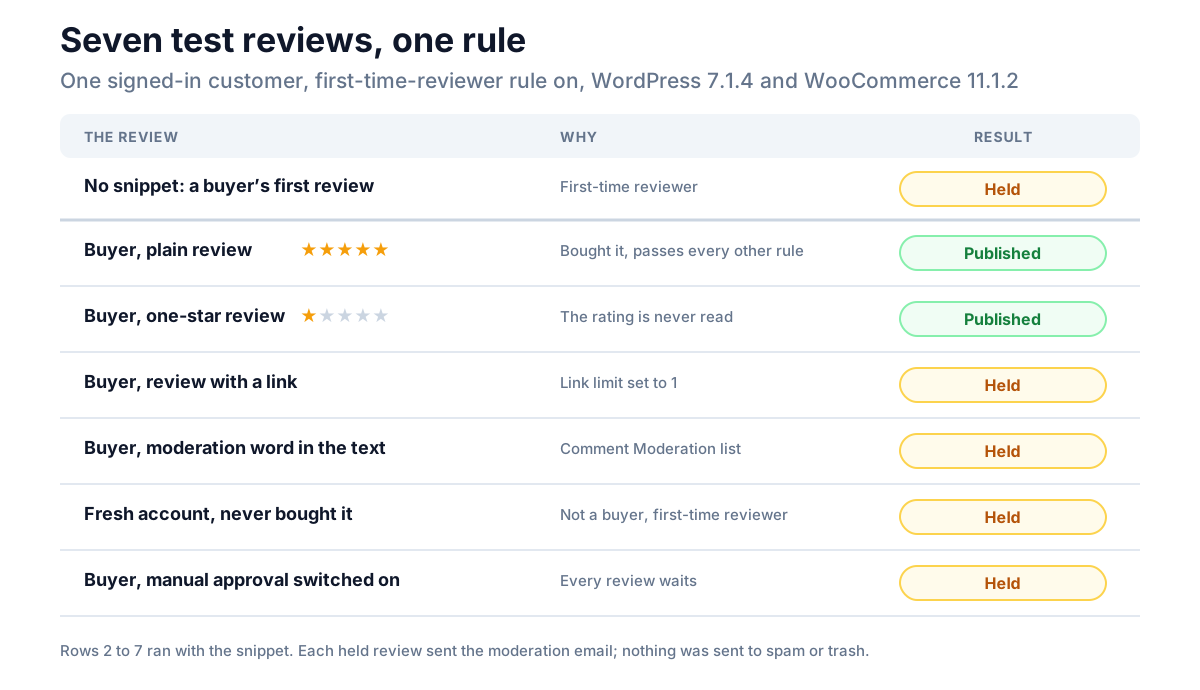
The one-star row is the important one. The rule published a one-star review from a buyer exactly as it published a five-star one, and the product's rating went down accordingly. That is the point: a rule that sped up good reviews and left bad ones waiting would be review gating with extra steps.
Two limits worth knowing. The purchase check looks at the signed-in account only, so a buyer reviewing as a guest still waits, even with the same email address. And reviews sent from the page that WooCommerce's review request email links to don't need the snippet: that page already switches off the first-time-reviewer rule while it saves them, using the same option override as the snippet.
Clearing a backlog with WP-CLI
If you come back to hundreds of held reviews, the Reviews screen will get you through them a page at a time. If you have WP-CLI on your server, two commands do it in one go. First count, and look:
wp comment list --status=hold --type=review --post_type=product --format=count
wp comment list --status=hold --type=review --post_type=product --fields=comment_ID,comment_post_ID,comment_author,comment_content
Then approve by ID, after you've read them:
wp comment approve 8270 8273 8274wp comment approve goes through the same status change as the Approve link, so everything that hangs off approval still happens. In our test it updated the product's rating and paid the review points exactly as clicking Approve did. Don't pipe the full held list straight into it without reading: that's "approve everything", which is the step the queue exists to stop.
What you must never automate
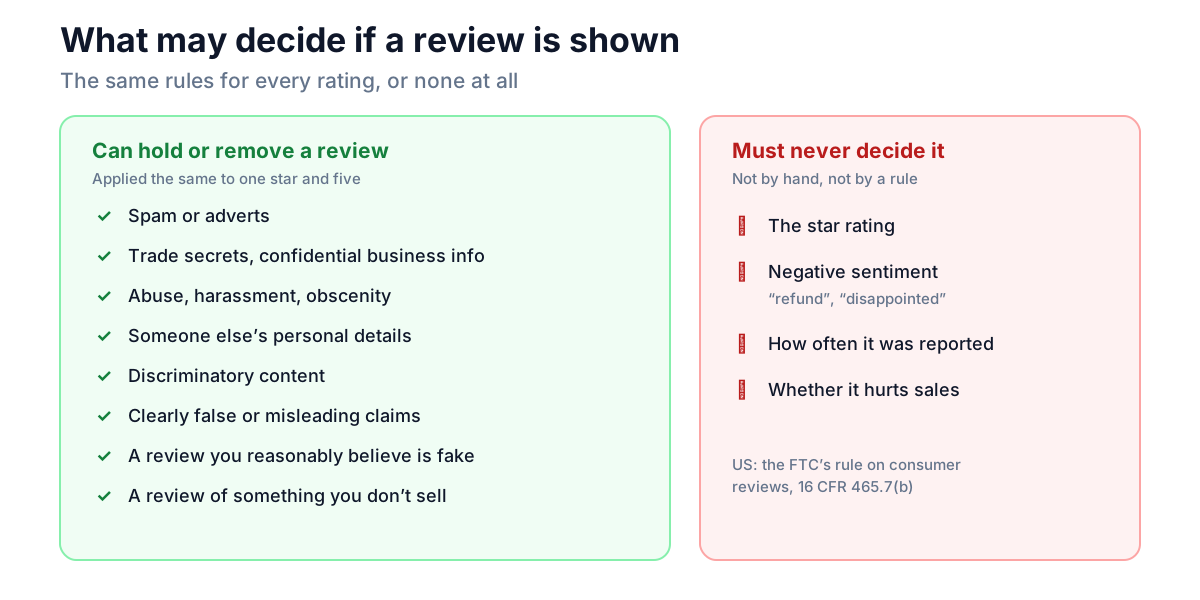
There's one kind of rule a store must never write: one that holds back, hides or deletes a review because of its rating or because it's negative. "Hold everything under four stars", "auto-trash reviews containing refund", "only publish five-star reviews on the homepage and call them customer reviews".
In the US, the FTC's rule on consumer reviews makes it unlawful to present the reviews you display as most or all of the reviews you received when reviews are being suppressed because of their rating or negative sentiment. It also lists what you can withhold, as long as the same criteria apply to every review whatever its rating:
- trade secrets or confidential commercial or financial information;
- defamatory, harassing, abusive, obscene, vulgar or sexually explicit content;
- another person's personal information or likeness;
- discriminatory content;
- clearly false or misleading content;
- reviews you reasonably believe are fake;
- reviews wholly unrelated to what you sell.
The UK and EU have rules of their own on fake and concealed reviews; the principle is the same.
Two less obvious traps:
- Reports aren't a verdict. "Hide a review after three reports" sounds like moderation. In practice it lets a competitor, or an annoyed owner, bury a fair one-star review by reporting it. Reports should bring a review to a person, never take it down.
- Sentiment tools aren't moderators. An AI or keyword filter that holds "negative" reviews for a second look is still holding them because they're negative. Use filters for spam, where the rule doesn't care about the rating.
Write your rules down once
The routine above only stays fair if the rules don't move with your mood or the rating. Write them down: a short page in your own notes, or a line under your reviews.
- We publish every genuine review, positive or negative.
- We remove spam, abuse, other people's personal details, reviews we reasonably believe are fake and reviews of products we don't sell, using the same rules for every rating.
- We reply to problems in public once we've fixed them in private.
- We may edit only to remove personal details, and say so.
That's also what you point to if a customer asks why their review was removed. If your reviews earn rewards, our post on incentivized reviews covers the disclosure that goes beside it.
If you use NeoGrow
NeoGrow pays points for a review when it's approved, and pays each review once. A review that's published on arrival, by WordPress or by the snippet above, pays at once; a held one pays when you approve it, whichever way you approve it. Unapproving or trashing it later doesn't take the points back, so for a store that rewards reviews, the queue is where you stop a points farmer, not a cleanup job afterwards.
NeoGrow's Report link lets signed-in shoppers flag a review for a reason: spam or advertising, offensive or abusive, personal information, or not about the product. Reports show up in a Reported column on the Products → Reviews screen, which you can sort to bring reported reviews to the top. Next to the count, View review opens it and Dismiss closes the reports.
By design, a report never hides anything. There's no threshold, no automatic action and no "hide reported reviews" button. Dismissing a report doesn't touch the review, and removing one is still WooCommerce's own Unapprove, Spam or Trash, after you've read it. You get one email per reported review per day, however many people report it, so a pile-on costs you one email and a hundred different reports cost a hundred.
Frequently asked questions
How do I approve all pending reviews at once in WooCommerce?
Go to Products → Reviews, click Pending, tick the checkbox in the table header to select the page, choose Approve from Bulk actions and click Apply. To fit more on one page, raise Number of items per page in Comments → Screen Options; the Reviews screen uses the same setting. With keyboard shortcuts on, Shift + X then Shift + A does the same.
Why don't product reviews show under Comments?
WooCommerce filters product reviews out of the Comments screen and moves them to Products → Reviews, which has rating and product filters that Comments doesn't. Blog comments stay under Comments.
Can I auto-approve reviews in WooCommerce?
Yes. Untick Comment author must have a previously approved comment and Comment must be manually approved in Settings → Discussion, and reviews that pass the link and word checks go live at once. That includes spam that gets past them. A narrower option is the snippet in this post, which publishes only reviews from customers who bought the product and leaves everything else held.
Can I hide negative reviews in WooCommerce?
You can remove a review that breaks rules you apply to every review, such as abuse, spam or personal details. Holding back or hiding reviews because they are negative, while presenting the rest as all your reviews, is what the FTC's rule on consumer reviews prohibits in the US. Reply to a fair negative review instead.
Who gets the WooCommerce review moderation email?
Only the address under Settings → General → Administration Email Address. For product reviews, WooCommerce replaces WordPress's list of recipients with that one address, so a product's author doesn't get it. The email doesn't include the star rating.
Do approved reviews affect the product's rating straight away?
Yes. WooCommerce recalculates the product's average rating, review count and per-star counts whenever a review is approved, unapproved, marked as spam or trashed.
A queue is a promise to read
Moderation exists so that a person looks at every review before it counts against, or for, a product. The tools above make looking fast: one screen, single keys, bulk approval, and a rule that waves through the reviews you'd approve anyway. What they must never do is decide for you which opinions shoppers get to see.