
WooCommerce review request email: how to switch it on (and the three traps)
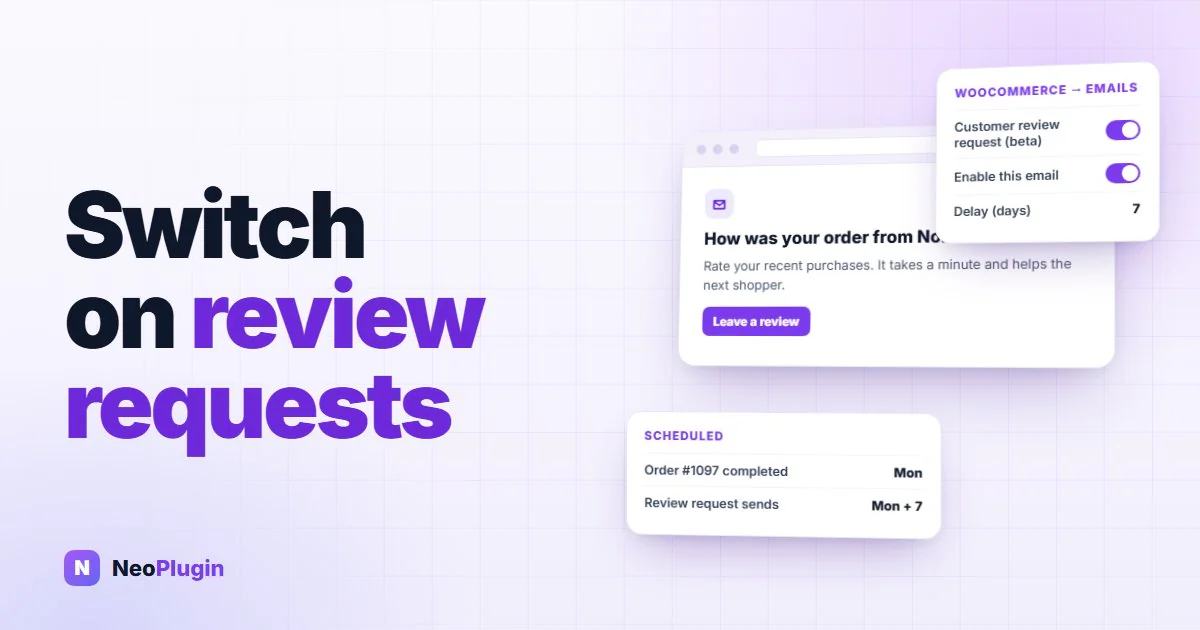
Most stores that want more reviews never ask for them. WooCommerce has been able to ask on your behalf since version 10.8, with a built-in email that goes out a few days after an order is completed and links to a page where the customer can rate everything they bought in one go.
Almost nobody has seen it, because it ships switched off, and switching it on takes two separate ticks on two different screens, plus one number. Our complete guide to WooCommerce product reviews calls this the place people give up. This post is the walkthrough: where each switch lives, what the Delay setting actually counts from, what happens to a review submitted through WooCommerce's new Review Order page, and three behaviors worth knowing before the first email reaches a customer.
In one line: the WooCommerce review request email is a built-in transactional email (customer_review_request, since WooCommerce 10.8) that Action Scheduler sends once per order, a set number of days after the order is marked Completed, linking to a per-order Review Order page at /review-order/{order-id}/.
Everything below was checked against WooCommerce 11.0.1 on a test store, by completing real orders and submitting real reviews — not read off a changelog.
The short version
- WooCommerce 10.8 and later includes a review request email. It is labelled beta, it is off by default, and it costs nothing.
- It takes two switches, not one. A feature flag under Advanced → Features, then the email's own Enable box, which also ships unticked. Turning on only the first sends nothing.
- The Delay counts from "Completed", not from delivery. Default 7 days, allowed range 1 to 60. If you mark orders complete when they ship, add the shipping time.
- Only orders completed after you switch it on are asked. There is no backfill of past customers.
- The email links to a Review Order page, which works for guests without logging in and lets the customer rate every product on the order at once.
- Keep manual approval on. With auto-approve, a review submitted through that page is published but does not count toward the product's star average until WooCommerce next recounts it.
- The email has no unsubscribe link, and reviews submitted through the page skip the hooks many review plugins rely on.
What the WooCommerce review request email does
In one sentence: when an order moves to Completed, WooCommerce schedules a single email for a set number of days later, and that email invites the customer to review what they bought.
The details that matter:
- One email per order, never a sequence. There is no second reminder, which is the right default — see the pillar guide on why a chase costs more than it earns.
- It is sent through Action Scheduler, the same background queue WooCommerce uses for everything else that happens later. If your scheduled actions run, this runs.
- It is cancelled if the order stops being complete. A refund, a cancellation, a move back to processing, trashing or deleting the order: each one unschedules the pending email. We refunded a completed test order and the queued send disappeared.
- It checks again at send time. If every product on the order has reviews switched off, or the customer has already reviewed everything on it, the email is dropped rather than sent. We reviewed a test order's only product and then fired its send: nothing went out.
- Fully refunded line items are left out of what the customer is asked about.
The subject line defaults to How was your order from {site_title}? and the heading to Rate your recent purchases. The body greets the customer by first name, asks for a review, and carries a single Leave a review button.
It is marked beta, but it is not one of WooCommerce's experimental features. That distinction matters: experimental features are the ones WooCommerce warns may change or disappear, and this one is further along than that.
How to switch it on: two switches and a Delay
1. Enable the feature
Go to WooCommerce → Settings → Advanced → Features and tick Customer review request (beta). Save.
Until you do, the email does not exist. It will not appear on the Emails tab at all, which is why people looking for it there conclude it is not in their version.
2. Enable the email itself
Go to WooCommerce → Settings → Emails and open Review request.
Tick Enable this email notification. This is the step everyone misses: the email's own switch ships off, separately from the feature. With the feature on and this box unticked, WooCommerce registers the email, creates the Review Order page — and sends nothing, to anyone. The only record is a line in the log saying the email is disabled.
3. Set the Delay, then the wording
On the same screen:
| Field | Default | What to do with it |
|---|---|---|
| Delay (days) | 7 | How long after the order is marked complete. See the next section — this is the setting that matters |
| Subject | How was your order from {site_title}? | Fine as it is. {order_number} and {order_date} are also available |
| Email heading | Rate your recent purchases | Fine as it is |
| Additional content | A thank-you and "reply to this email" line | Keep the reply line; people do reply, and those replies are support you want |
| Email type | HTML | Leave it |
Save, then use the preview on the Emails screen to look at it in your store's own email design before a customer does.
The Delay setting: what it actually counts from
The Delay counts from the moment the order is marked Completed. Not from payment, not from delivery. That one fact decides what number to put in the box, and it depends entirely on how your store uses the Completed status.
- You mark orders complete when they are delivered, or you sell downloads that are complete at purchase: the Delay is the time the customer has to use the product. Seven days is a sensible start; make it longer for anything that takes time to judge — a mattress, a skincare routine, a pair of boots.
- You mark orders complete when they ship, which is what most physical stores do: add the delivery time. A product that takes five days to arrive, sent with a 7-day Delay, arrives with only two days to spare before you ask about it. Twelve to fourteen days is safer.
- You never mark orders complete, because they sit in Processing until someone tidies up: no email will ever go out. The email is scheduled only by the transition to Completed.
The allowed range is 1 to 60 days. A value outside it is clamped to the nearest limit rather than rejected, so a 90 you typed is quietly treated as 60.
A good rule for any store: ask when the customer has had long enough to form an opinion, and not so long that they have forgotten which shop they bought it from. For most physical goods that is one to two weeks after it arrives. Starting points by product type, the time of day the email really lands, and how to keep it clear of Black Friday are in when to send a review reminder.
It only asks customers who order from now on
Switching the email on does not email your past customers. The email is scheduled when an order becomes Completed, so an order that completed last month — or yesterday, while the email was still off — is never picked up, even if you turn it on today.
That is the safe behavior, and it is worth knowing it is deliberate: a feature that emailed every historical customer the moment you ticked a box would send hundreds of people a request about something they bought a year ago. It does mean the first emails go out one Delay after your first newly-completed order, not today.
What the Review Order page does with a review
The email's button goes to a page on your own store: /review-order/{order-id}/?key={order-key}. WooCommerce creates that page when you enable the feature, and your theme supplies the header and footer around it, on both classic and block themes.
What it does:
- It works for guests. The order key in the link is the authorization, so a customer who checked out as a guest can review without an account. A link with a wrong key shows your theme's 404 page rather than admitting the order exists.
- It lists every product on the order, and the customer rates as many as they want in one submission. Skipping a product is allowed.
- A star rating is required; the written text is not. A customer can submit four stars and nothing else.
- Every review from this page is marked a verified owner, because it can only come from someone holding the order.
- A customer who comes back can edit their review rather than posting a second one.
- The review is published under the name on the billing address — first and last name, in full. On WooCommerce's normal review form the customer types the name they want shown; here they are not asked. If your customers would expect only a first name, that is worth knowing before you switch it on.
Whether the review goes live immediately or waits for you follows the ordinary WordPress setting: Settings → Discussion → Comment must be manually approved. And that setting matters more than it looks, because of the first trap.
Three traps worth checking first
1. With auto-approve, the new rating does not count toward the average
We submitted a four-star review through the Review Order page on a test product with no other reviews, with manual approval switched off. The review was published straight away. The product's review count went to 1. Its average rating stayed at 0, and its rating breakdown stayed empty.
The cause is ordering. The page saves the review, WooCommerce recalculates the product's rating at that moment, and only then is the star rating attached to the review. The recalculation ran one step too early, so it could not see the new stars. The average stays wrong until something else makes WooCommerce recount that product — typically the next review.
With manual approval on, it is correct. We repeated the test with Comment must be manually approved ticked: the review arrived pending, and when we approved it the average updated to 5.00 immediately, because approving triggers the recount after the rating is already in place.
Given that holding reviews for approval is the right default for other reasons, this one is easy: keep manual approval switched on while this feature is beta.
2. The email has no unsubscribe link
WooCommerce treats this as a transactional email — part of the order — so it carries no unsubscribe link, the same as a receipt. It is one message per order, which keeps it on the polite side of that line.
Whether that is enough for your store is your decision, not a setting. It is still a request rather than information the customer needs about their order, and some stores prefer every non-essential email to carry a way out. If yours is one of them, this email cannot be given one without editing its template.
That template ships in the WooCommerce plugin folder as templates/emails/customer-review-request.php, with a plain-text twin at templates/emails/plain/customer-review-request.php. Copy whichever you send into your child theme, keeping the folder and the filename — wp-content/themes/<your-child-theme>/woocommerce/emails/customer-review-request.php — and WooCommerce loads yours in place of its own.
Two things follow from that. Overriding a core template means owning it: yours stops receiving upstream changes, so it needs a look after any WooCommerce release that touches emails. And an unsubscribe link you add here has to actually suppress something — a link that only looks like an opt-out is worse than no link, so it needs a real flag on the customer and a check before the next send.
3. Reviews from the page skip the usual review hooks
A review submitted through WooCommerce's own product-page form goes through the standard WordPress comment pipeline, and a lot of software is built on that pipeline. The Review Order page writes the review directly instead. We counted the hooks during a test submission: comment_post, the one most review plugins listen for, fired zero times.
What that means in practice:
- You get no "new review awaiting moderation" email. WordPress sends that notice from the same hook. The pending count on the Reviews menu does still go up, so check the queue rather than waiting for an email.
- Plugins that add fields to the review form do not apply here. The page has its own form — stars and text — so there is no photo upload and no review title on it, whichever plugin you use for those on the product page.
- Plugins that reward reviews may not see these ones. A reward plugin that listens for new reviews through the usual hook will not be told about them. And when a customer clicks through from their email without being signed in, which is most of the time, the review is saved with no user account attached, so there is no account to credit points to even if the plugin does notice it.
None of this is a reason not to use the feature. It is a reason to test your own setup before trusting it: submit one review through the page, and check that everything you expect to happen after a review actually happens.
Displaying reviews has a separate hook gap of its own: on a product page built with the Product Reviews block, no woocommerce_review_* action fires, so review add-ons print nothing. Our write-up of the Product Reviews block skipping review hooks covers it.
If a plugin already sends review requests
Here is the double-email problem. If a review or loyalty plugin already emails your customers after an order completes, and you switch WooCommerce's on as well, each customer gets two requests for the same order — two emails, two different links, two different forms.
Before enabling the core email, check whether anything else on your store sends one, and decide which should own it. Choose on what each one gives you: WooCommerce's reaches guests and asks about every product on one page; a plugin's may link to your product pages, where your photo and title fields live, and may carry an unsubscribe link.
For developers: the two filters
WooCommerce provides two filters for this email. Both belong in a small custom plugin or your child theme's functions.php.
woocommerce_should_send_review_request receives the order and decides whether it gets the email at all. Return false to skip that order while leaving the email enabled for everyone else. This example skips orders you entered by hand in the admin — phone orders, replacements, trade orders:
add_filter( 'woocommerce_should_send_review_request', function ( $should_send, $order ) {
	if ( 'admin' === $order->get_created_via() ) {
		return false;
	}
	return $should_send;
}, 10, 2 );
It runs when the order is completed, which is when the email is scheduled, so it affects orders completed after you add it.
woocommerce_review_request_delay_seconds sets the Delay, in seconds. It receives only the number — not the order — so it cannot vary the delay by product or shipping method; it changes it for the whole store. What it can do is go beyond the settings screen: the filter runs after the 1-to-60-day limit is applied, so it is the way to ask at, say, 90 days for a product that takes a season to judge, or at 36 hours for a digital download:
add_filter( 'woocommerce_review_request_delay_seconds', function ( $delay ) {
	return 90 * DAY_IN_SECONDS;
} );
The Delay field on the Emails screen will still show the old number, because the filter overrides it without changing the saved setting. Leave a note for whoever edits that screen next.
How to check it is working
You do not have to wait a week to find out whether it works.
- Complete a test order with your own email address as the billing email.
- Find the scheduled send. Go to WooCommerce → Status → Scheduled Actions, search for
woocommerce_send_review_request, and you should see one pending action for that order, due one Delay from now. You can run it from there to send the email immediately. - Read the reason if nothing was scheduled. Go to WooCommerce → Status → Logs and look for the source review-request. Every order it declines to schedule gets a line saying why: email is disabled, already scheduled, opt-out filter returned false or no reviewable items. On the server, with the default file storage, the same lines are in
wp-content/uploads/wc-logs/, in files namedreview-request-<date>-<hash>.log. They are logged at the Info level, so if someone has raised the level threshold under Settings → Advanced → Logs, they are not recorded at all. - Click through and submit a review, logged out, as a customer would. Then check it arrived in the queue, approve it, and confirm the product's average changed.
If it is not working: symptom, cause, fix
The log lines quoted below are the exact reasons WooCommerce writes, after Skipped scheduling review-request email for order N:.
| Symptom or log line | Cause | Fix |
|---|---|---|
| No "Review request" on the Emails tab | The feature is off, so the email is never registered | Tick Customer review request (beta) under Settings → Advanced → Features |
Log says email is disabled | The feature is on but the email's own switch is off — it ships off | Tick Enable this email notification under Settings → Emails → Review request |
| No log line and no scheduled action | The order has not moved to Completed since the email was enabled. Earlier orders are never picked up | Mark a new order Completed. If your orders sit in Processing, nothing will ever send |
Log says no reviewable items | Reviews are off store-wide, off on every product in the order, or everything was already reviewed | Check Enable product reviews under Settings → Products, and Enable reviews on each product's Advanced tab |
Log says opt-out filter returned false | Code on the site is using woocommerce_should_send_review_request to skip that order | Find the snippet or plugin adding it |
Log says already scheduled | The order was completed a second time. The first scheduled send stands | Nothing — this prevents a duplicate email |
| The pending action disappeared | The order left Completed — refunded, cancelled, moved back to Processing — or was trashed | Working as intended; the email is cancelled with the order |
| The action ran but no email arrived | By send time there was nothing left to review, so it was dropped — or your site is not delivering email at all | Send yourself any WooCommerce email to rule out delivery, then check the order's products |
| A new review is live but the average did not move | Auto-approve is on — trap 1 above | Tick Comment must be manually approved under Settings → Discussion |
A short checklist
- Confirm you are on WooCommerce 10.8 or later.
- Tick Customer review request (beta) under Settings → Advanced → Features.
- Tick Enable this email notification under Settings → Emails → Review request.
- Set the Delay from when you mark orders complete, not from when you would like to ask.
- Tick Comment must be manually approved under Settings → Discussion.
- Check no plugin already sends a review request, so no one is asked twice.
- Complete a test order, run its scheduled action, and submit a review through the page.
Where NeoGrow fits
NeoGrow is the free plugin we build. It has its own review reminder, and it is written to share the store with WooCommerce's rather than compete with it.
When WooCommerce's email is going to send, NeoGrow's stands down. It checks both switches — the feature and the email's own Enable box — because checking only the feature would leave a store with the flag on and the email off sending no reminder at all. So switching the core email on or off never produces two emails, or none.
When NeoGrow's reminder is the one sending, it behaves differently from core's in ways that are useful to know when choosing:
- It sends one email per order, by default 14 days after completion, and only for orders completed after you switched it on — the same no-backfill rule as core.
- It links to each product's reviews tab, so the review is written in the normal form, with the photo and title fields NeoGrow adds. A customer who is signed in when they write it earns their points once you approve it.
- It carries an unsubscribe link that stops review reminders only, not your other emails.
- It is sent only to registered customers, because the points need an account to land in. Guest orders are the gap core's email covers and ours does not.
It is off until you switch it on. Setup is in the NeoGrow documentation.
Frequently asked questions
Does WooCommerce send review request emails automatically?
Yes, from version 10.8, but not by default. You need to enable Customer review request (beta) under WooCommerce → Settings → Advanced → Features, and then tick Enable this email notification on the Review request email under Settings → Emails. Both ship switched off.
Why can't I find the review request email in WooCommerce settings?
Because the email only appears on the Emails tab once the feature is switched on. Enable Customer review request (beta) under Settings → Advanced → Features first. If it is still missing, check your version: the feature arrived in WooCommerce 10.8.
I switched it on and no emails are going out. Why?
Usually one of three things. The email's own Enable box is unticked — it is separate from the feature and ships off. No order has been completed since you switched it on, since earlier orders are never picked up. Or orders on your store stay in Processing and never reach Completed, which is the only thing that schedules the email. WooCommerce → Status → Logs, source review-request, records the reason for any order it skipped.
How many days after an order is the review request sent?
Seven by default, and you can choose anything from 1 to 60 in the email's Delay (days) setting. It counts from when the order is marked Completed, so if you complete orders at dispatch, add your delivery time.
Can guest customers leave a review from the email?
Yes. The link carries the order's key, which is what authorizes the page, so guests can review without an account. Their reviews are marked as verified owners and published under the billing name.
Will WooCommerce's review request email my existing customers?
No. It only asks about orders that are completed after the email is enabled. Customers from before that are never contacted.
Can the customer add a photo from the Review Order page?
No. The page collects a star rating and optional text for each product. Photo uploads, on any store, come from a plugin, and they apply to the review form on the product page rather than this one.
Does the review request email have an unsubscribe link?
No. WooCommerce sends it as a transactional email tied to the order, so it has no unsubscribe link. It is sent once per order and never repeated.
Switch it on, then watch one order through
The feature is already in your store. What stands between you and a steady trickle of reviews is two ticks and one number, and the number is the part worth thinking about.
Turn it on, set the Delay from when your orders really arrive, keep manual approval on, and put one test order through the whole way. Then look in a fortnight at the products that were sitting on zero reviews — that is where you will see it working first.