
WooCommerce review reminder emails: when to send them (and why once is enough)
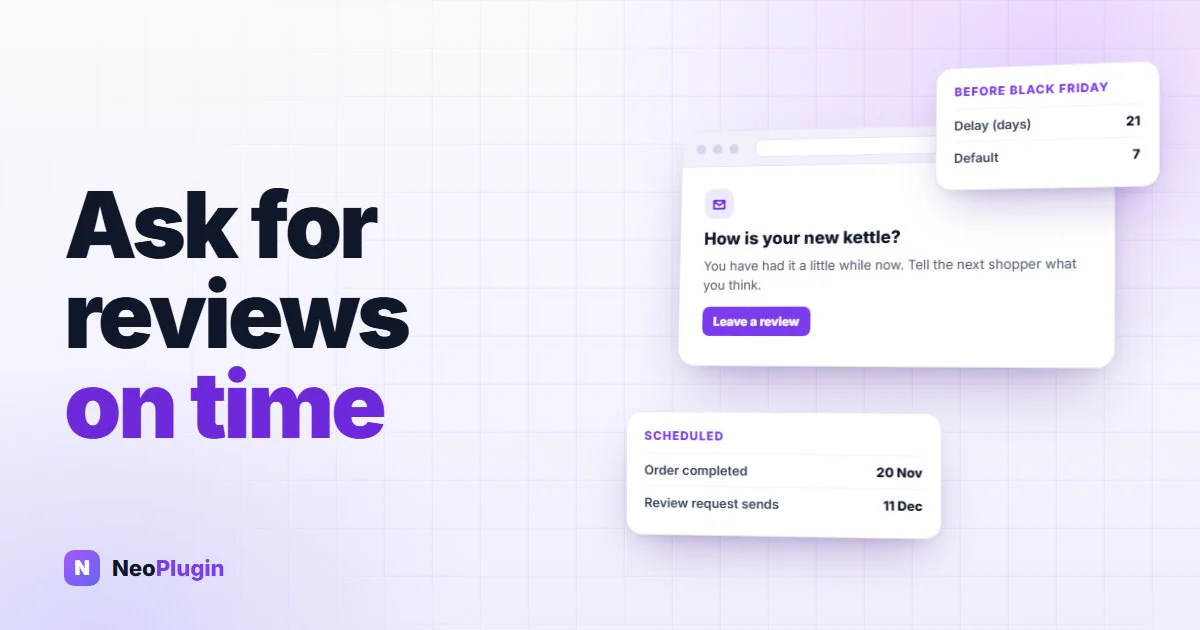
A review reminder has one job: arrive when the customer has formed an opinion and has not yet forgotten the order. Too early and they have nothing to say, or the parcel has not even turned up. Too late and the order is a vague memory and the email is one more thing to delete.
Switching the email on is the easy part, and our guide to WooCommerce's built-in review request email covers it step by step. This post is about the one setting that decides whether it works: the delay. What it counts from, how long to set it for your products, what time of day the email really lands, why one email is enough, and how to keep it out of the way of Black Friday.
It is part of our series on WooCommerce product reviews. Everything below was checked against the code of WooCommerce 11.1 and of NeoGrow, our free loyalty and reviews plugin.
Quick answer. Set the delay to the time it takes the customer to receive the product and use it enough to judge it. WooCommerce counts the delay from the moment an order is marked Completed, so if you complete orders when they ship, add the delivery time. Start around 7 days for quick-to-judge products and two to four weeks for anything that takes longer. The email goes out at the same time of day the order was completed. Send one email, not a sequence. Before Black Friday, lengthen the delay so requests for November orders arrive after the sale, not during it.
The short version
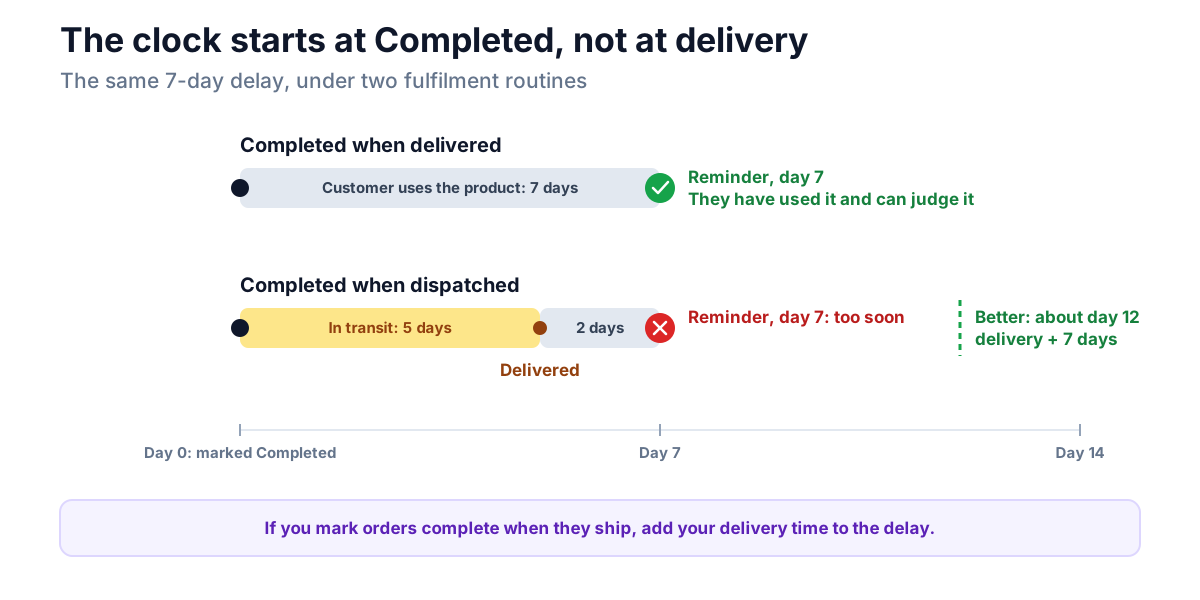
- The clock starts at Completed, not at delivery. Complete orders when they ship and a 7-day delay can land two days after the parcel.
- Set the delay for how long the product takes to judge. A coffee is judged in a morning. A mattress takes weeks.
- One delay covers the whole store. Pick it for your main product type, and lean towards the slower products rather than the faster ones.
- It arrives at the hour you clicked Complete. Batch-completing orders at 11 pm means review requests at 11 pm.
- One email, timed well. WooCommerce sends exactly one per order, and its email has no unsubscribe link, which is a good reason not to bolt a sequence on.
- Changing the delay only affects orders completed afterwards. Requests already queued keep their original date. Change it before the rush, not during it.
The clock starts at Completed
WooCommerce's review request email, added in WooCommerce 10.8, is scheduled at the moment an order becomes Completed. The delay is added to that exact moment, down to the second, and the send is queued in the background. Nothing else starts the clock, and nothing moves it afterwards.
So the right delay depends on what Completed means in your store:
- You mark orders complete when they are delivered, or you sell downloads
that are complete at purchase. The delay is simply the time the customer has to use the product.
- You mark orders complete when they ship, which is what most physical
stores do. The delay has to cover the delivery time and the time to use the product. A parcel that takes five days to arrive, with a 7-day delay, leaves the customer two days with it before you ask.
- Your orders sit in Processing and never get completed. Then no review
request is ever sent. The email is triggered only by the move to Completed.
How long your products take to judge
A review is only as good as the experience behind it, and some products take longer to experience than others. Someone can review a bag of coffee the morning it arrives. Nobody can honestly review a skincare routine, a supplement or a mattress in a week.
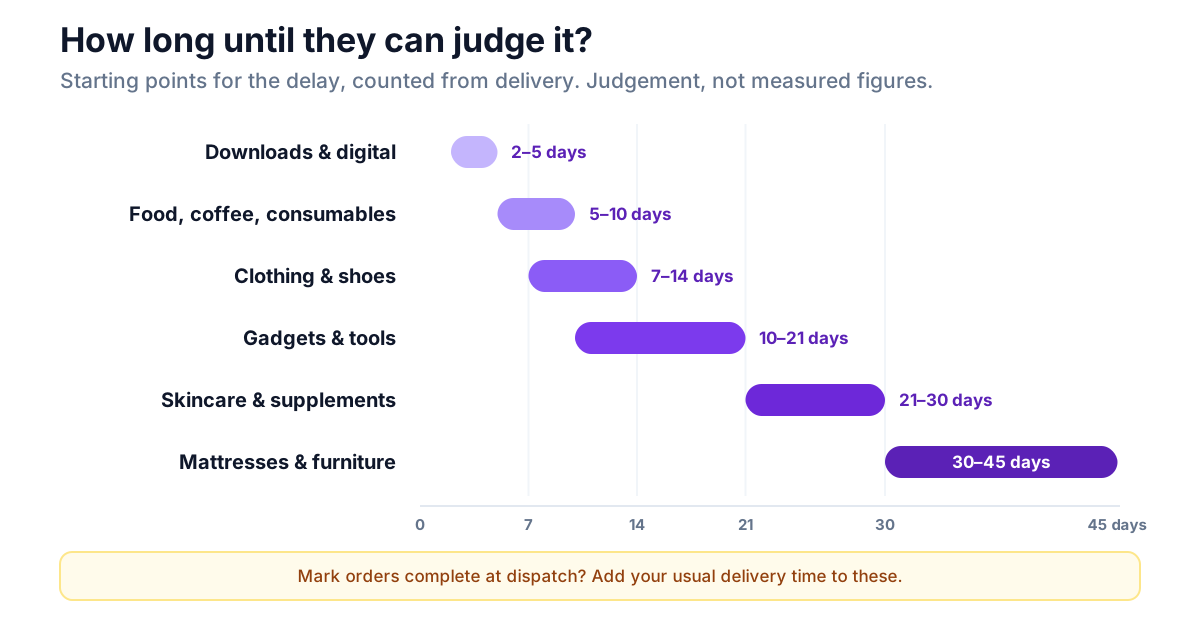
These are the starting points we would use, counted from delivery. They are judgement, not measured figures, so treat them as a first setting to adjust once you see how customers respond:
| Product type | Starting delay, from delivery | What the customer needs the time for |
|---|---|---|
| Downloads and digital products | 2 to 5 days | Downloading, installing and a first proper use |
| Food, coffee and consumables | 5 to 10 days | One or two uses, which is quick |
| Clothing and shoes | 7 to 14 days | Trying it on and wearing it a few times |
| Gadgets and tools | 10 to 21 days | Setting it up and using it for real |
| Skincare and supplements | 21 to 30 days | Results that only show after weeks of use |
| Mattresses and furniture | 30 to 45 days | Settling in, and living with it for a while |
Two things to weigh when you pick a number inside a range.
Returns windows. If you offer 14-day returns on clothing, a request on day 7 reaches customers who are still deciding whether to keep the item. If the order is fully refunded or cancelled, the customer is not asked: WooCommerce cancels the pending email when an order leaves Completed. A partial refund leaves the order Completed, so that customer is still asked, and a customer who is still on the fence will often leave the request unread.
Mixed catalogues. WooCommerce has one delay for the whole store. Its developer filter for the delay receives only the number, not the order, so it cannot give each product its own timing. If you sell both coffee and espresso machines, set the delay for the product you most want reviewed, and lean longer rather than shorter. A late request still gets an informed review. An early one gets ignored, or gets "haven't tried it yet".
What time of day it arrives
Because the delay is added to the exact moment the order was completed, the email goes out at the same time of day as that click, a few days later. Strictly, it goes out on the next run of WooCommerce's background queue after that moment, which on a site with steady traffic is within minutes.
That is easy to miss, and it matters. If you work through the day's orders at 11 pm and mark them all Completed in one go, every review request from that batch lands in your customers' inboxes at around 11 pm. If a fulfilment app completes orders at 3 am when it syncs, they arrive at 3 am.
You can check this for any order. Go to WooCommerce → Status → Scheduled Actions, search for woocommerce_send_review_request, and each pending row shows the date and time that order's email is due.
If the times look wrong, the fix is in your fulfilment routine, not in a setting: complete orders during the day, or ask your fulfilment app when it updates order status. There is no time-of-day setting for the email itself.
Why one email is enough
WooCommerce sends one review request per order. There is no follow-up email, and no setting to add one.
That is a reasonable default, for three reasons.
The first email does most of the work. A customer who wanted to leave a review and had formed an opinion will usually do it the first time they are asked. Later emails mostly reach people who decided not to.
The core email has no unsubscribe link. There is nothing in it that lets a customer say "stop asking". One message about an order they placed is easy to defend. A sequence of messages without a way out is the sort of thing that gets marked as spam, and a spam complaint hurts the deliverability of every email your store sends, order confirmations included.
A sequence is a fix for bad timing. Stores add a second and third reminder because the first was ignored, and the first is most often ignored because it arrived at the wrong moment. Getting the delay right does more for your review count than sending the same ask three times.
If you do decide to send a second email later, keep it to one, send it only to customers who have not reviewed yet, and give it a working unsubscribe link.
Black Friday: lengthen the delay before the rush
November breaks the normal timing in two ways.
Carriers slow down. Peak season adds days to delivery times, so if you complete orders at dispatch, the gap between Completed and the parcel arriving grows. A delay that is right in October can arrive before the parcel in late November.
Requests land in the middle of the sale. Take an order marked Completed on Friday 20 November with a 7-day delay. Its review request goes out on Friday 27 November, Black Friday itself, alongside every sale email in the customer's inbox. It is the worst day of the year to ask for a favour.
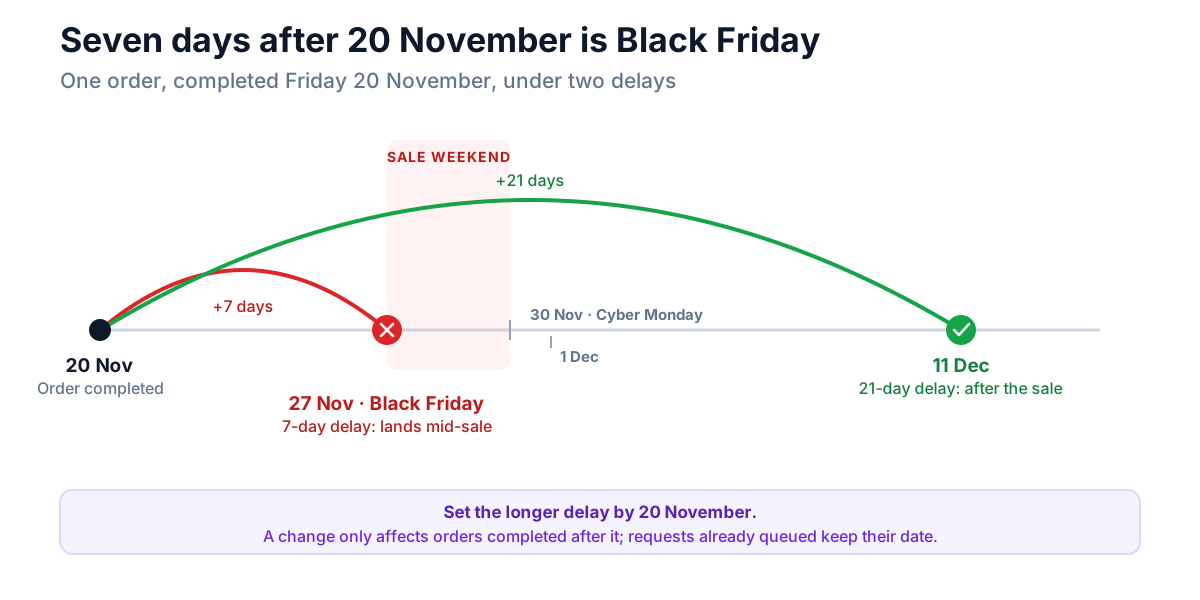
The fix is to lengthen the delay for orders completed in the run-up to the sale. Two details decide when you need to do it.
A change only affects orders completed afterwards. Each request's send date is fixed when its order is completed. If you raise the delay on 25 November, every order completed before that still sends on its old date. So make the change around 20 November, before the orders you want to protect are completed, and set it back in January.
You can make WooCommerce do it for you. The delay filter runs at the moment an order is completed, so it can look at the date. This snippet, in a small custom plugin or a code-snippets plugin, gives orders completed between 20 November and 12 December a 21-day delay and leaves the rest of the year on your normal setting:
add_filter( 'woocommerce_review_request_delay_seconds', function ( $delay ) {
    $today = current_time( 'Y-m-d' );

    if ( $today >= '2026-11-20' && $today <= '2026-12-12' ) {
        return 21 * DAY_IN_SECONDS;
    }

    return $delay;
} );
The delay field under WooCommerce → Settings → Emails will still show your normal number while the filter is in force, because the filter changes the value WooCommerce uses, not the stored setting. Update the dates each year.
If you would rather not use code, change the setting by hand on 20 November and change it back in the new year. The only cost is remembering to do it.
If NeoGrow sends your reminders
WooCommerce's email is the one to use if you can. NeoGrow's free review reminder exists for stores where it is not available, on a WooCommerce version before 10.8 or with the core email switched off. NeoGrow detects when WooCommerce's own email is switched on and steps aside, so customers are never asked twice. When it does, it adds a line to WooCommerce's email saying how many points a review earns.
If NeoGrow is sending, the same timing rules apply, with a few differences:
- The setting is Send after (days), under **Marketing → NeoGrow →
Settings**, in the Review reminders section. It defaults to 14 days, counted from when the order is completed.
- It writes only to customers with an account. Guest orders are not sent
a reminder.
- It skips products already reviewed, including reviews still waiting for
your approval, so nobody is asked to review something they already wrote about.
- Every email carries a one-click unsubscribe link.
- It also sends one email per order. A change to Send after (days) only
affects orders completed after the change, as with WooCommerce. There is no code filter for NeoGrow's delay, so for Black Friday change the setting by hand.
A timing checklist
| Check | Where |
|---|---|
| Do you mark orders complete at dispatch or at delivery? Add delivery time if dispatch. | Your fulfilment routine |
| Is the delay long enough for your main product to be used and judged? | WooCommerce → Settings → Emails → Customer review request |
| Does it fall after your returns window, or close to it? | Your returns policy |
| What time of day are orders completed? That is when the emails land. | WooCommerce → Status → Scheduled Actions |
| Is anything sending a second reminder, or a sequence without an unsubscribe link? | Your other email plugins |
| Will November orders get their requests after the sale? Set a longer delay by 20 November. | The setting, or the filter above |
Frequently asked questions
How many days after delivery should a review reminder be sent?
Long enough for the customer to use the product, usually 5 to 14 days for everyday products and longer for things that take time to judge. WooCommerce counts its delay from the moment the order is marked Completed, not from delivery, so add your delivery time if you complete orders when they ship.
What is the default delay for WooCommerce's review request email?
7 days, counted from when the order is marked Completed. You can set anything from 1 to 60 days under WooCommerce → Settings → Emails, in the Customer review request email.
Can I set a different review reminder delay for each product?
Not with WooCommerce's built-in email. It has one delay for the whole store, and the developer filter for it receives only the number, not the order. Set the delay for your main product type.
Does WooCommerce send a second review reminder if the customer doesn't respond?
No. It sends one review request per order and has no follow-up email.
What time of day does the WooCommerce review request email go out?
At about the same time of day the order was marked Completed. The delay is added to that exact moment, so orders completed together at night produce review requests at night a few days later.
Should I send review requests during Black Friday?
Better not. A request that lands during the sale competes with every sale email in the inbox, and peak-season delivery delays mean it can arrive before the parcel. Lengthen the delay for orders completed from about 20 November so their requests go out in December.
Get the delay right, then leave it alone
The review reminder is one of the few emails a store sends that customers are glad to answer, when it arrives at the right moment. Work out what Completed means in your store, add the time your products take to judge, check what time of day your orders get completed, and lengthen the delay before November. Then leave it to run.
If you are starting from zero reviews, our guide to getting your first product reviews covers what to do before a reminder has anything to work with.