
WooCommerce photo reviews: how to collect them (and why they vanish on block themes)

A photograph from a customer is the one piece of content on a product page you cannot write yourself, cannot buy, and a competitor cannot copy. It answers the question your description is failing to answer — what does this actually look like, on a normal table, in normal light — and it is the format shoppers trust most precisely because it is the hardest to fake.
WooCommerce does not support photo reviews natively. The review system is built in and perfectly capable, but core has no file input on the review form and nowhere to put the file if there were. In WooCommerce, photo reviews always mean a plugin.
This is what to know before you pick one: what a photo review is worth, what to pay a customer for one, the two size limits that decide whether an upload arrives at all, and the rendering trap on modern themes that lets a shopper upload a photograph, collect a reward for it, and never see it appear.
The short version
- WooCommerce has no photo upload. The review form is core's comment form with a star rating bolted on. Photographs need a plugin, always.
- Pay more for a photo than for text, and make the gap obvious. A 5:1 ratio is a good starting point — it makes the choice easy at the moment the customer is deciding how much effort to spend.
- Credit the reward only after you approve the review. Otherwise you are paying for submissions, and you will pay for spam.
- Two size limits apply, and the lower one wins. The plugin's own limit is the one you can see; your server's
upload_max_filesizeis the one that usually bites, and it fails silently. - Block themes changed the rules. WooCommerce renders reviews two ways and the newer path fires none of the hooks review plugins attach photos to — so the upload works and the display does not.
- Test one photo review end to end before trusting any plugin. Submit it, approve it, and look at the product page as a logged-out visitor.
Why customer photo reviews are worth paying for
Text tells the next shopper the product is good. A photograph tells them what it is — the true colour, the real size against a hand or a room, the finish under ordinary light rather than studio light.
That does two measurable things:
- It removes the hesitation before checkout. Most abandoned carts on physical goods are a confidence problem, not a price problem, and a photograph from someone who is not trying to sell you anything is the cheapest confidence you can put on a page.
- It reduces returns. A large share of returns on clothing, furniture and homeware are "not as pictured". Customer photographs are the correction to your own photography, published by someone with no incentive to flatter it.
It is also why the hosted review platforms meter photographs. They will happily collect unlimited text and then charge per photo, per video, or per order emailed — because they know which format is doing the work. If you are comparing a plugin against a subscription service, that metering is usually where the cost difference lives, and it is the subject of plugin versus hosted app.
What to pay for a photo review
A photograph is a genuinely bigger ask than a sentence. The customer has to find the product, take a picture, and upload it from a phone. Paying the same for both tells them the extra effort is worth nothing, and they will write the sentence.
Two rules do most of the work:
Make the gap large and visible. If a text review earns 10 points, a photo review earning 50 makes the decision for the customer before they think about it. The ratio matters more than the absolute figure — a 20% premium reads as a rounding error, and 5:1 reads as an offer. Whatever you choose, show both numbers on the form, because a reward nobody knows about changes no behaviour.
Credit it on approval, not on submission. This is the single rule that separates a review programme from a spam magnet. If points land the moment the form is submitted, you are paying for uploads, and people will upload anything. If they land when you approve the review, you are paying for reviews. The customer barely notices the difference; your moderation queue notices immediately.
And the rule that governs all of it, which is worth repeating because several products on the market get it wrong: pay for the act of reviewing, never for a positive one. The reward must be identical for one star and five. The moment it is not, you are buying opinions rather than collecting them, and you have created a liability rather than an asset. Disclose the incentive above the form — one sentence is enough — and never route unhappy customers somewhere private while happy ones go to the public form. That practice is called review gating, it is prohibited by the major platforms, and shoppers are better at spotting it than most store owners assume.
In the United States this is not only a platform rule. The FTC's Endorsement Guides treat an incentive as a material connection that has to be disclosed, and the FTC's Rule on the Use of Consumer Reviews and Testimonials, in force since late 2024, prohibits buying reviews that express a particular sentiment and suppressing genuine negative ones. The obligations differ by country and none of this is legal advice — but a store that pays the same for every rating, says on the page that it pays, and publishes the criticism it receives is working with the grain of all of them rather than against it.
Why photo uploads fail: the two size limits
This is the most common cause of "the upload just doesn't work" and it is almost never the plugin.
Every photo upload passes two ceilings:
| Limit | Where it is set | Who can change it |
|---|---|---|
| The plugin's own maximum | The plugin's settings screen | You, in the admin |
upload_max_filesize / post_max_size | PHP, on your server | Your host, or a control-panel setting |
The lower of the two is the one in force, and only one of them is visible on the settings screen you are looking at. A plugin configured to accept 5 MB on a server that accepts 2 MB accepts 2 MB — and every number on the settings page still looks right.
The failure mode is worse than a wrong number, because of the order the checks run in. A file over upload_max_filesize is discarded by PHP before any plugin code runs. WordPress receives an upload error rather than a file, so the plugin's own size check — the one with the friendly "that photo is too large" message — is never reached. From the customer's side, the review submits, it is accepted, and it is paid at the text rate. Nobody is told anything. You find out when a customer emails to ask where their picture went, which most of them will not do.
Three things to do about it:
- Find your server's real limit before you set the plugin's. WordPress shows it on Media → Add New, and Tools → Site Health → Info → Media reports it too.
- Set the plugin's limit at or below it, so the message a customer sees is the limit that actually applies.
- Show the limit on the form, before the file picker. The figure is only useful to someone who has not yet chosen a file; a shopper who is not told finds out by losing the upload.
Modern phone cameras produce files in the 3–8 MB range, so a 2 MB server ceiling will reject a large fraction of genuine photo reviews. If you are serious about collecting them, this is worth raising with your host before you change anything else.
If you control your own server configuration, the pair lives in php.ini:
upload_max_filesize = 10M
post_max_size = 12M
post_max_size must stay larger than upload_max_filesize, because it caps the whole request the file travels inside rather than the file alone. Raising only the first achieves nothing.
On shared hosting you often cannot edit php.ini directly. A .user.ini in the web root is the usual substitute; the php_value lines people paste into .htaccess work only when PHP runs as an Apache module, and do nothing — sometimes causing a 500 — under PHP-FPM, which is what most modern hosts use. When in doubt, ask the host rather than guessing, and confirm the new figure on Tools → Site Health → Info → Media afterwards.
Check the accepted formats too. A plugin that offers a generic image/* file picker will let a shopper choose a format it then drops on the server. The list that matters is JPEG, PNG and WebP; anything outside it should be refused in the picker, where the customer can still do something about it, rather than after the upload.
iPhones are the specific case worth knowing. iOS stores photographs as HEIC rather than JPEG. When a shopper attaches one through an ordinary file input, Safari normally hands the site a converted JPEG and nobody notices — but not on every route: a file picked out of the Files app, or chosen inside some in-app browsers, can arrive as a genuine .heic. WordPress does not accept HEIC in its default allowed types, so that upload is refused, and the refusal is exactly the kind that produces a vague message or none at all. It is worth testing one upload from a real iPhone before deciding your review programme works.
The block theme trap: why review photos disappear
This is the part that catches people out right now, it is invisible in every kind of testing that does not involve looking at the page, and it is worth understanding before you buy a photo review plugin.
WooCommerce renders a product's reviews two different ways.
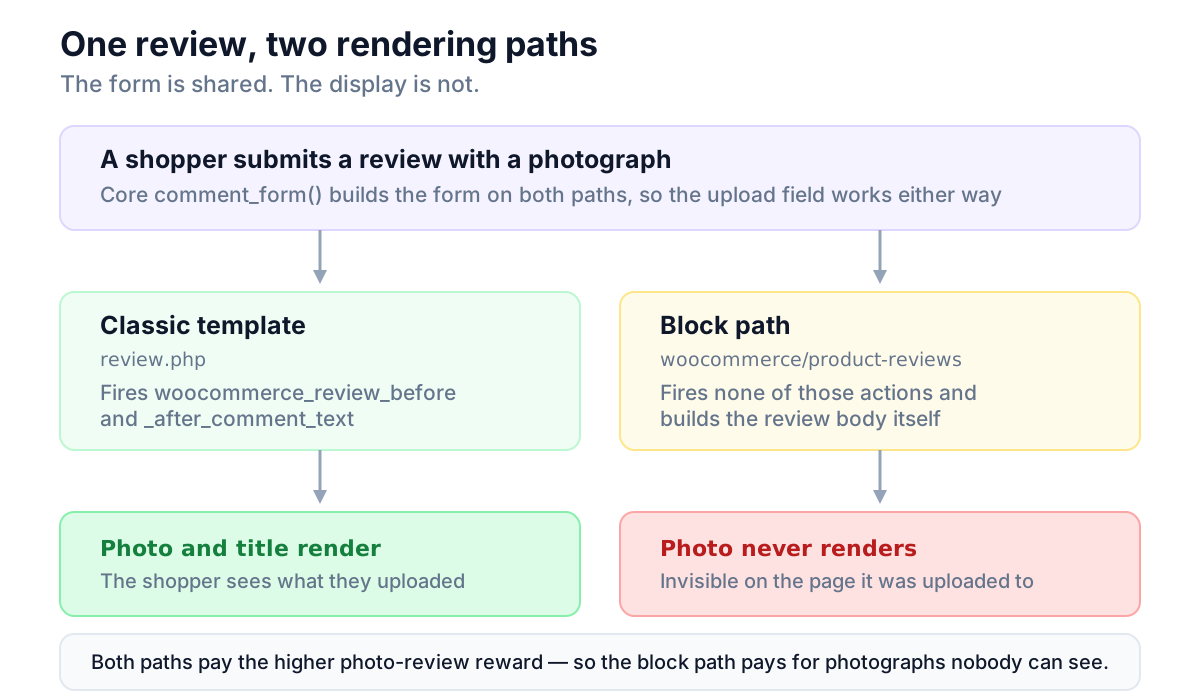
The classic path runs a PHP template and fires a series of actions as it goes — hooks with names like woocommerce_review_before_comment_text and woocommerce_review_after_comment_text. Essentially every review plugin on the market hangs its extras on those: the photograph, the review title, the badges, the helpful button.
The block path — the one a block theme uses, on a template edited in the Site Editor — renders reviews through a woocommerce/product-reviews block instead. It builds the review body itself and fires none of those actions. Not a deprecated version of them, not a renamed version — none.
The distinction is finer than "block themes are unsupported", and it decides which plugins break. The block's inner product-review-content block builds the body by calling get_comment_text() and applying the comment_text filter. So an extra added through a filter on the comment text still appears, while anything that echoes into a woocommerce_review_* action never runs. Photographs and review titles are almost always built the second way, which is why they are the parts that vanish.
Nothing errors. No warning appears in a log. The plugin's code simply never runs, which is why this survives a PHP notice sweep, a deprecation scan and a page-load test alike. Our write-up of the Product Reviews block skipping review hooks shows exactly which templates are affected, how to check a store, and a fix plugin authors can use.
And here is the shape that makes it expensive. The review form is built by WordPress core on both paths — the same comment_form() either way. So the upload field still appears, the shopper still attaches a photograph, the file still saves, and the higher photo-review reward is still paid. Only the display side is missing. You pay for a photograph that is invisible on the page it was uploaded to.
How to tell which path your store is on
The good news is that most stores are still on the classic path, and it takes a minute to confirm which one you are.
WooCommerce's default product template still delegates to the classic renderer — it contains a single "legacy template" block rather than the product blocks — so even on a modern block theme you get the classic path until somebody deliberately changes it. A store reaches the block path by converting that template to the blockified version, in the Site Editor or by choosing a theme that ships one.
To check:
- Open Appearance → Editor → Templates → Single Product.
- If you see one placeholder block standing in for the whole product, you are on the classic path.
- If you see separate blocks — product image, title, price, and a reviews block — you are on the block path.
If you are not sure, the empirical test is better than the theoretical one, and you should run it anyway.
Four questions to ask about any photo review plugin
| What to ask | Why it matters |
|---|---|
Does it render on the woocommerce/product-reviews block, not just the classic template? | Decides whether photographs appear at all on a block theme |
| Does it read the server's upload ceiling, or only its own setting? | Decides whether the limit shown to customers is the limit in force |
| Does the file picker enforce the accepted formats? | A format refused after upload costs the customer the whole submission |
| Is the reward credited on approval or on submission? | Decides whether you are paying for reviews or for uploads |
The test to run before you trust any plugin
On a staging site, or on a real product you can unpublish afterwards:
- Submit a review with a photograph attached, as a customer would.
- Approve it.
- Open the product page logged out, in a private window.
- Look for the photograph.
If it is not there, the plugin covers the classic path only, and the question to ask its developer is specifically whether it renders on the woocommerce/product-reviews block — not whether it "supports block themes", which is ambiguous enough that the answer is usually yes regardless.
Do the logged-out step. An administrator is the one visitor who can be shown things nobody else sees, and a reviews area is exactly where that happens.
Displaying photos so they do some work
Collecting photographs is most of the battle, but where they sit on the page decides how much they earn you.
- Put them in the review, not only in a gallery. A wall of thumbnails at the top of the reviews tab is good; a photograph next to the words that explain it is better, because the caption is what makes the picture mean something.
- Make them open full size. A shopper who is checking a colour wants to look closely, and a thumbnail that does nothing is a dead end.
- Give them real alt text. A customer photo with an empty
altis invisible to screen readers and worthless to search engines. Alt text built from the product name is a reasonable default. - Do not let them push the reviews off the page. Photographs are big; reviews are the content. A sensible thumbnail size keeps ten reviews visible where three would otherwise be.
- Lazy-load them. Review photographs sit well below the fold and are usually the heaviest thing on a product page. They should never compete with your main product image for the initial load.
That last point is where a hosted widget costs you twice: the photographs arrive through a third-party script, on another origin, after the page has already rendered — which is felt directly in Largest Contentful Paint. Photos stored in your own media library are just images on your own page.
A short checklist
- Confirm your server's real upload limit, and set the plugin's at or below it.
- Set a photo reward several times the text reward, and show both on the form.
- Switch the reward to credit on approval rather than on submission.
- Add the disclosure sentence above the review form.
- Check the accepted formats are enforced in the file picker, not after upload.
- Submit, approve and view one photo review logged out — on your real theme.
- If you are on a block theme, do step 6 before you pay for anything.
Where NeoGrow fits
NeoGrow is the free plugin we build, and photo reviews are the part of it this post is about.
It adds a photograph and a title to WooCommerce's own review form rather than replacing it, pays loyalty points for a review — more for one with a photo — and credits those points only once you approve it. The reward figures are yours to set; out of the box a text review earns 10 points and a photo review 50, which is the 5:1 gap described above. It ships the incentive disclosure switched on, with editable wording, and hides it automatically on a store that has set its review rewards to zero, because the sentence would not be true there.
On the two limits: it reads your server's ceiling as well as its own and applies whichever is lower, warns you on the settings screen when the figure you have typed is one your server will not honour, and shows the real limit on the review form before the customer picks a file. Uploads are constrained to JPEG, PNG and WebP in the file picker itself.
On the block-theme trap: it renders the review title and photograph on the woocommerce/product-reviews block as well as the classic template, so the photograph a customer uploads appears on either path. Its admin also tells you which path your theme is using, rather than leaving you to work it out.
Two honest limits. The free tier captures one photograph per review, and it does not add sorting, filtering or a rating-distribution bar. Full setup is in the NeoGrow documentation.
Frequently asked questions
Does WooCommerce support photo reviews?
No. WooCommerce's review system is built on WordPress comments with a star rating attached, and neither has a file upload. The review form, the verified owner badge, the average rating and the moderation queue are all native, but photographs need a plugin.
Where are review photos stored?
In a well-behaved plugin, in your own WordPress media library, with the attachment linked to the review. That means they are yours: they back up with your site, they serve from your own domain, and no subscription holds them. Hosted review services store them on their infrastructure instead, which is what makes an export matter when you leave.
Why is my review photo not showing?
Four usual causes. The review is still awaiting approval. The file exceeded a size limit and was dropped before it was attached. The plugin only renders on the classic template and your store has been converted to the block product template. Or you are looking as an administrator at something a logged-out visitor sees differently — always check in a private window.
How large should I let review photos be?
Large enough for a modern phone photograph, which usually means at least 5 MB, and never larger than your server's upload_max_filesize. Setting the plugin's limit above the server's does not raise the real limit; it only changes the number the customer is shown before the upload fails.
Can I give customers points or a discount for a photo review?
Yes, and paying more for a photograph than for text is both normal and effective. Three conditions: the reward must be the same for a critical review as for a glowing one, it must be disclosed on the page, and it should be credited only after the review is approved so you are not paying for spam.
Do photo reviews slow down a product page?
They can, and it depends entirely on where they come from. Images in your own media library, lazy-loaded and sized as thumbnails, cost very little. A hosted review widget costs a third-party script and another origin on every product page, which is felt in Largest Contentful Paint whether or not any photographs exist.
Will photo reviews work on a block theme?
The upload will. The display depends on the plugin, because WooCommerce's block review path fires none of the hooks most plugins attach photographs to. Ask specifically about the woocommerce/product-reviews block, and test one review end to end on your own theme before relying on it.
Start with one product
Pick the product that gets the most questions before purchase — the one where people email to ask what colour it really is, or whether it will fit. That is where a customer photograph is worth the most, and where you will see the effect soonest.
Set a reward large enough to be worth the effort, ask the people who already bought it, approve what comes back, and then go and look at the page the way a stranger sees it. The mechanism only pays off once, and after that every photograph on it keeps working without being paid for again.