NeoGrow Plugin Documentation
1. Introduction
1.1 Welcome to NeoGrow & Features
Welcome to NeoGrow, the ultimate Loyalty & Photo Reviews Engine designed specifically for modern, high-performance WooCommerce stores.
NeoGrow helps you abandon expensive, bloated SaaS platforms in favor of a lightweight, native solution. Our goal is to help you turn one-time buyers into loyal brand advocates by combining a robust Points Reward System with User-Generated Content (UGC) tools. It is a WooCommerce points and rewards plugin and a WooCommerce photo reviews plugin in one install, so the two halves share a single ledger.
Everything documented here works in the free plugin unless it carries a Pro badge — those features are provided by NeoGrow Pro, a separate add-on plugin.
Core Features
- 💰 Smart Loyalty Points: Drive repeat sales by automatically rewarding customers for purchases. Customers earn points they can redeem for dynamic discounts at checkout.
- 📸 Viral Photo Reviews: Boost conversion rates by incentivizing customers to upload real photos of your products. Visual reviews build trust faster than text alone.
- ⚡ HPOS High-Performance: Built for speed. NeoGrow uses custom database tables and is 100% compatible with WooCommerce High-Performance Order Storage (HPOS), ensuring zero impact on your site load times.
- 🌍 Multi-Currency Accurate: Points are always calculated against your store's base currency, so the same basket earns the same points whatever currency the customer paid in, and redemption discounts are shown in the currency they are browsing. See 3.4 Multi-Currency Stores.
- 🎨 Native Integration: Works seamlessly inside your WordPress dashboard and inherits your theme's styling automatically.
1.2 System Requirements
To ensure optimal performance, your store should meet the following requirements:
| Component | Requirement |
|---|---|
| WordPress | Version 6.6+ |
| WooCommerce | Version 8.0+ |
| PHP Version | 8.3+ recommended |
| Elementor (optional) | Version 3.24+ for the four NeoGrow widgets. The free version is enough; Elementor Pro is not required. Without Elementor nothing changes, and the shortcodes still work. |
| Documented version | NeoGrow 1.2.22 |
1.3 What’s New in 1.2.22
- Review reminders no longer pass over an order. Besides the reminder it schedules when an order completes, NeoGrow runs a daily check for completed orders that are due one and have not had it. That check could step past an order for good when more than 50 were due at once, such as the first days after switching reminders on. It now walks orders in a way it cannot skip, and the first check after updating looks back to when you switched reminders on, so an order passed over before is reminded now, later than your usual delay. On stores using High-Performance Order Storage the check is also cheaper, because it reads an indexed column. Nothing to set up.
Earlier: what 1.2.21 brought
- Review rewards no longer look like orders in the customer’s points history. My Account labelled every review reward as an order (“Review Earn (Order #482)”), using the review’s own number as an order number, so a customer could be pointed at an order that did not exist, or at a different order of their own. A review reward now names the product reviewed and links to the review; purchases and redemptions show your store’s order number and link to the order.
- Event names can be translated. The points history and the admin points log now read Purchase, Spent at checkout, Review reward, Expired and Adjusted by the store, in your store’s language. They used to be built from internal keys and always appeared in English.
- The admin points log links each entry to the order or review it refers to. See 5.3 The Transaction Log.
- Extension API raised to 2.4, with
neogrow_ledger_event_types. See 9.2 Hooks & Filters.
Earlier: what 1.2.20 brought
- A notice when another review plugin has switched NeoGrow’s review features off. Some review plugins can take WooCommerce’s product reviews over completely. When that has happened, an admin notice names the plugin, lists exactly what stopped and what still works, and links to the one setting that restores NeoGrow’s review features. It covers Customer Reviews for WooCommerce set to its “CusRev (enhanced)” visual style, and Site Reviews with its WooCommerce integration on. Both plugins at their default settings leave NeoGrow working, and then the notice stays silent. It is shown to admins only and can be dismissed.
Earlier: what 1.2.19 brought
- Elementor widgets load only where they are used. Elementor asks every add-on for its widgets on every page, including pages not built with Elementor, so 1.2.18 loaded all four NeoGrow widgets on every page view. They now load only on pages that use them. Pages with a NeoGrow widget, and the Elementor editor, are unchanged. See 6.6 Elementor & Page Builders.
- Translations come from WordPress.org. NeoGrow no longer loads its own translation files; WordPress installs and loads the language packs from translate.wordpress.org. Nothing changes for your store.
- Extension API raised to 2.3, with
neogrow_elementor_lazy_widgets. See 9.2 Hooks & Filters.
Earlier: what 1.2.18 brought
- Four Elementor widgets, all free. A NeoGrow category in the Elementor panel holds Product Points, Product Reviews, Points Balance and Points Redemption. They work with Elementor’s free version, start from your NeoGrow Design colours, show a sample in the editor, and are never cached from one customer to the next. See 6.6 Elementor & Page Builders.
- The points message now appears on page-builder product templates. Elementor Pro’s Theme Builder rebuilds the product page from widgets and skips the place WooCommerce normally provides, so “Earn N points with this item!” was silently missing there. It now appears directly above the add-to-cart button on those pages. Themes that already showed it are unchanged, and placing the Product Points widget or shortcode in the template switches this automatic position off.
- A new shortcode,
[neogrow_product_points], places the points message anywhere — for the product being viewed, or any product withid="123". Useful in Divi, Bricks, Oxygen and custom layouts. See 9.1 Shortcodes. - The redemption form appears once per page. A layout that showed it twice left the second copy unable to apply points.
- The points message follows the chosen variation even when it sits outside the product’s own section of the page, as a widget or shortcode placement can.
- Extension API raised to 2.2, with
neogrow_product_message_fallback_hooksto move or switch off the automatic position. See 9.2 Hooks & Filters.
Earlier: what 1.2.13 to 1.2.17 brought
- 1.2.17 — review titles save everywhere. A title typed into a review form outside an ordinary product page (a page-builder template, a page embedding a product’s reviews) used to be dropped silently. It now saves wherever the form appears.
- 1.2.16 — reviews from WooCommerce’s Review Order page earn points. The page WooCommerce’s review request email links to writes reviews without the hooks NeoGrow listens on. NeoGrow now records the order’s account holder against such a review and pays them. The points line in that email quotes the text reward, since the page collects stars and text only, and appears only on orders that belong to an account.
- 1.2.15 — star ratings show again in the review list on themes that keep WooCommerce’s own review markup, such as Storefront and Twenty Twenty-Five.
- 1.2.14 — simpler review rewards. A review earns the text reward, or the photo reward when a photo is attached. Nothing else changes what it pays.
- 1.2.13 — explainer videos and a product-name tag. A play button beside several settings opens a short clip of what the setting does on your storefront. The review disclosure statement accepts
{product_name}. Reminders gained theneogrow_reminder_review_urlandneogrow_core_owns_remindersfilters.
Earlier: what 1.2.5 to 1.2.11 brought
- 1.2.11 — the points log finds a customer by the name shown in its Customer column.
- 1.2.10 — the dashboard leads with the orders and reviews waiting for you, and WooCommerce’s Product Reviews screen shows the photo a customer attached, so a photo review can be approved without opening it. Points-log search is fast on large stores.
- 1.2.9 — the product page and My Account quote the rate your store will actually pay, and every per-customer figure is priced for the customer it is about. Stock stores are unaffected.
- 1.2.8 — the review form says what a review earns and when (“Add a photo to earn 50 points instead of 10 points”). Refund and cancellation emails no longer claim points were earned. Upload Photo works from the keyboard.
- 1.2.7 — Helpful votes and a Report link on reviews. See 4.4 Helpful Votes & Reports. Customers also see what their points are worth (“115 points, worth $1.15”), and the setup wizard is offered from a notice rather than taking over the screen.
- 1.2.6 — styles and scripts load only where they are used, review thumbnails are made in the background, and Settings shows the largest photo your server accepts. On Astra the points message sits beside the price.
- 1.2.5 — a review disclosure statement above the review form, saying customers can earn points for reviewing. See 4.1 Configuration.
Earlier: what 1.2.12 brought
- A new screen that says what NeoGrow changed on your store. Marketing > NeoGrow > On your store lists every change the plugin makes to your storefront — where each one appears, whether it is live right now, and where to change it — using your own earn rate and prices rather than examples. It exists because most of what NeoGrow does is invisible on a new store: four of the seven things it adds only appear once a customer has points, so an empty shop can look as though nothing happened. See 2.6 On Your Store.
- You can browse your own shop as a customer sees it. The same screen lends you a sample balance for thirty minutes, so the redemption panel and the My Account card appear on your real storefront without placing an order or giving yourself points. Three settings — a sample balance, your real balance, or a customer with no points at all. Nothing is written to your points history, no customer can see it, and points cannot actually be applied to an order while it is on.
- The dashboard of a store that has not traded yet now explains itself instead of showing seven figures all reading zero.
- NeoGrow now appears in WooCommerce’s own task list, and the setup wizard finishes on the new screen rather than the dashboard.
- The same screen reports what might stop a change from showing on your particular store — a page cache, a currency switcher whose rate cannot be read, a block theme taking a different render path, or another active plugin that also awards points and therefore keeps a second balance.
- The Guide tab no longer repeats where each feature appears. That list said the same things as the new screen, without your store’s own figures, so Quick Start now points there — while keeping the two details the new screen does not carry: points for an order arrive when it is marked Completed, and points for a review are credited once you approve it.
- Extension API raised to 1.7, with
neogrow_store_changesandneogrow_competing_points_plugins. See 9.2 Hooks & Filters.
Earlier: what 1.2.4 brought
- Review titles and photos now display on block themes. If your product page uses WooCommerce’s block-based product reviews, the review title and the customer’s photo were captured and rewarded but never shown — the shopper earned the higher photo-review points and the photo stayed invisible. They now render there exactly as they do on classic themes, with no setting to switch. NeoGrow Pro’s extra photos and video are covered on the same path, with no Pro update needed.
- Faster Users screen. The Loyalty Points column now reads the whole page’s balances in one query instead of one query per user.
- Orders record the earn rate that was applied. Each rewarded order now stores the rate in effect when its points were awarded — groundwork for auditing what a future tier bonus contributes, kept from day one because it cannot be reconstructed later.
Earlier: what 1.2.3 brought
- A much faster points log and dashboard on large stores. The points log was sorting your entire points history to draw one page of it, and the dashboard chart read the whole table too. Both now use a database index: on a store with 200,000 log entries the points log went from around 740 ms to under a millisecond, and the chart from 800 ms to 200 ms. The first page load after updating takes slightly longer while the index is created — it happens once.
- Reactivating after an offline update now applies pending database changes, rather than recording the new version and skipping them.
Earlier: what 1.2.2 brought
- Review reminder emails. NeoGrow can now email a customer a while after their order asking them to review what they bought, and the email says how many points a review is worth. It is off by default — turn it on under Marketing > NeoGrow > Settings. Customers who have already reviewed everything on their order are never emailed, and every message carries a one-click opt-out. Full detail in 4.3 Review Reminder Emails.
- It works alongside WooCommerce’s own review request. WooCommerce 10.8 added a review request of its own. Where that is switched on and actually sending, NeoGrow steps aside and simply adds the points line to WooCommerce’s email rather than sending a second one. On older WooCommerce, or where that feature is off, NeoGrow sends its own.
- A Review reminder column on the Orders screen, showing when the reminder went out, with a Send now button for inviting one customer by hand — and Send again if they say they never received it. It appears only on completed orders, and never for a customer who has opted out.
- The points figure quoted for a review is now the larger of the text and photo rewards everywhere it appears. One place quoted the text reward only, which understated a photo review by five to one on default settings.
- “Reviews Rewarded” on the dashboard now counts approved product reviews rather than reward entries in the points log. The two disagreed: a review left by a guest, or approved while the review reward was set to zero, is live on your site earning you trust without ever having created a log entry. Your number may go up slightly, and it now matches what NeoGrow Pro reports.
- The dashboard chart no longer skips a month. On the 29th, 30th or 31st it drew two copies of one month and left another out entirely, and the bars after the gap belonged to the wrong months.
- Faster Orders screen. It no longer runs an extra database query for every row — on a page of orders from twenty different customers that was twenty queries; it is now one.
- Deactivating the plugin now clears every job it has queued. Previously the expiry batch job could be left behind in the scheduler.
- Extension API raised to 1.3, with new methods and filters for quoting review points and for building a follow-up sequence on top of the reminder. Admin tabs also accept an
orderand acallback, so an add-on can take over an existing tab instead of adding another beside it. See 9.2 Hooks & Filters.
Earlier: what 1.2.1 brought
- Variable products quote the right points. A product priced $20 to $200 kept reading “Earn 20 - 200 points” after the $200 option had been chosen. The message now updates to the points that option actually earns, and returns to the range when the selection is cleared. It follows WooCommerce’s own variation form, so it works with any variation swatch plugin.
- The order confirmation page now tells the customer about their points — “You will earn 40 points once this order is complete” beforehand, and “You earned 40 points on this order” afterwards. Previously the product page promised points and nothing ever confirmed them.
- The order emails WooCommerce already sends now carry the same line, along with the customer’s new balance, and the completed-order email invites them to review what they bought. Both are shown only to logged-in customers, never on guest, canceled, failed or refunded orders, and never in the copies sent to you as shop admin.
- A customer’s points balance is no longer written into the page. With a page cache set to cache pages for logged-in visitors, a cached page carrying
[neogrow_points_balance]or[neogrow_points]could show one customer another customer’s balance. The number is now fetched per shopper after the page loads. Nothing to configure; My Account was never affected. - A Site Health check under Tools > Site Health reports whether your points balances are safe from your page cache, and names the caching plugin it found.
Earlier: what 1.2.0 brought
- Points are now calculated on the subtotal, as documented. Earlier versions used the order total, so tax, shipping and fees earned points even though the manual said they did not. A $50 order with $10 postage awarded 60 points; it now awards 50. This reduces what new orders pay out on any store charging tax or postage — review your earn rate. Points already awarded are not recalculated, and
neogrow_earn_base_amountrestores the old behavior if you want it. See 3.1 Earning Rules. - Refund reversal measures against the subtotal too Pro. Refunding only the postage on an order now takes back nothing, because postage earned nothing; previously it clawed back a proportional slice of the product points.
- Multi-currency stores are now calculated correctly. Points were previously worked out from the order total in the currency the customer selected, while your earn rate is configured in the store’s base currency — so a store selling in more than one currency awarded too many or too few points, by the exchange rate. Orders are now converted back to the base currency before points are calculated, using the exchange rate recorded on the order where one is available. Points already awarded by earlier versions are left exactly as they were. Full detail in 3.4 Multi-Currency Stores.
- Redemption discounts are converted too. The discount is now expressed in the currency the shopper is browsing in, so the figure quoted in the redemption panel is the figure taken off the cart. The redemption cap, the product page “Earn X points” nudge and the My Account earn-rate line convert as well.
- Three currency switchers are supported natively: WooPayments, CURCY and FOX. Others can be connected through two new filters,
neogrow_currency_rateandneogrow_order_exchange_rate— see 9.2 Hooks & Filters. If a switcher is converting prices and NeoGrow cannot read its rate, an admin notice now says so instead of letting points go quietly wrong. On a store selling in a single currency, nothing changes. - NeoGrow moved under Marketing. The plugin now lives at Marketing > NeoGrow (or WooCommerce > NeoGrow when the Marketing menu is disabled), following the WooCommerce navigation guidelines, instead of adding its own top-level menu. Every existing link and bookmark to the page keeps working.
- The read-only "Points Expiry (Months)" row is gone. Expiry behavior is unchanged — points still expire after 6 months on a FIFO basis. Choosing your own window, or turning expiry off, is part of Pro, which adds the setting back as a normal editable field.
- The Plugins screen now offers Dashboard and Settings links under the NeoGrow name.
- Tested up to WordPress 7.1.
Earlier: what 1.1.0 brought
Version 1.1.0 was the largest release since launch. If you are upgrading from 1.0.x, these are the changes that affect how you use the plugin:
Cart and Checkout Blocks, natively
- The redemption panel now appears automatically in both the Cart and Checkout blocks. The old workaround of pasting a shortcode into a Shortcode block is no longer necessary, and the admin notice asking you to do it has been removed.
- The panel sits directly above the Add coupons row, so points are applied alongside coupons and before shipping, tax and the order total are calculated.
- Totals update live through the WooCommerce Store API — no page reload.
- The panel now states what the points are worth, for example “You are using 200 points for a $2.00 discount”, formatted in your store’s currency.
A documented developer API
- Around 40 hooks and filters are now public and documented — see 9.2 Hooks & Filters.
- A
NeoGrow\API\Pointsclass provides a stable way to read balances and write ledger entries — see 9.3 The Points API. - You can rename “points” to anything you like from a single filter.
Corrections worth knowing about
- Over-deduction fixed. Points are no longer over-deducted when the redeemed amount exceeds the cart value. The points debited now always match the discount actually granted, and the balance is re-checked at the moment of purchase.
- Redemption feedback fixed. Applying no points, or fewer than a required minimum, used to report “Applied” on the classic cart and then quietly leave the discount off. Both are now refused with an explanation.
- Upload security tightened. Review photo uploads now require a logged-in user and are restricted to product reviews. The temporary upload permission is scoped to the review author rather than granted site-wide.
- The 500-point administrator bonus has been removed. Earlier versions seeded the activating administrator with 500 points. Existing balances are unaffected.
- Database updates now run on any request rather than only inside wp-admin, so stores administered over WP-CLI or a headless front end are no longer left on an older schema.
2. Installation & Setup
2.1 How to Install NeoGrow
Getting started with NeoGrow is simple. You can install the plugin directly from your WordPress dashboard or manual ZIP upload.
Option A: Install via WordPress Dashboard (Recommended)
- Log in to your WordPress Admin Dashboard.
- Navigate to Plugins > Add New.
- In the search bar, type:
NeoGrow. - Find NeoGrow: Loyalty Points & Photo Reviews in the results.
- Click Install Now, then click Activate.
Option B: Manual ZIP Upload
- Download the
neogrow-loyalty.zipfile from the repository. - Go to Plugins > Add New and click the Upload Plugin button at the top.
- Choose the
.zipfile from your computer and click Install Now. - Once installed, click Activate Plugin.
2.2 First-Time Setup Wizard
Upon activating the plugin, you will be automatically redirected to the NeoGrow Setup Wizard. This zero-config onboarding process gets your loyalty program running in less than 2 minutes.
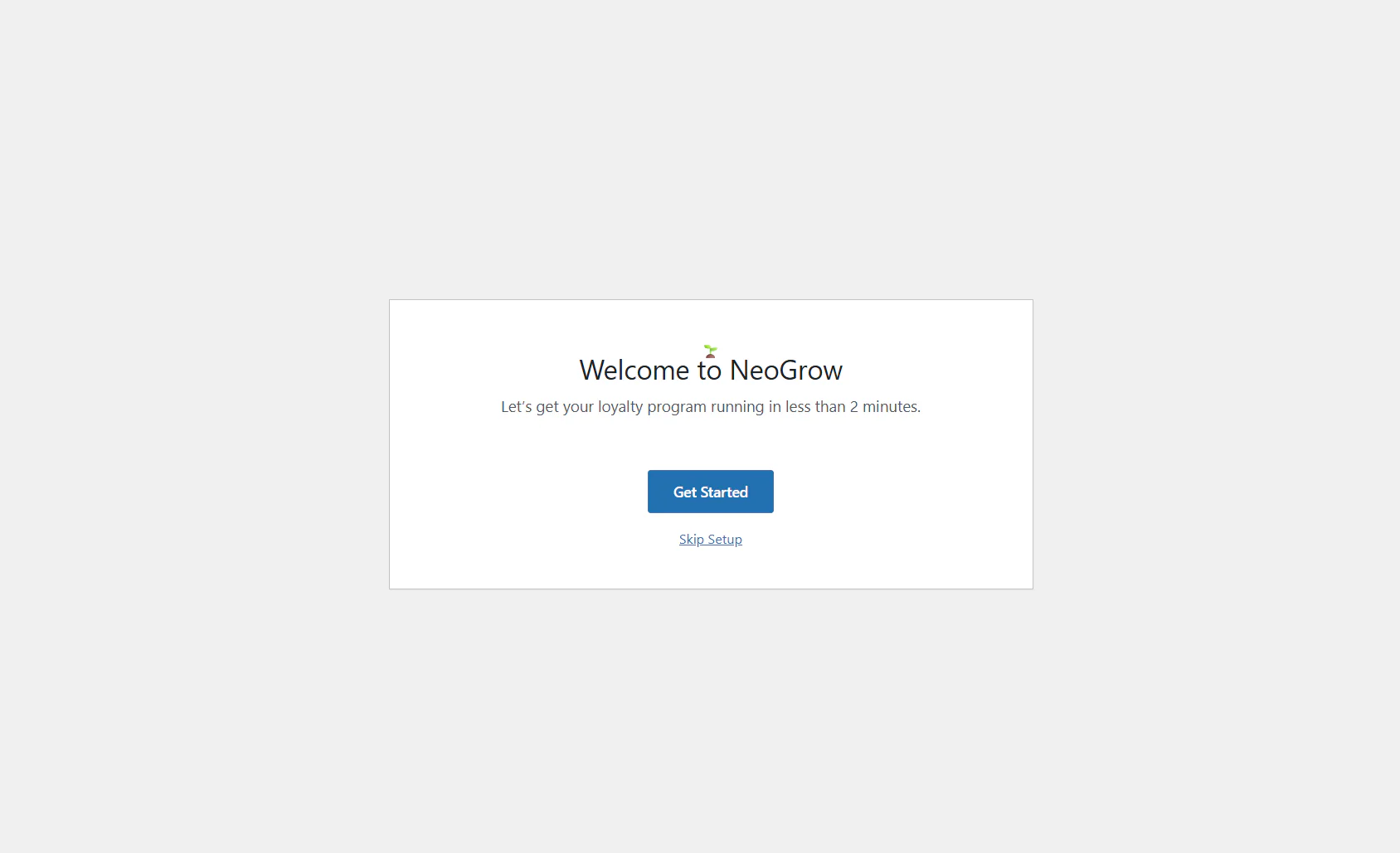
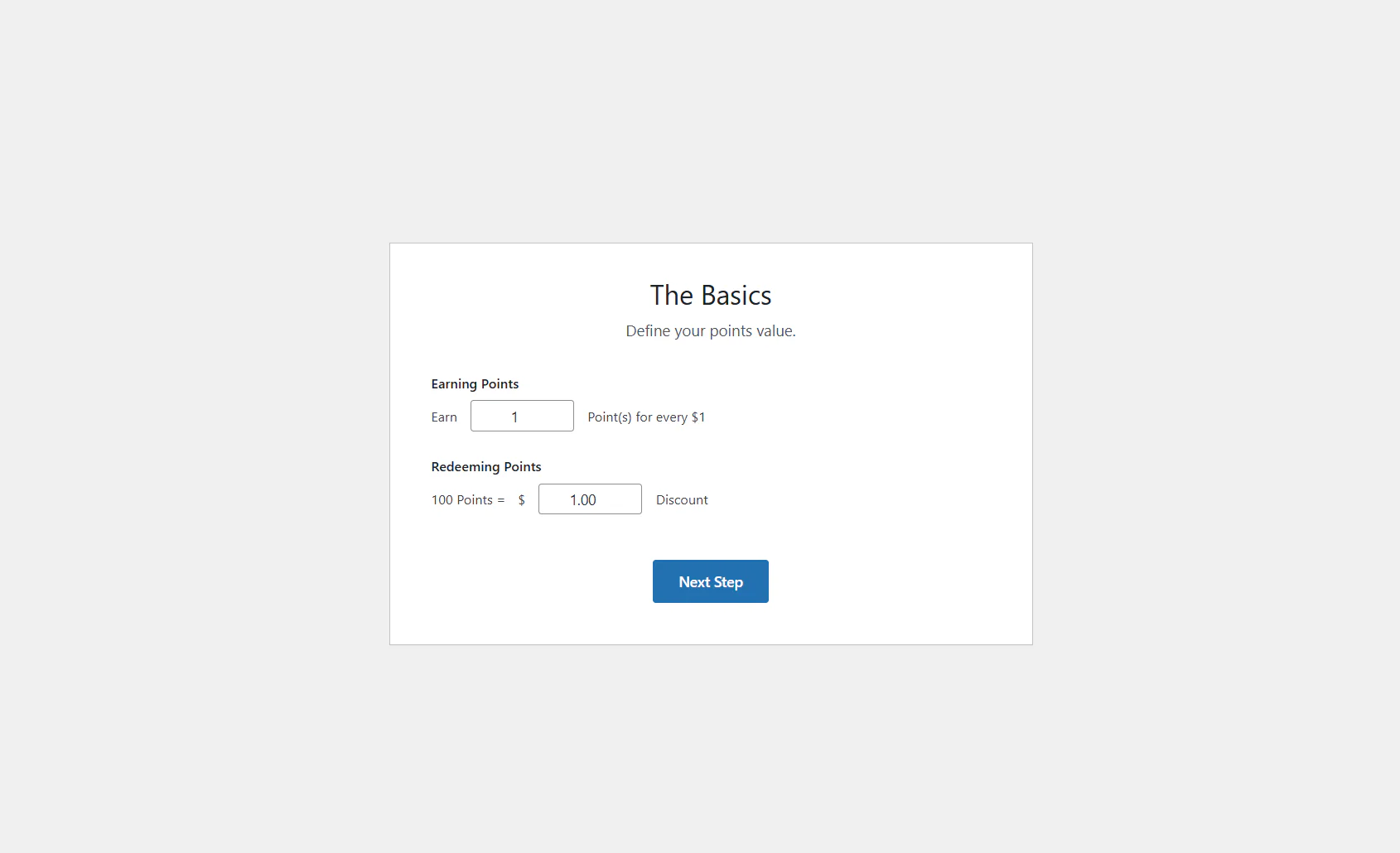
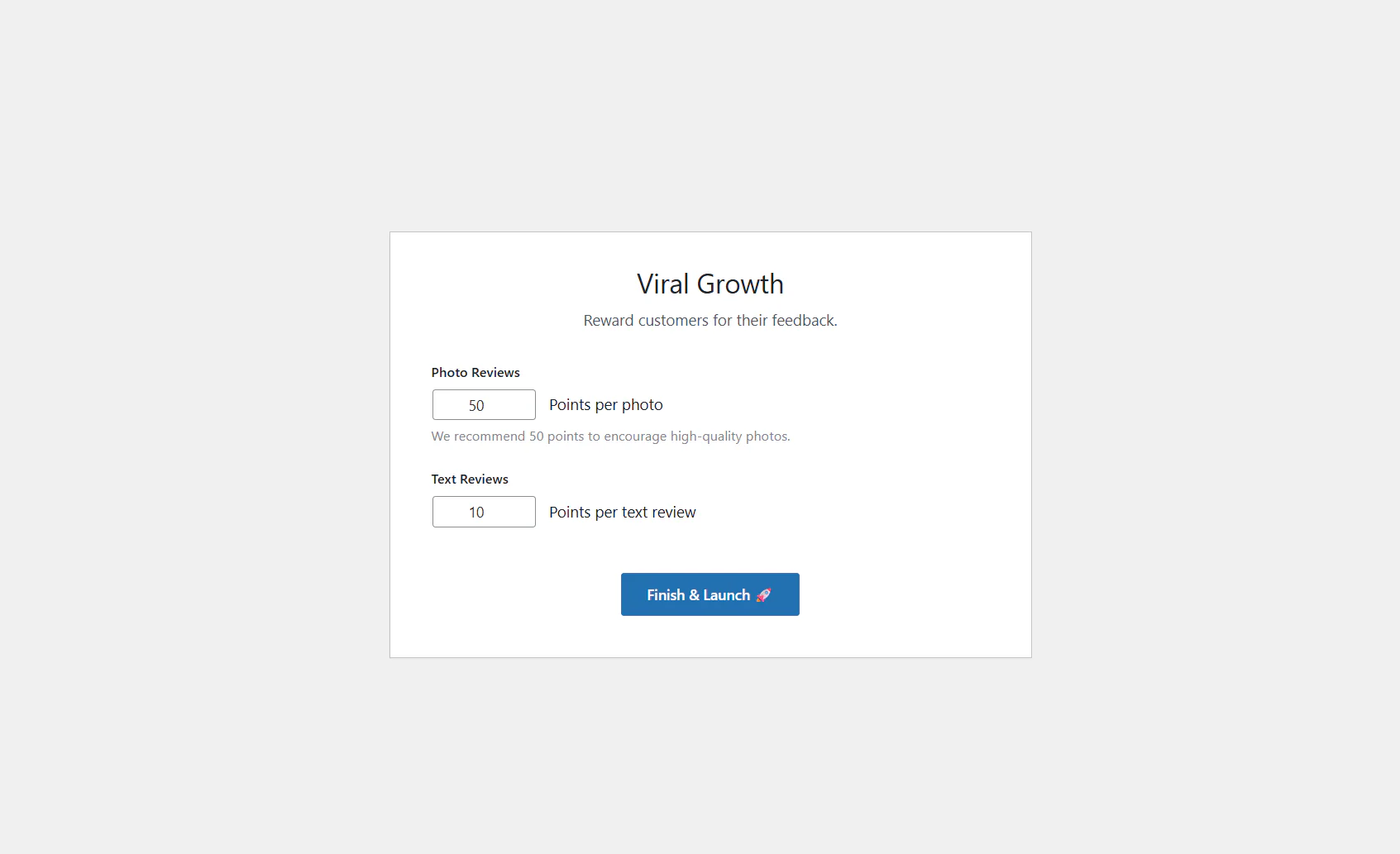
The Wizard Steps:
- Welcome: Click "Get Started" to begin.
- The Basics (Points Value):
- Earning Rate: Define how many points a customer earns for every $1 spent (Default: 1 Point).
- Redemption Rate: Define the value of your points (Default: 100 Points = $1 Discount).
- Viral Growth (Reviews):
- Photo Points: Set the reward for uploading a photo review (Recommended: 50 Points).
- Text Points: Set the reward for a standard text review (Default: 10 Points).
Once you click Finish & Launch 🚀, your program is live!
2.3 The "Classic Cart & Checkout" Setup
NeoGrow is fully compatible with both the modern WooCommerce Cart & Checkout Blocks as well as the traditional Classic Shortcode layouts. If you prefer to use the classic layout, or if your theme requires it, you can set it up in a few simple steps.
Step 1: Create the Classic Pages
- In your WordPress dashboard, navigate to Pages > Add New.
- Create a new page and give it a title (e.g., "Classic Cart").
- Add a Shortcode Block to the page and enter the shortcode:
[woocommerce_cart]. - Repeat this process to create a checkout page (e.g., "Classic Checkout") using the shortcode:
[woocommerce_checkout]. - Publish both pages.
Step 2: Assign the Pages in WooCommerce
- Go to WooCommerce > Settings from your WordPress dashboard.
- Click on the Advanced tab.
- Under the Page setup section, locate the dropdown menus for Cart page and Checkout page.
- Select the new classic pages you just created from the respective dropdowns.
- Scroll to the bottom and click Save changes.
2.4 Block Cart and Checkout Setup
If you are using the modern Gutenberg Cart and Checkout Blocks, no setup is required. NeoGrow adds its own redemption block to both pages automatically, positioned directly above the Add coupons row.
That position is deliberate. Redeeming points is a discount, so it belongs alongside the coupon field and above every calculated line — subtotal, shipping, tax and the order total all update beneath it. A panel placed below the total would suggest points are applied to an already-final figure.
Optional: Placing the Panel Somewhere Else
If you want the redemption form in a different position, you can still place it by hand with the shortcode. Use this only if the automatic position does not suit your layout — otherwise you will end up with two panels on the page.
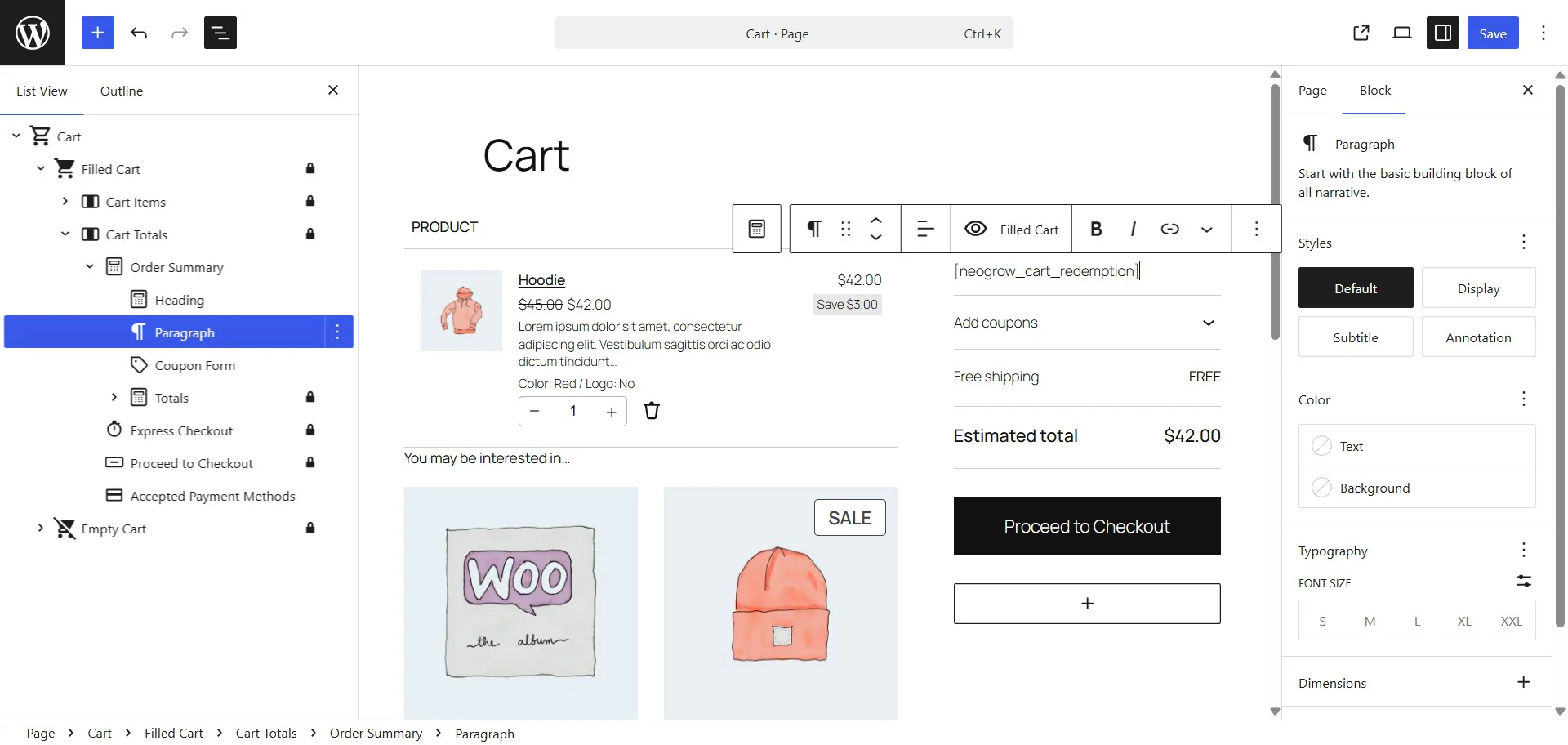
- Open your Cart or Checkout page in the WordPress editor.
- Click on the Document Overview icon (Shift+Alt+O) on the top left of the screen (it looks like 3 vertical bars).
- A left panel will open, displaying all the cart or checkout block elements in a structural tree.
- Navigate down through the tree to find the exact, desired element where you want the point redemption form to appear.
- Add a new Paragraph block at that specific location.
- Inside the paragraph block, enter the NeoGrow shortcode:
[neogrow_cart_redemption]. - Update the page to save your changes.
2.5 Admin Settings Configuration
NeoGrow lives under Marketing > NeoGrow in the WordPress admin menu, alongside WooCommerce's own marketing tools. If the WooCommerce Marketing menu is disabled on your site, it appears under WooCommerce > NeoGrow instead — direct links to the page work either way.
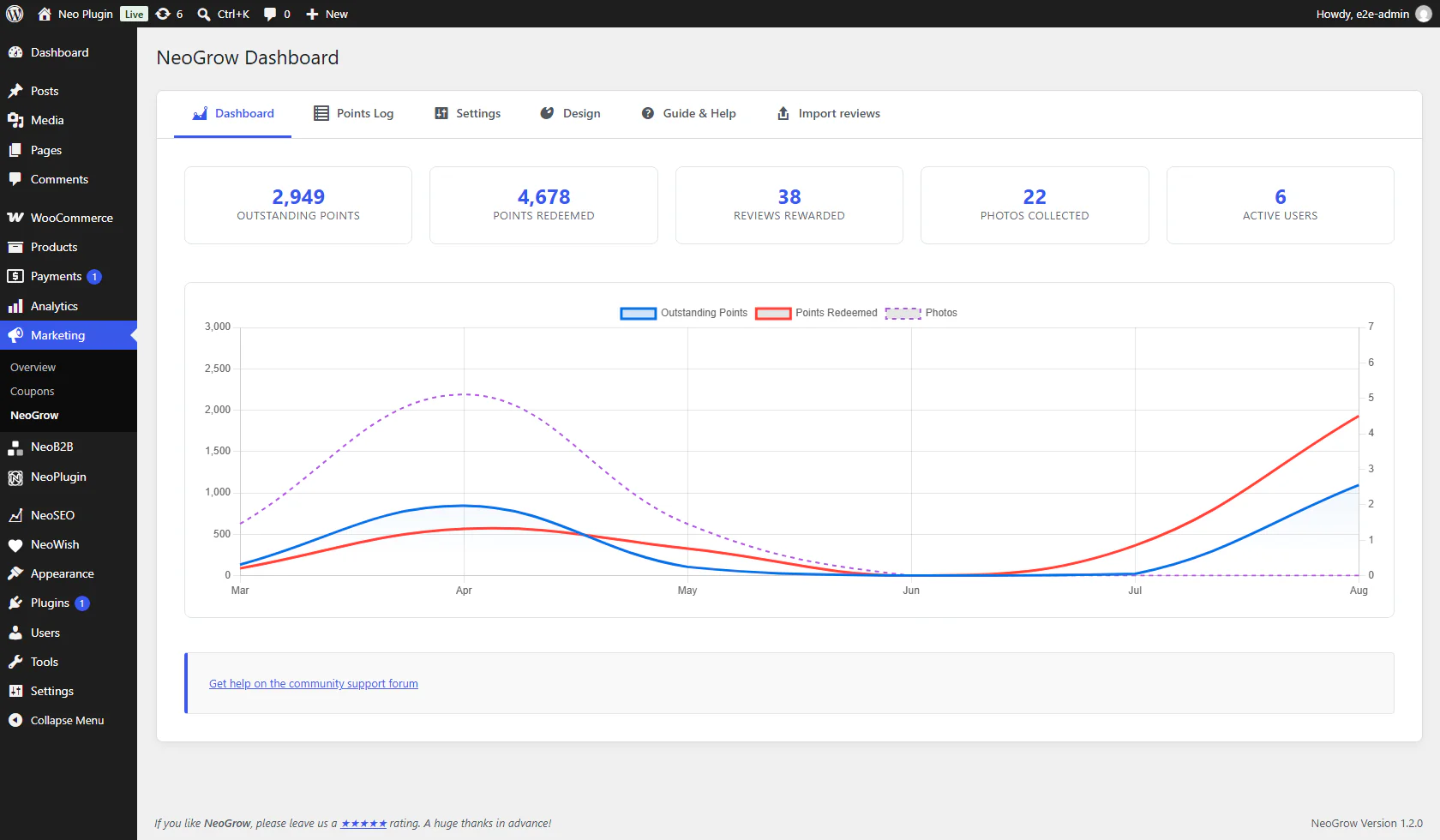
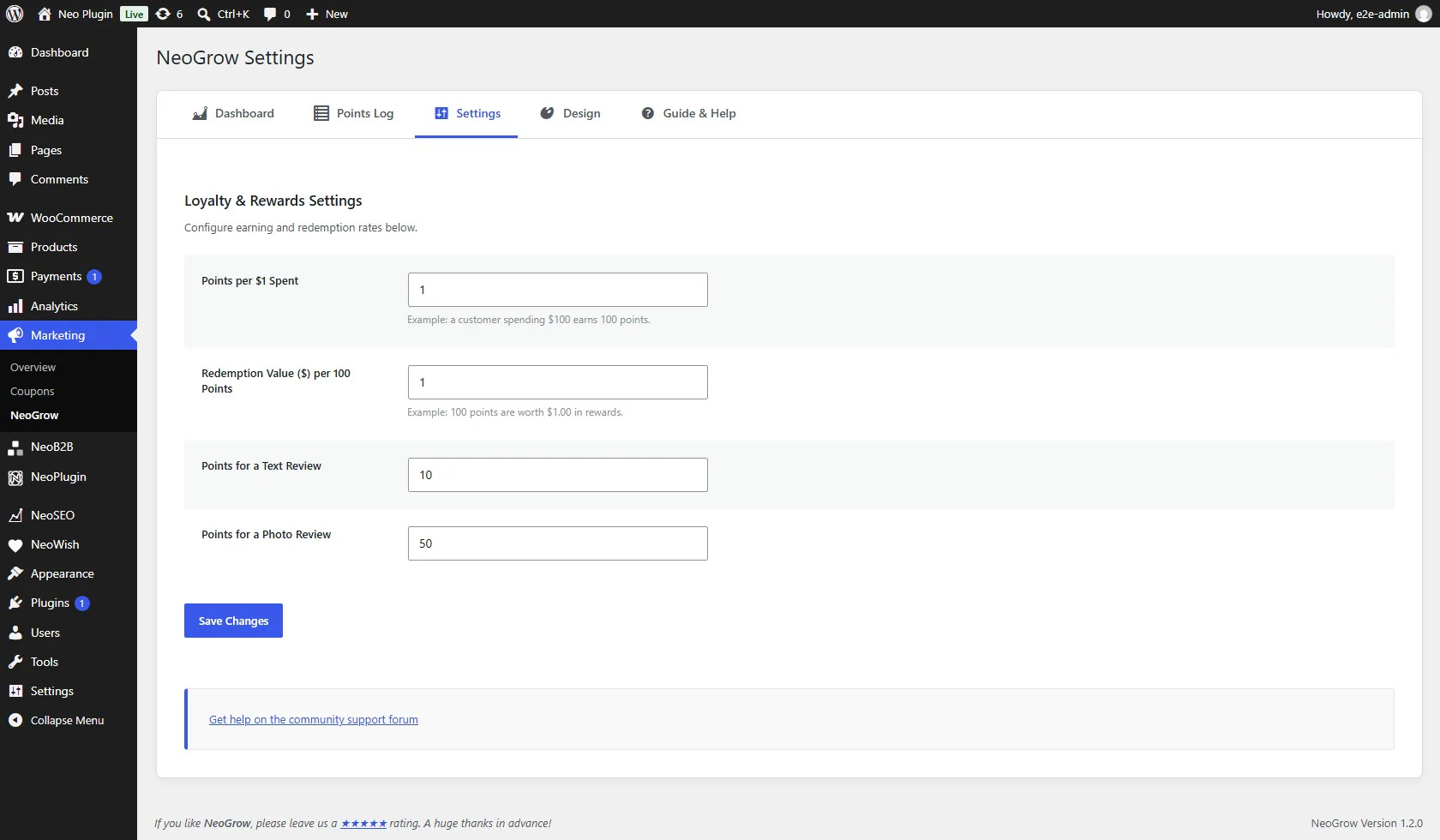
You can fine-tune every aspect of your loyalty program from the Marketing > NeoGrow > Settings page. Here is a breakdown of every available option:
| Setting Name | Description & Usage |
|---|---|
| Points per $1 Spent | Controls the "Earn Rate". E.g., if set to 1, a $50 order earns 50 points. Set to 0.5 to earn 1 point per $2 spent. |
| Redemption Value ($) per 100 Points | Controls the "Burn Rate". E.g., if set to 1.00, 100 points = $1 discount. |
| Points for a Text Review | The reward for a review without a photo (e.g., 10 points). |
| Points for a Photo Review | The reward for a review with a photo attached (e.g., 50 points). It replaces the text reward rather than adding to it: a review earns one or the other. |
| Photo Size Limit | Shows the largest photo your server will accept. The ceiling comes from your server’s PHP configuration, not from WordPress or NeoGrow. Tick the box to show the limit on the review form. |
| Show Review Disclosure | On by default. Shows a short statement above the review form saying customers can earn points for reviewing. See 4.1 Configuration. |
| Disclosure statement | The wording of that statement. Leave blank for the default. {product_name} is replaced with the product being reviewed. |
| Points Expiry Pro | In the free plugin, points expire on a fixed 6-month schedule via FIFO logic — there is nothing to configure. With the NeoGrow Pro add-on active, a Points Expiry (Months) field appears here so you can choose any window, or set 0 to never expire points. |
Design Customization Tab
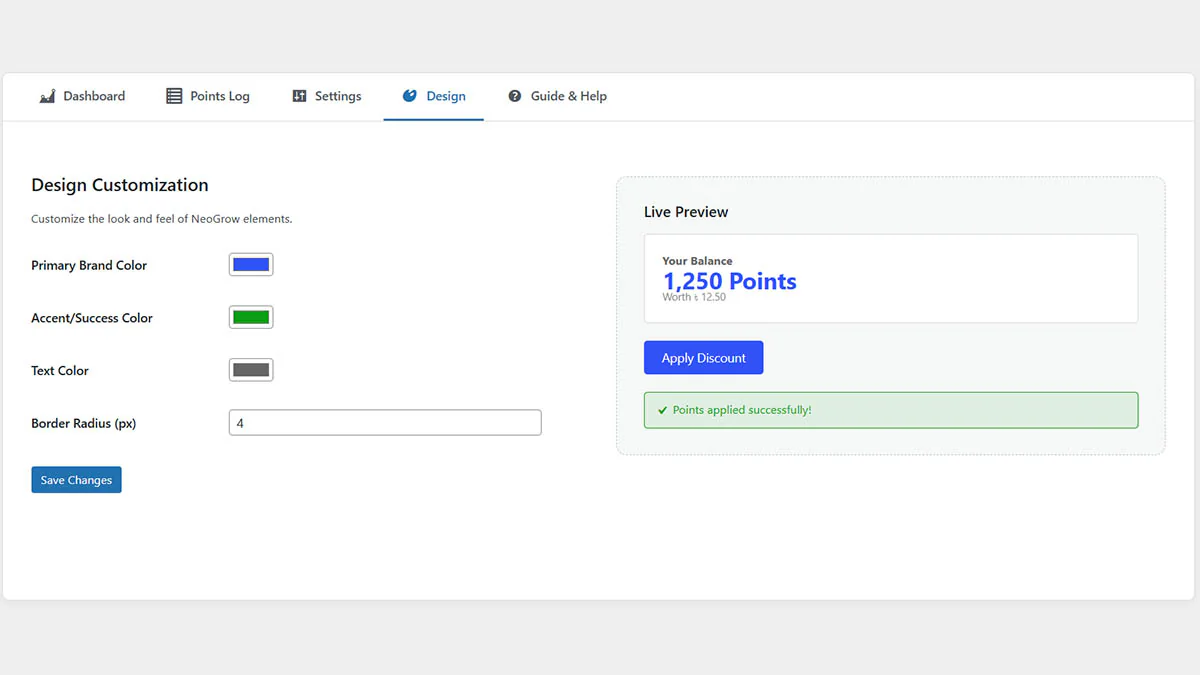
Switch to the "Design" tab to match NeoGrow to your brand:
- Primary Brand Color: Used for buttons, icons, and emphasis text (Default: WooCommerce Purple/Blue).
- Accent/Success Color: Used for positive messages like "You earned 50 points!" (Default: Green).
- Text Color: Controls the main text color inside loyalty cards.
- Border Radius: Adjust the roundness of buttons and inputs (e.g.,
4pxfor square,20pxfor pill-shaped).
2.6 On Your Store
Marketing > NeoGrow > On your store answers the question most merchants have in the first two minutes: what did installing this actually change? It lists every change NeoGrow makes to your storefront, using your own earn rate and prices rather than examples, and tells you whether each one is live right now.
Why the screen exists. NeoGrow changes seven things on your storefront with no configuration at all — but four of them render nothing until somebody has points. The redemption panel, the My Account balance, the order-received line and the points line in your order emails are all invisible on a shop that has not issued any points yet. That is correct behavior, not a fault, and without somewhere saying so a new store looks as though the plugin did nothing.
Each row tells you four things: what a shopper sees, whether it is live, where to change it, and a link that opens it on your own shop.
| Status | What it means |
|---|---|
| Live | Running, and there is something to look at right now. |
| Live — nothing to show yet | Running, but it needs data before it renders — a customer with points, or a photo review. Expected on a new store. |
| Off | Switched off in your settings. The row links to the setting that turns it back on. |
Seeing it the way a customer does
The screen can lend you a balance so the surfaces that need points appear on your real storefront — your theme, your prices, your currency — without placing an order or giving yourself points. Three settings:
- Sample balance — borrows 500 points, so the redemption panel and the My Account card render. Answers “what will my customers see?”
- My real balance — your own account, unchanged. Answers “what do I see as a real customer?”
- A customer with no points — forces zero. Answers “why is nothing showing — is it broken?”
What might be stopping a change from showing
The same rows report anything about your particular store that changes what you should expect to see. None of these is a fault; each one changes the picture:
- A page cache is active — balances are fetched per shopper rather than printed into the page, so a cached page carries nobody’s balance, unless something has switched that off.
- A currency switcher is converting prices and NeoGrow cannot read its rate, so points may be quoted against the wrong amount. See 3.4 Multi-Currency Stores.
- Your theme is a block theme, so reviews render through WooCommerce’s product-reviews block rather than the classic template. NeoGrow covers both paths.
- Your cart is the block Cart or the classic shortcode cart — the panel is placed differently on each, and the row says which one you have.
- Another active plugin also awards points, which means two separate balances and possibly two panels at checkout. NeoGrow names it rather than changing anything.
- You have no published products yet, so the earn message has nothing to appear on.
3. Configuring Loyalty Points
This section controls the "economy" of your loyalty program. By balancing how points are earned and burned, you can protect your margins while maximizing customer retention.
3.1 Earning Rules (The "Earn" Ratio)
The Earning Ratio determines how generous your program is. It defines how many points a customer receives for every dollar (or currency unit) they spend.
- Setting:
Points per Currency - Recommendation: A standard starting point is 1 Point for every $1 spent.
- How it works: If a customer buys a $50 product, they earn 50 Points.
- What counts: points are calculated on the order subtotal — the value of the products themselves. Taxes, shipping and fees are excluded, so you only reward customers for actual product value.
- Sales and coupons: a sale price is already part of the subtotal, so a discounted product earns points on its discounted price. A coupon is not, so a coupon does not reduce what the customer earns. If you would rather coupons cut the earning too, subtract
get_discount_total()in theneogrow_earn_base_amountfilter — see 9.2 Hooks & Filters.
3.2 Redemption Rules (The "Burn" Ratio)
The Redemption Rules control the value of your points during checkout. This is where you set the "Conversion Rate" and safety limits.
- Conversion Rate: Define what 1 Point is worth.
- Example: 100 Points = $1 Discount.
- In this scenario, if a customer has 500 points, they can get a $5.00 discount.
3.3 Points Expiry & FIFO Logic
Creating urgency is key to retention. Points Expiry automatically removes unused points after 6 months, nudging customers to return and buy before they lose their rewards. The free plugin's window is fixed at 6 months; choosing your own window, or turning expiry off entirely, is part of Pro, which adds a Points Expiry (Months) setting (0 disables expiry).
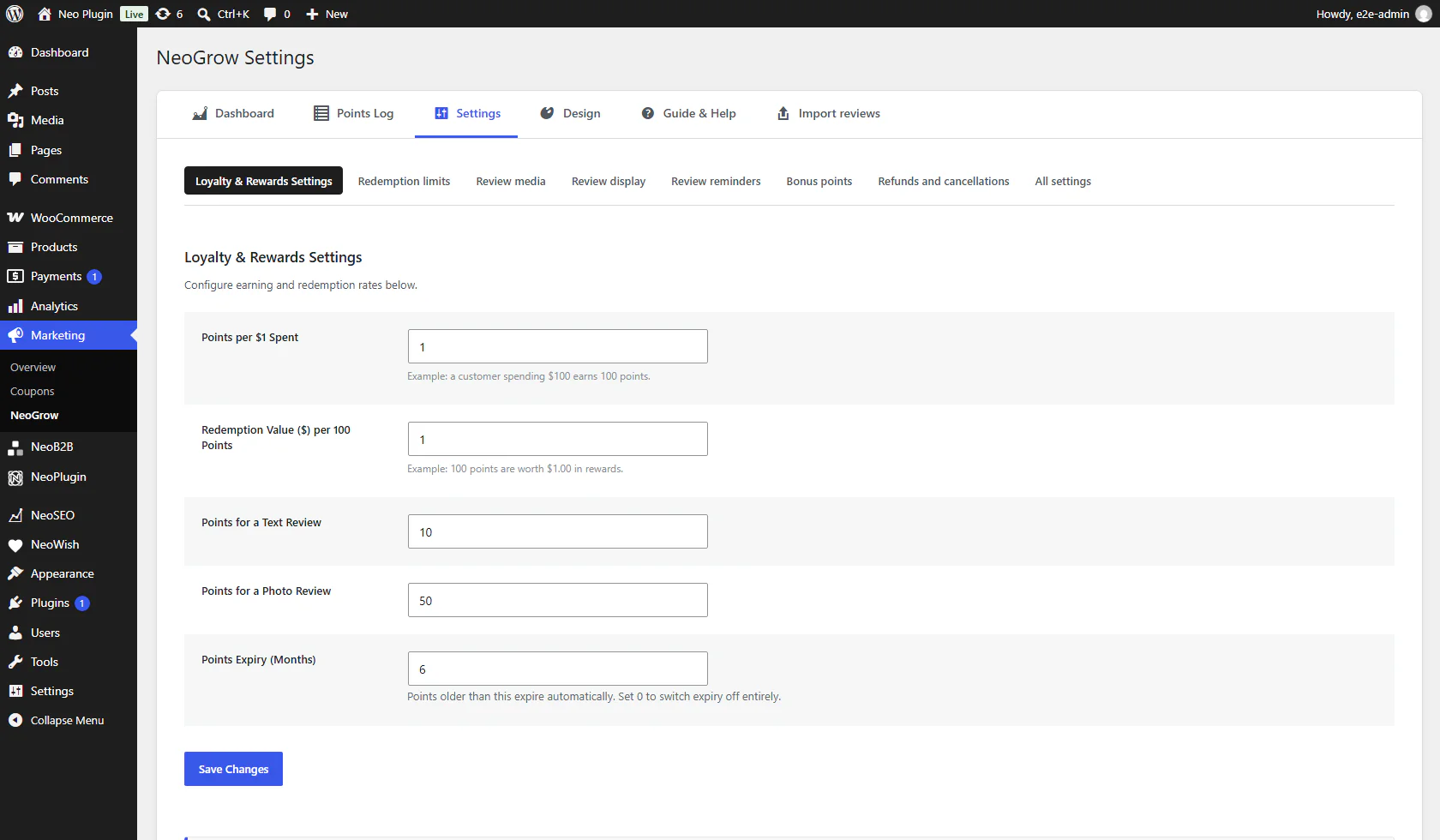
NeoGrow uses a smart FIFO (First-In, First-Out) system. This means when a customer redeems points, the system automatically uses their "oldest" points first, keeping their "newest" points safe.
📚 Real-World Example: The Customer Journey
To understand how NeoGrow calculates expiry, let's look at a real customer's transaction log. In this example, the expiry is set to 6 Months.
The Transaction Log (As of Feb 9, 2026):
| Date | Points | Status | Description |
|---|---|---|---|
| 2026-04-25 | -63 |
Expired | Expired unused points |
| 2026-04-22 | -120 |
Redeem | Redeemed on Order #72 |
| 2026-04-18 | +10 |
Safe | Review reward (1 Week ago) |
| 2026-02-25 | +50 |
Safe | Review reward (2 Months ago) |
| 2025-10-25 | +50 |
At Risk | Review reward (Exactly 6 mos) |
| 2025-10-25 | +133 |
At Risk | Purchase (Exactly 6 mos) |
💡 The "FIFO" Story: How we calculated -63 Expired Points
The system runs an expiry check on Feb 9, 2026. The "Cut-off Date" is exactly 6 months ago: Aug 9, 2025. Any points earned before that date are at risk.
Here is the step-by-step math:
1. Identify "At Risk" Points
- Event 1 (+133): Earned Aug 9. (Exactly on Cut-off).
- Event 2 (+50): Earned Aug 9. (Exactly on Cut-off).
- Total "At Risk" Points: 133 + 50 = 183 Points.
2. Apply Redemptions (FIFO Protection)
The customer redeemed 120 Points on Feb 6 (Event 5). NeoGrow intelligently pulls these from the "At Risk" pile first to try and save them.
3. The Final Calculation
- At Risk Points: 183
- Minus Redeemed: -120
- Remaining Old Points: 63
Result: Only the 63 unused old points expire. The newer points from December and February (Event 3 & 4) are kept safe.
3.4 Multi-Currency Stores
If your store sells in a single currency, this section does not apply to you and nothing in NeoGrow behaves differently. Skip to section 4.
Everything you configure in NeoGrow — the earn rate, the redemption value of 100 points, and the Pro redemption limits — is expressed in your store’s base currency, the one set at WooCommerce > Settings > General. A currency switcher, meanwhile, converts the prices and totals your customer sees. NeoGrow keeps those two worlds apart deliberately:
- Earning converts back to base. When an order earns points, its total is converted into your base currency first, then multiplied by your earn rate. A ¥3,000 order on a USD store with a 150:1 rate earns the points for $20 — not 3,000 points.
- Redemption converts outward. The discount your customer’s points are worth is calculated in base currency and then converted into the currency they are browsing in, so the amount quoted in the redemption panel is exactly the amount taken off the cart.
- The rate is taken from the order where possible. Where the currency switcher records the exchange rate it used on the order, NeoGrow reads that rate rather than today’s. Points therefore stay correct even if the rate moves between the customer checking out and you marking the order Completed. WooPayments records one on every converted order. CURCY has a field for it but, in the versions we have tested, does not reliably write it — so on a CURCY store NeoGrow falls back to the current rate. In practice that only matters if you change a rate while orders are sitting unfulfilled.
- Displayed figures follow. The product page “Earn X points” nudge, the redemption cap and the “Earn 1 point for every…” line in My Account are all converted for display.
| Currency switcher | Support |
|---|---|
| WooPayments (built-in multi-currency) | Native. Detected automatically, no configuration. |
| CURCY — Multi Currency for WooCommerce (VillaTheme) | Native, free and paid editions. Detected automatically, no configuration. |
| FOX — Currency Switcher Professional (formerly WOOCS) | Native. Detected automatically, and its per-order rate is used where recorded. |
| Any other currency switcher | Connect it with the neogrow_currency_rate and neogrow_order_exchange_rate filters — see 9.2 Hooks & Filters. |
| No switcher installed | No conversion is applied anywhere. Behavior is identical to earlier versions. |
neogrow_currency_notice_enabled turns the check off entirely — useful in the one case that legitimately looks unreadable, a second currency pegged 1:1 to your base.
neogrow_currency_rate and it will.
4. Setting Up Photo Reviews (UGC)
Text reviews build trust, but Photo Reviews drive sales. NeoGrow transforms your standard WooCommerce review form into a powerful User-Generated Content (UGC) engine, allowing customers to upload real photos of your products.
4.1 Configuration
Navigate to Marketing > NeoGrow > Settings to control how photos are handled:
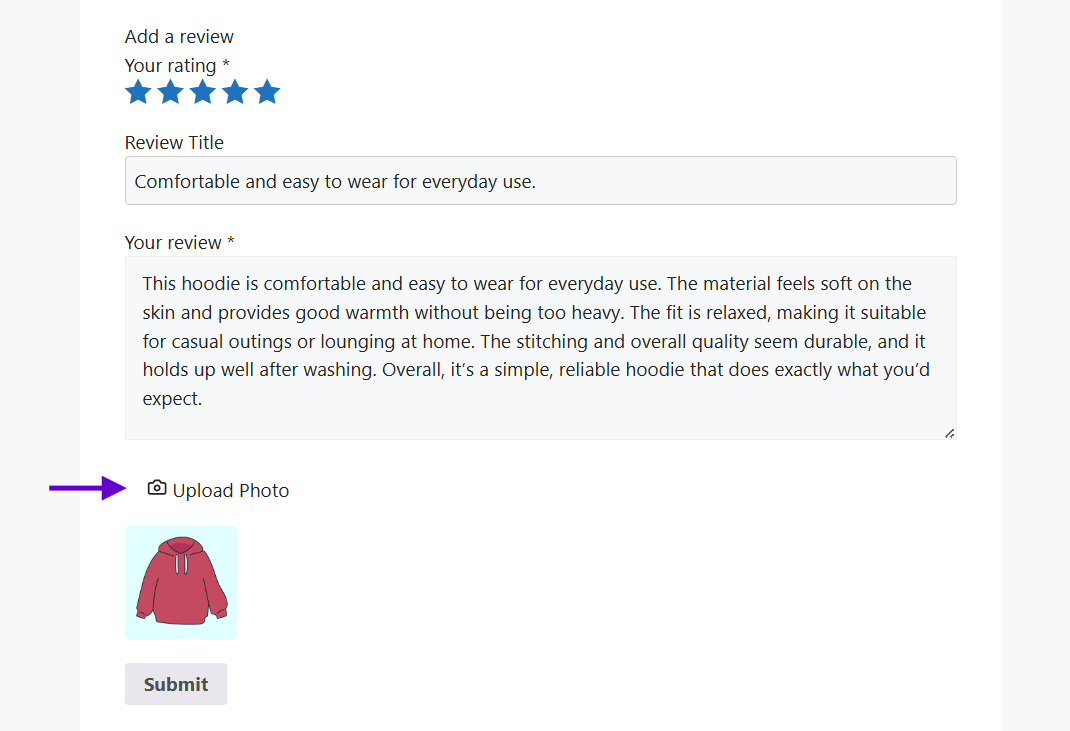
- Automatic Activation: There is no complex setup. The "📷 Upload Photo" button is automatically injected into your existing theme's review form upon plugin activation.
- Smart Incentives: You can define separate rewards to encourage better content.
- Strategy: Offer 10 Points for a standard text review, but 50 Points for a photo review.
- The rule: a review earns the text reward, or the photo reward when a photo is attached. Nothing else — the star rating, the length, a title — changes what it pays (since 1.2.14).
- The earnings line: since 1.2.8 the review form tells a signed-in customer what a review earns and when — “Add a photo to earn 50 points instead of 10 points. Points are added once your review is approved.” Guests do not see it, since a guest’s review earns nothing, and it says nothing on a store that pays nothing for reviews.
The review disclosure statement
Paying for reviews is something regulators in several markets expect a store to say, and the obligation is the merchant’s. Since 1.2.5 a short statement sits directly above the review form on product pages: “Customers can earn points for leaving a review on this store.”
- Show Review Disclosure (on by default) turns it on or off under Marketing > NeoGrow > Settings.
- Disclosure statement changes the wording. Leave it blank to keep the default, which also follows your points label if you have renamed points.
- Since 1.2.13,
{product_name}in the statement is replaced with the product being reviewed. Off a product page the tag is removed rather than shown. - The statement only appears while review points are switched on. Set both review rewards to
0and it disappears.
Reviews from WooCommerce’s Review Order page
WooCommerce’s own review request email links to a Review Order page that collects stars and text for every product on an order. Since 1.2.16 those reviews earn points too: NeoGrow records the order’s account holder against the review and pays them the text reward, at once when the review is approved automatically or when you approve it. Orders without an account earn nothing, since a guest has no balance for points to land in.
neogrow_review_upload_allowed_mimes and neogrow_review_upload_max_bytes in 9.2 Hooks & Filters.
4.2 The Moderation Workflow
We highly suggest moderating all comments and reviews to maintain site quality. When a review is moderated, NeoGrow follows a strict safety workflow to ensure points are only awarded for legitimate content:
- Customer Uploads: The customer attaches an image (JPG, PNG, or WebP) and submits the review.
- Pending Status: Points are NOT awarded immediately. The review enters the moderation queue.
- Admin Approval: Go to Products > Reviews in your WordPress dashboard. Since 1.2.10 the photo a customer attached shows beside their review, so you can check it without opening the review; click the thumbnail for the full picture.
- Instant Reward: The moment you click Approve, the points are automatically calculated and deposited into the customer's account.
4.3 Review Reminder Emails
Added in 1.2.2. The hardest part of collecting reviews is asking. NeoGrow can email a customer a while after their order, inviting them to review what they bought and telling them how many points that is worth.
Turning it on
Go to Marketing > NeoGrow > Settings and find the Review reminders section:
| Setting | What it does |
|---|---|
| Send review reminders | Off by default. Emails customers after an order asking them to review what they bought. |
| Send after (days) | How long to wait after the order is completed. The default is 14 days. Because reminders are found by a daily check rather than a job queued per order, changing this applies to orders already waiting, not only to future ones. |
The wording and styling of the email itself are managed where every other WooCommerce email is: WooCommerce > Settings > Emails.
Who is never emailed
- Customers who have already reviewed everything on the order.
- Customers who have opted out — every message carries a one-click opt-out link.
- Orders that are not completed. Asking for a review before the order has arrived rarely goes well.
- Orders with no customer account or billing email.
Sending one by hand
The Orders screen carries a Review reminder column showing when the reminder went out — Sent, Sent by hand, Not sent, or Nothing to review — so you can answer “did my customer get this?” without opening the order.
The same column offers a Send now button for inviting one customer without waiting for the schedule, and Send again if they tell you they never received it. It appears only on completed orders, never on processing or on-hold ones, and a customer who has opted out is never shown the button.
neogrow_reminder_sent, neogrow_should_send_reminder and neogrow_reminder_email_intro — plus a context array threaded from the send call to both templates — are enough for an add-on to build a follow-up sequence, its own targeting rules and its own copy on top. See 9.2 Hooks & Filters.
4.4 Helpful Votes & Reports
Added in 1.2.7. Every published review carries a Helpful button and a Report link. Both appear by themselves; there is nothing to switch on.
Helpful votes
- Each review shows how many people found it useful — “8 people found this helpful” — above the button. Clicking again takes the vote back.
- Voting needs an account. A signed-out visitor sees the same button, which takes them to sign in and back to the review. NeoGrow stores no IP address for this.
- Nobody sees Helpful or Report on a review they wrote themselves. If you are checking your storefront while logged in as the account that posted a review, both controls are hidden on that review by design. Check as a customer or in a private window.
- The button never appears under a shop owner’s reply.
Review reports
- The Report link opens a small window asking why: spam or advertising, offensive or abusive, contains personal information, or not about this product. You are emailed when a review is reported — once per review per day, however many people report it.
- One report per person per review, and at most ten reports per person per day.
- Reporting never hides a review, at any number of reports. Automatically hiding reviews people complain about is review suppression, which the FTC’s 2024 rule on consumer reviews prohibits. A report asks you to look; you decide.
- A Reported column on Products > Reviews shows how many open reports each review has. Sort by it, follow View review to read it on your storefront, then Dismiss once you have dealt with it. Hiding a review stays a separate decision, using WooCommerce’s own Unapprove, Spam and Trash controls.
5. Managing Customers & Points
NeoGrow gives you complete control over your loyalty data. Whether you need to track global performance or adjust a specific customer's balance, you have the tools to do it efficiently.
5.1 The Growth Dashboard
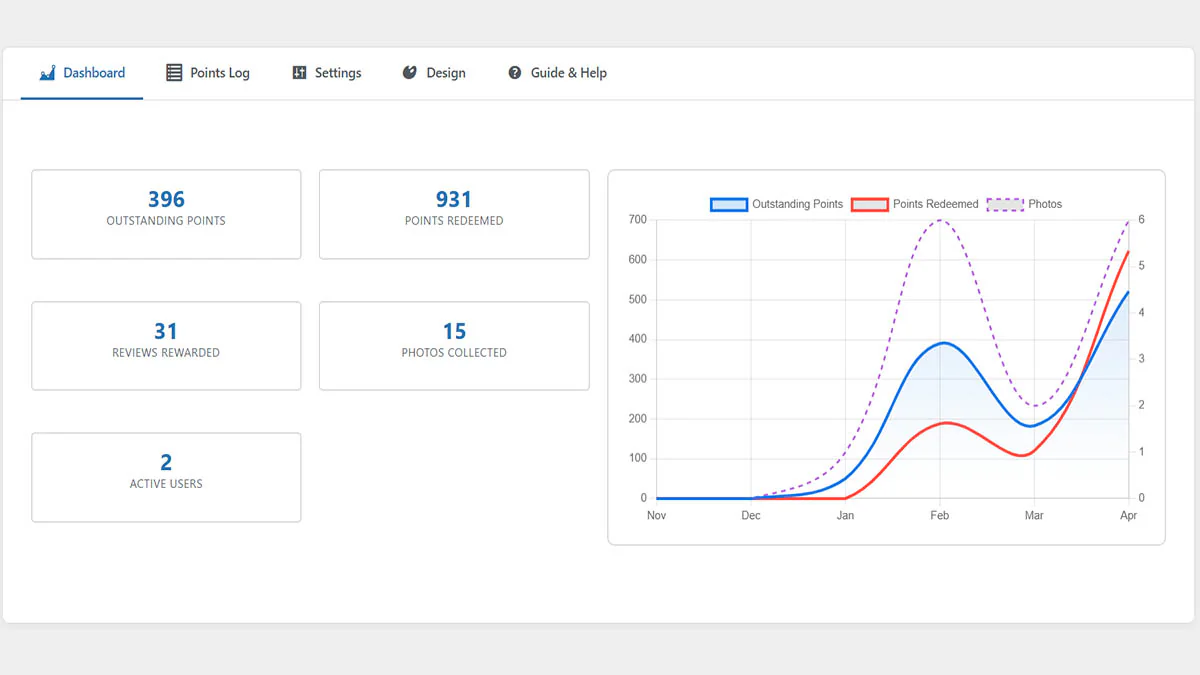
The NeoGrow Dashboard is your command center. Accessible from Marketing > NeoGrow, it provides a real-time health check of your loyalty program.
- 📈 Performance Metrics: Instantly view Total Points Issued, Total Points Redeemed, and Photo Reviews collected.
- 📊 Retention Trends: The 6-month historical graph helps you visualize your "Burn Rate" (Points Earned vs. Spent) to ensure your program is profitable.
5.2 Managing Individual Users
As a store admin, you often need to manually intervene—whether to reward a loyal VIP or correct a refund error. NeoGrow makes this easy.
View Customer Balances
Navigate to Users > All Users. You will see a dedicated column titled Loyalty Points that displays the current live balance for every customer.
How to Manually Adjust Points
To give "Apology Points" or fix a balance manually:
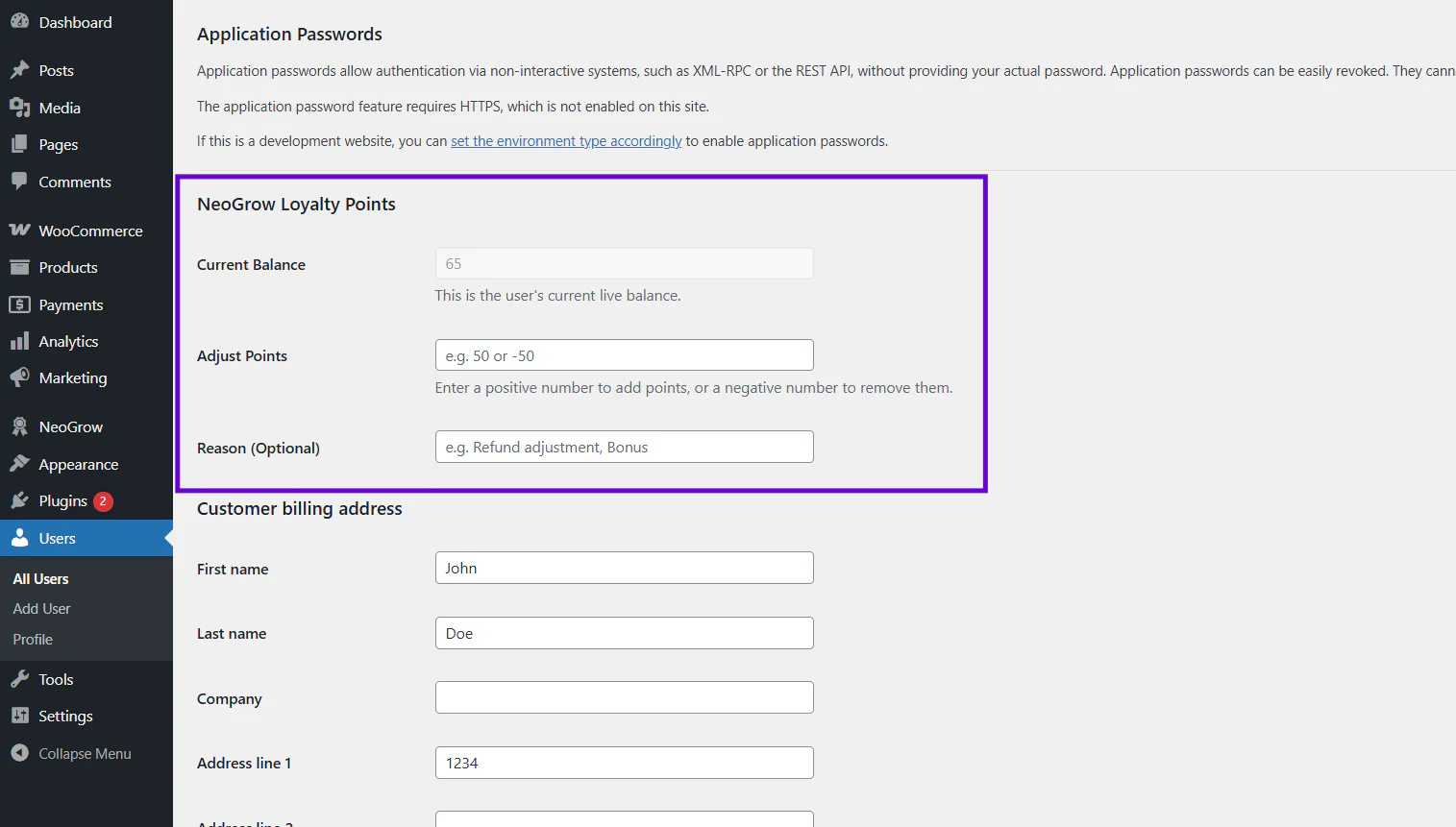
- Go to Users > All Users and click Edit on the specific customer.
- Scroll down to the NeoGrow Loyalty Points section.
- Locate the "Adjust Points" field.
- Enter the amount to change:
- To Add: Enter a positive number (e.g.,
50). - To Subtract: Enter a negative number (e.g.,
-50).
- To Add: Enter a positive number (e.g.,
- (Optional) Add a Log Note (e.g., "Manual bonus for VIP support").
- Click Update User to save.
5.3 The Transaction Log (Audit Trail)
Transparency is critical for trust. The Points Log allows you to audit every single point movement in your system.
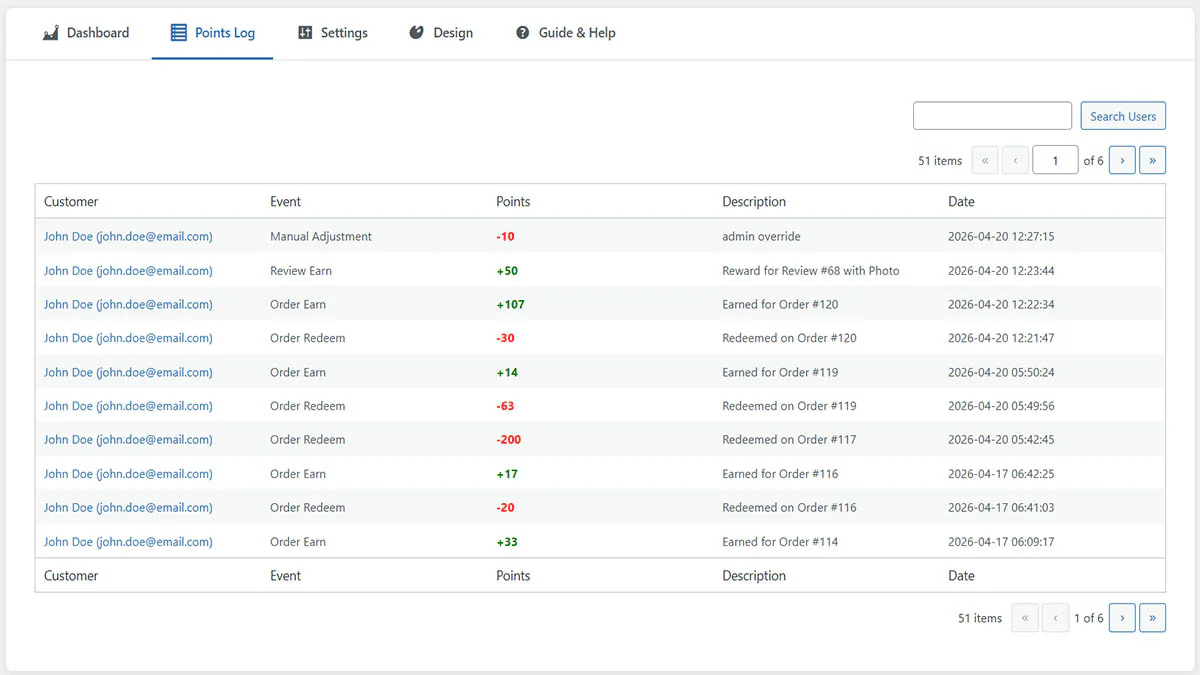
Go to Marketing > NeoGrow > Points Log to access the global ledger.
- 🔎 Searchable History: Quickly find transactions by searching for a customer's Email or Name.
- 📝 Detailed Events: See exactly how points moved: Purchase, Spent at checkout, Review reward, Expired or Adjusted by the store. Since 1.2.21 each entry links to the order or the review it refers to, and the names appear in your store’s language.
- 🛡️ Security: Every automated expiry, redemption, or manual change is permanently recorded here, ensuring you always have a paper trail.
6. The Customer Experience (Frontend)
NeoGrow is designed to feel native to your WooCommerce store. It doesn't just sit in the background; it actively drives sales by nudging customers at every step of their journey.
6.1 Product Page: The "Earn" Nudge
On every product page, NeoGrow automatically calculates and displays the potential earnings for that specific item. This creates an immediate incentive to purchase.
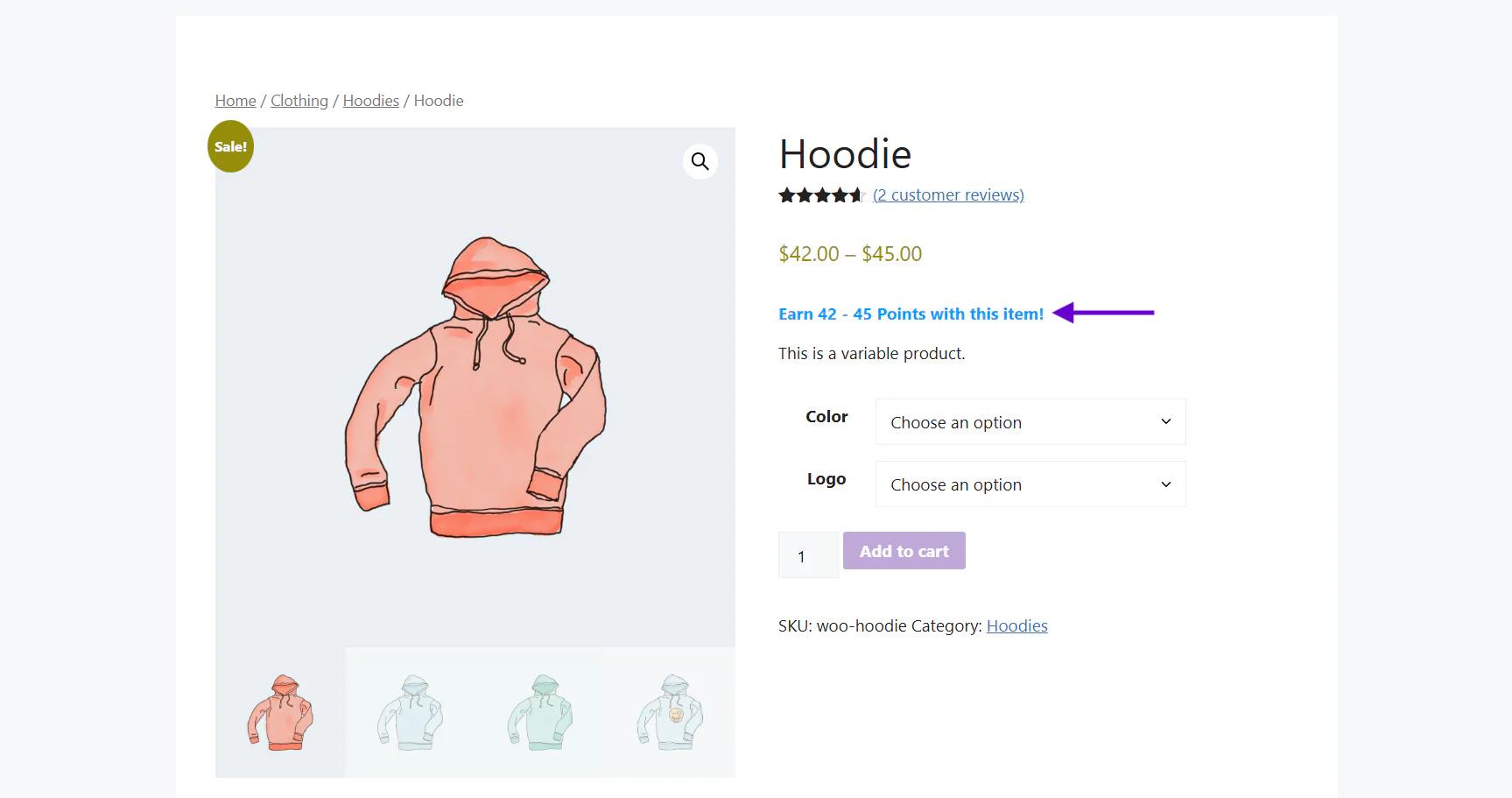
- 🏆 Smart Incentives: If a product costs $50 and your earn rate is 1 Point per $1, the message dynamically calculates: "Earn 50 Points with this item!"
- 🎨 Native Design: The message uses your configured "Accent Color" to catch the eye without breaking your theme's design language.
- 🔀 Variable products: a product priced $20 to $200 reads “Earn 20 - 200 points”, and narrows to the chosen option’s figure as soon as the shopper picks one.
Where it appears
- Standard product pages: directly under the price, through WooCommerce’s product summary. On Astra it uses Astra’s own position after the price.
- Page-builder product templates (Elementor Pro’s Theme Builder and other builders that rebuild the page from widgets): these skip the product summary, so since 1.2.18 the message appears directly above the add-to-cart button instead. Nothing to set up.
- Anywhere you choose: the Product Points Elementor widget (see 6.6) or the
[neogrow_product_points]shortcode (see 9.1). Placing either in an Elementor product template switches the automatic position off, so the message never shows twice.
6.2 The Review Form: Frictionless Photo Uploads
Text reviews are great, but photo reviews drive higher conversions. NeoGrow empowers customers to share visual social proof effortlessly.
- 📷 Integrated Camera Button: A clean "Upload Photo" button is added directly to the standard WooCommerce review form.
6.3 Visual Social Proof (The Lightbox)
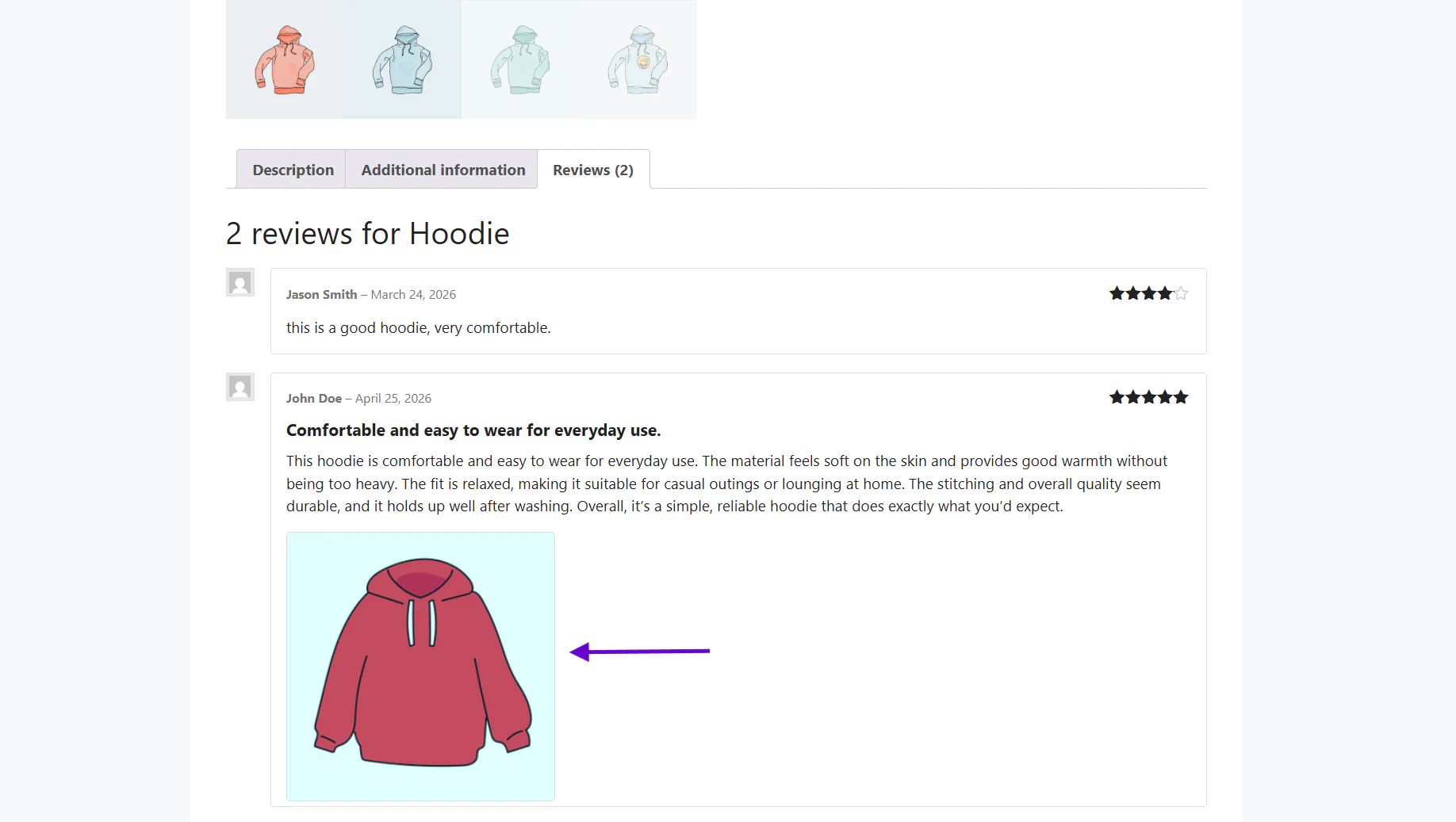
Once you approve a review, it transforms into a rich piece of content on your product page.
- Visual Impact: The customer's photo appears neatly below their review text.
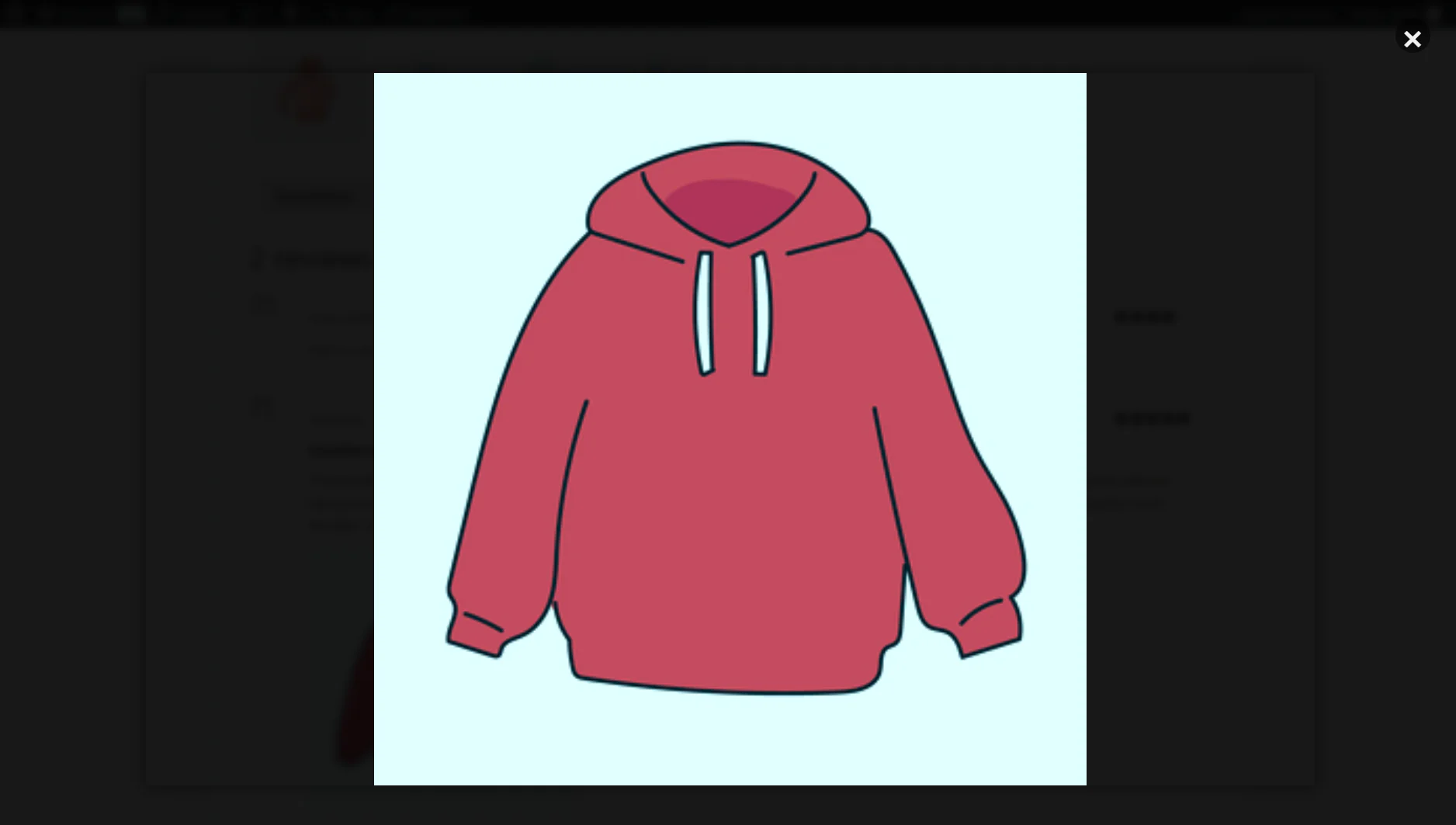
- ✨ The Lightbox Experience: When a shopper clicks a review photo, it opens in a beautiful, high-resolution Lightbox Overlay. This keeps shoppers on the product page (reducing bounce rate) while they admire the product details.
6.4 My Account: The Loyalty Hub
Customers can track their progress in their standard WooCommerce My Account dashboard, turning your store into a gamified experience.
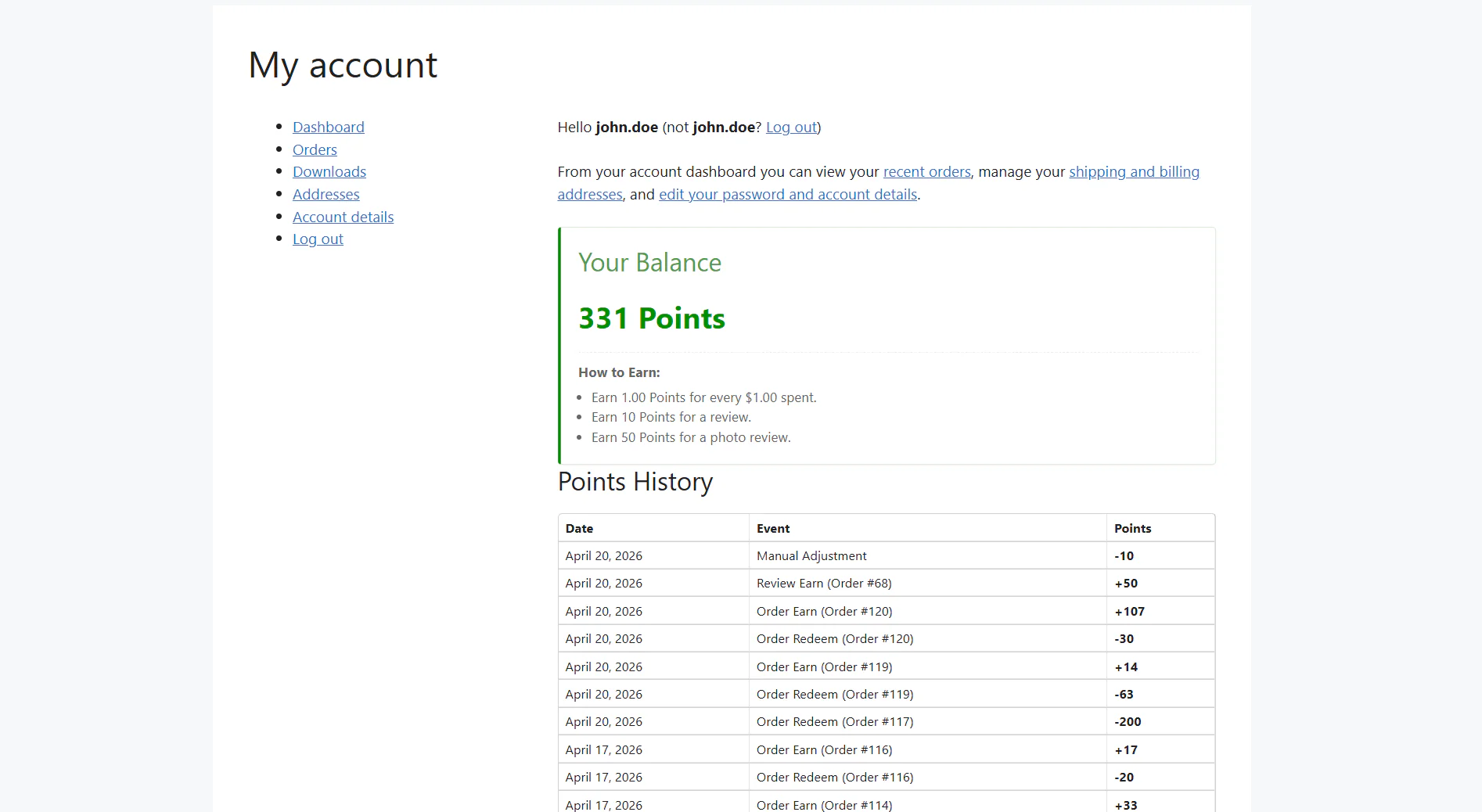
- 💳 Live Balance: A dedicated section shows their Total Point Balance in large, bold text.
- 📜 Transaction History: A transparent table lists every point they've earned or spent (e.g., "Order #105", "Review Bonus"), building trust in your program.
6.5 Checkout & Redemption
The reward for their loyalty comes at checkout. NeoGrow inserts a frictionless redemption panel just before the payment section. Add NeoGrow redemption form on cart and checkout page.
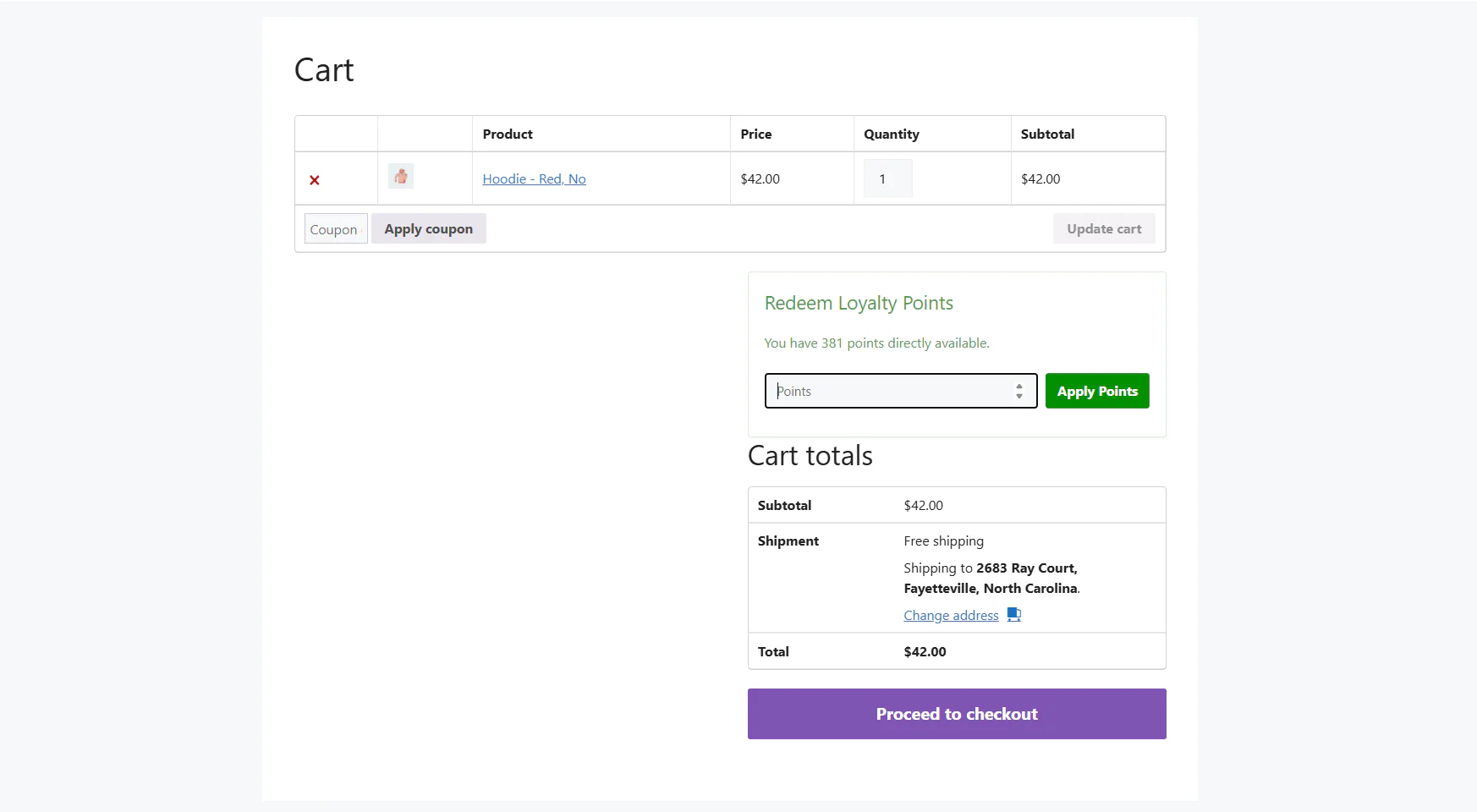
- Smart Balance Check: Customers clearly see their available balance (e.g., "You have 500 points available").
- 🎛️ Flexible Redemption: They can choose to redeem all points or just a partial amount (e.g., use 100 points for a $1 discount).
- ⚡ AJAX Instant Discount: Clicking "Apply Points" instantly updates the cart totals without reloading the page, creating a smooth checkout flow.
6.6 Elementor & Page Builders
NeoGrow works with Elementor, free and Pro. Since 1.2.18 it adds four widgets of its own, all free, and handles Elementor Pro’s product templates by itself. Since 1.2.19 the widgets load only on pages that use them, so the rest of your site carries none of their weight.
What happens automatically
On product pages built with Elementor Pro’s Theme Builder, the “Earn N points with this item!” message appears directly above the add-to-cart button, with nothing to add. Reviews, review photos and the photo upload work through Elementor Pro’s Product Data Tabs widget; the redemption panel works inside its Cart and Checkout widgets; the order-received notice works through the Checkout widget; and the balance card works inside its My Account widget. We test that layout in a real browser before each release.
The four NeoGrow widgets
Open the NeoGrow category in the Elementor panel. Every widget is fully working with Elementor’s free version, with no locked controls.
| Widget | What it shows | Controls |
|---|---|---|
| Product Points | The “Earn N points” message, priced and updated for variations exactly as on a standard product page. Placing it in a product template switches the automatic position above the add-to-cart button off, so it never shows twice. | Product (Current product, or A specific product with a Product ID), Alignment; Style: Text color, Typography. |
| Product Reviews | The reviews and the review form, with NeoGrow review titles, customer photos, the photo upload, and the Helpful and Report controls. | Product (Current product, or A specific product with a Product ID). |
| Points Balance | The customer’s balance, for headers, account layouts and landing pages. | Text before the balance, Text after the balance (blank uses your points label), For logged-out visitors (Show nothing, Show a message, or Show a log-in link) with Message or link text, Alignment; Style: Text color and typography, Balance color and typography. |
| Points Redemption | The “Redeem Loyalty Points” form for custom cart and checkout layouts, applying points exactly as the built-in panel does. | Style: Accent color, Background. Colours otherwise follow Marketing > NeoGrow > Design. |
- Product Reviews or Product Data Tabs, not both. Elementor Pro’s Product Data Tabs widget already includes the reviews, so a template with both shows the review section twice. Use Product Reviews on templates without Data Tabs.
- Points Redemption appears once per page, and only for a logged-in customer who has points and something in their cart. Where Elementor Pro’s Cart or Checkout widget already shows the form, whichever renders first wins and the other stays empty.
- Points Balance shows the customer’s own figure. Logged-out visitors see nothing by default; choose a message or a log-in link instead.
Step by step: using the widgets
The screenshots below were taken on a store running the Hello Elementor theme, Elementor and Elementor Pro.
- Open a page or template in Elementor. For a product page, go to Templates > Theme Builder and edit (or add) a Single Product template. For any other page, open it with Edit with Elementor.
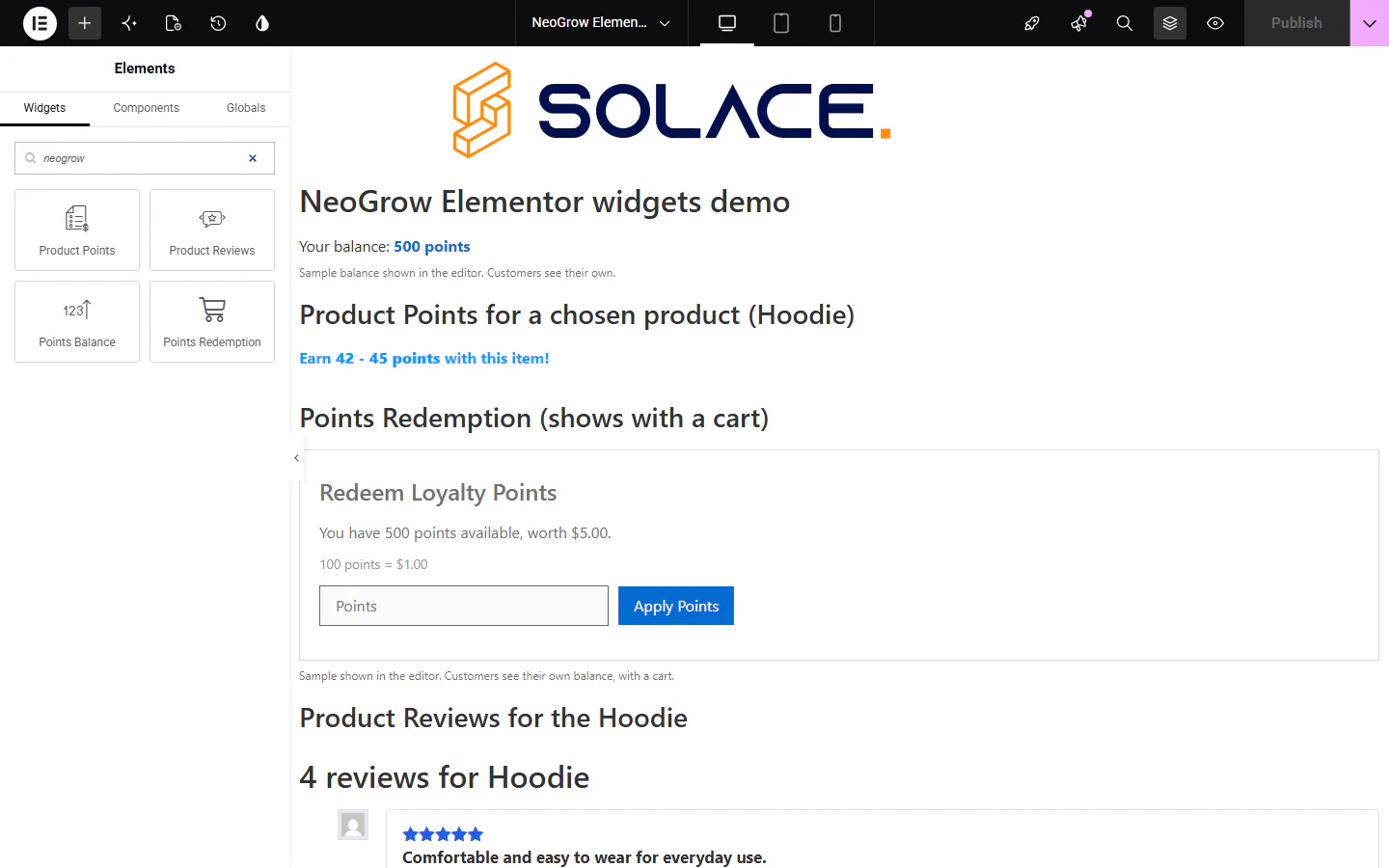
- Find the widgets. In the Elements panel, type neogrow into Search Widget, or scroll to the NeoGrow category. All four widgets are there.
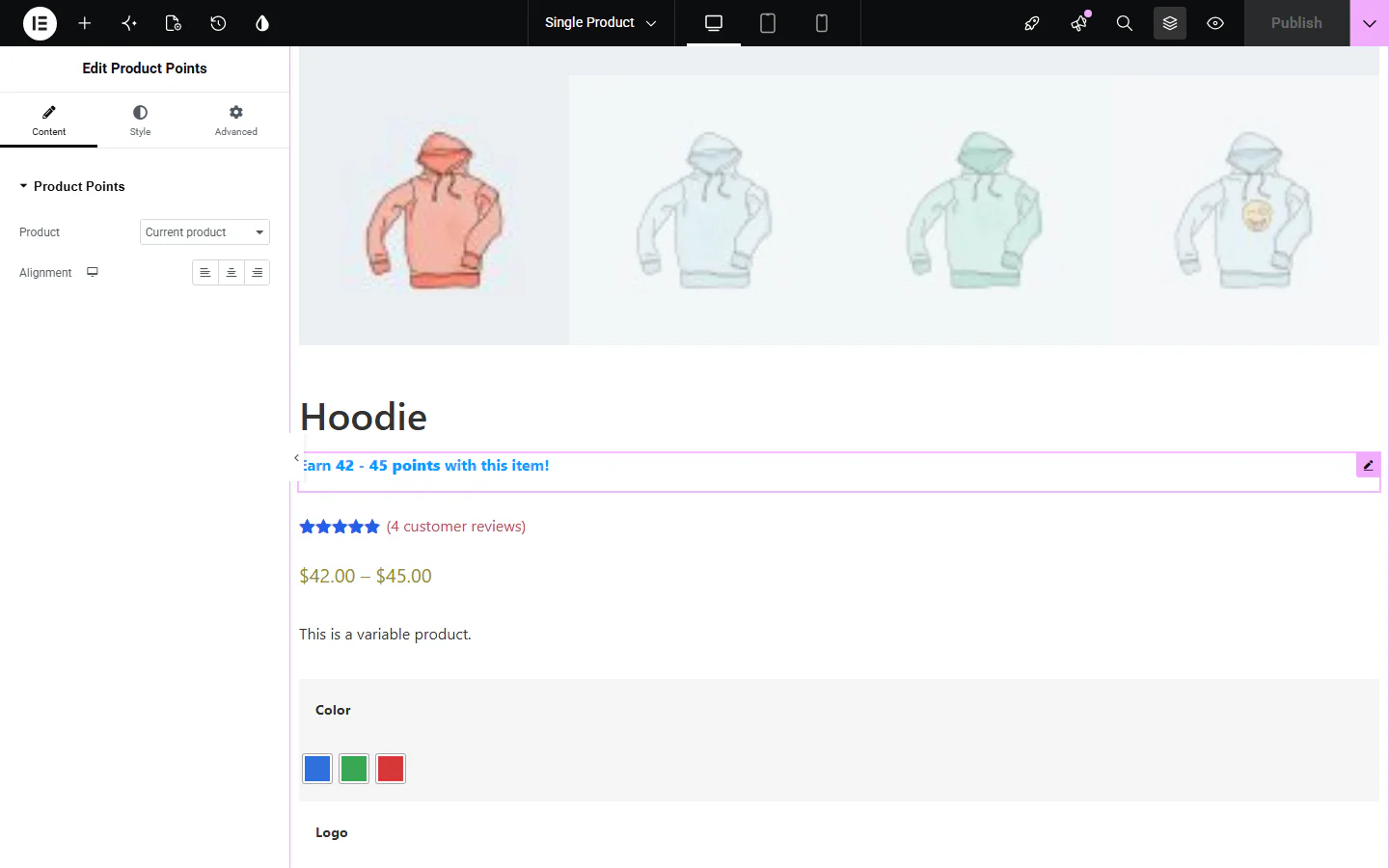
- Drag Product Points onto a product template, wherever you want the message — here, directly under the product title. Leave Product on Current product so it follows whichever product is being viewed. Once it is placed, the automatic message above the add-to-cart button switches itself off.
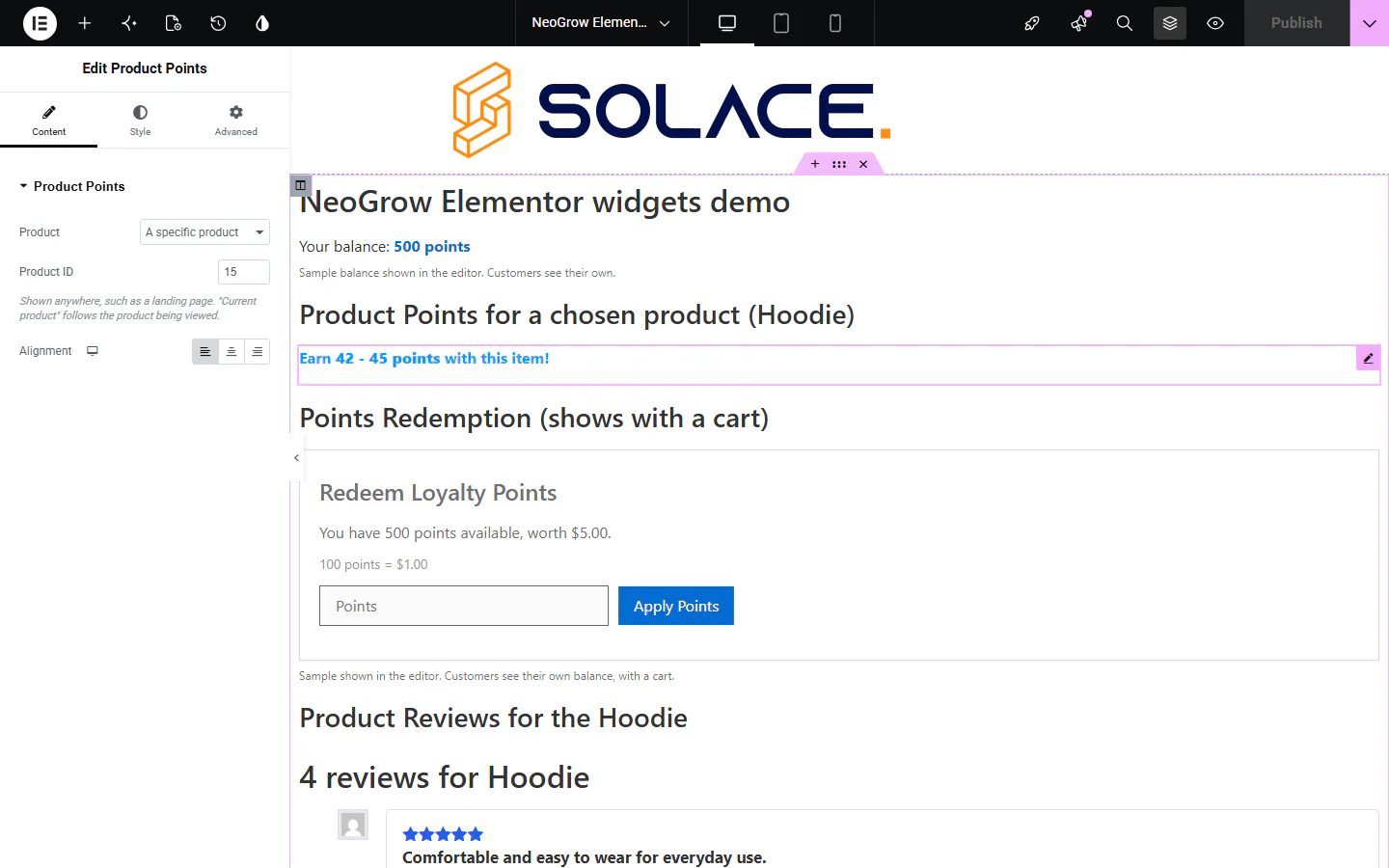
- On any other page, choose the product. On a landing page there is no product in context, so set Product to A specific product and enter its Product ID (shown when you hover a product under Products). Use Alignment and the Style tab to match your design.
- Set up Points Balance for headers or account pages: the text before and after the figure, and what logged-out visitors see — nothing, a message, or a log-in link to My Account.
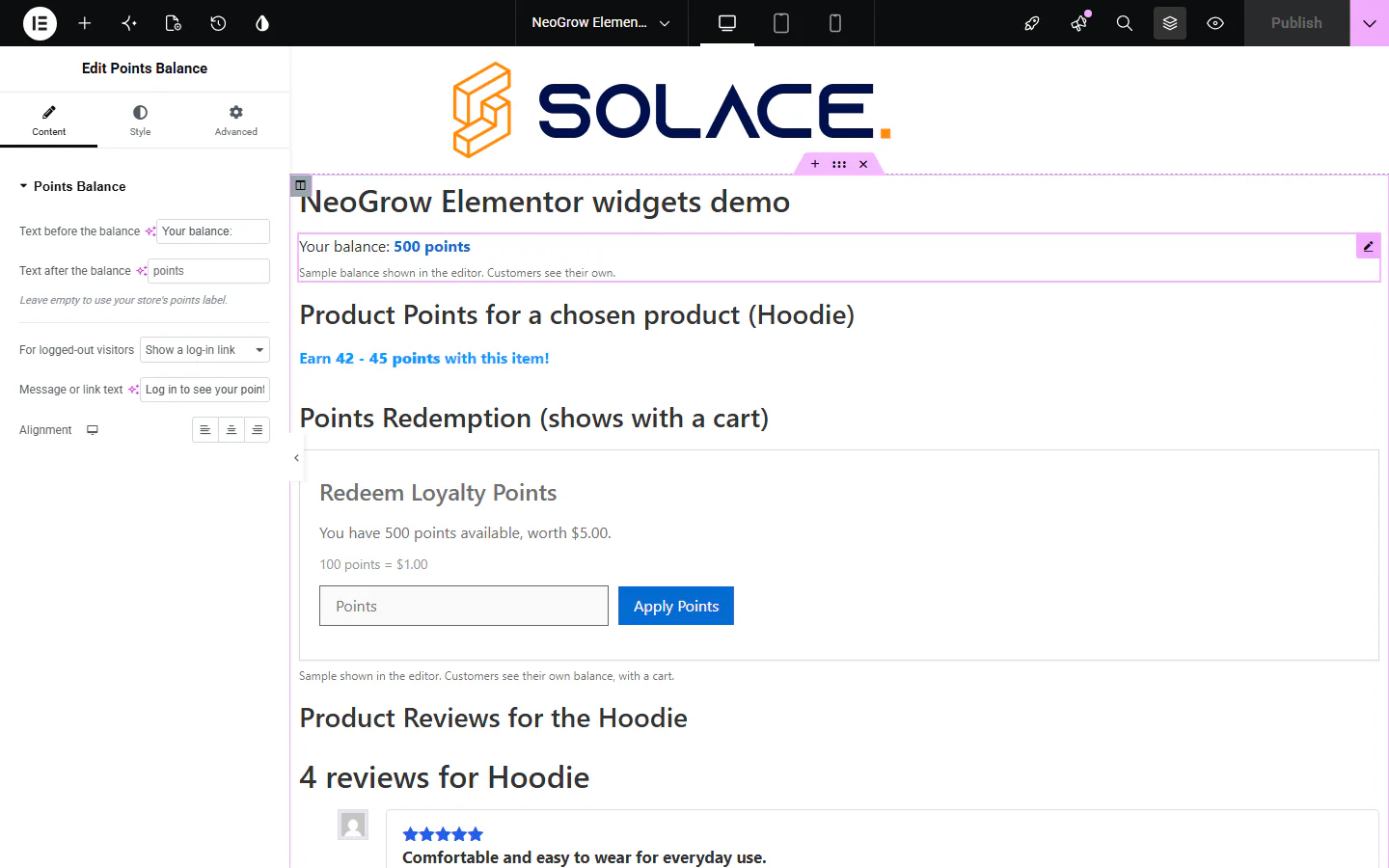
- Publish, then check the page as a customer. The editor shows samples; your store shows each customer their own figures. Points Redemption appears for logged-in customers with points and something in their cart.
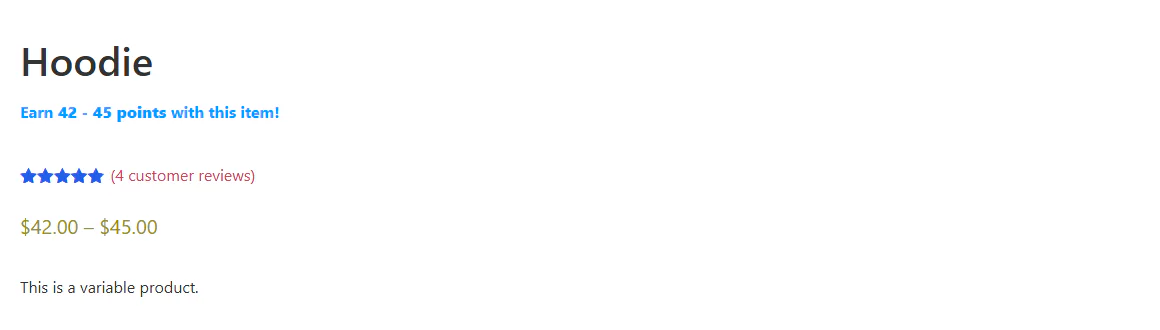

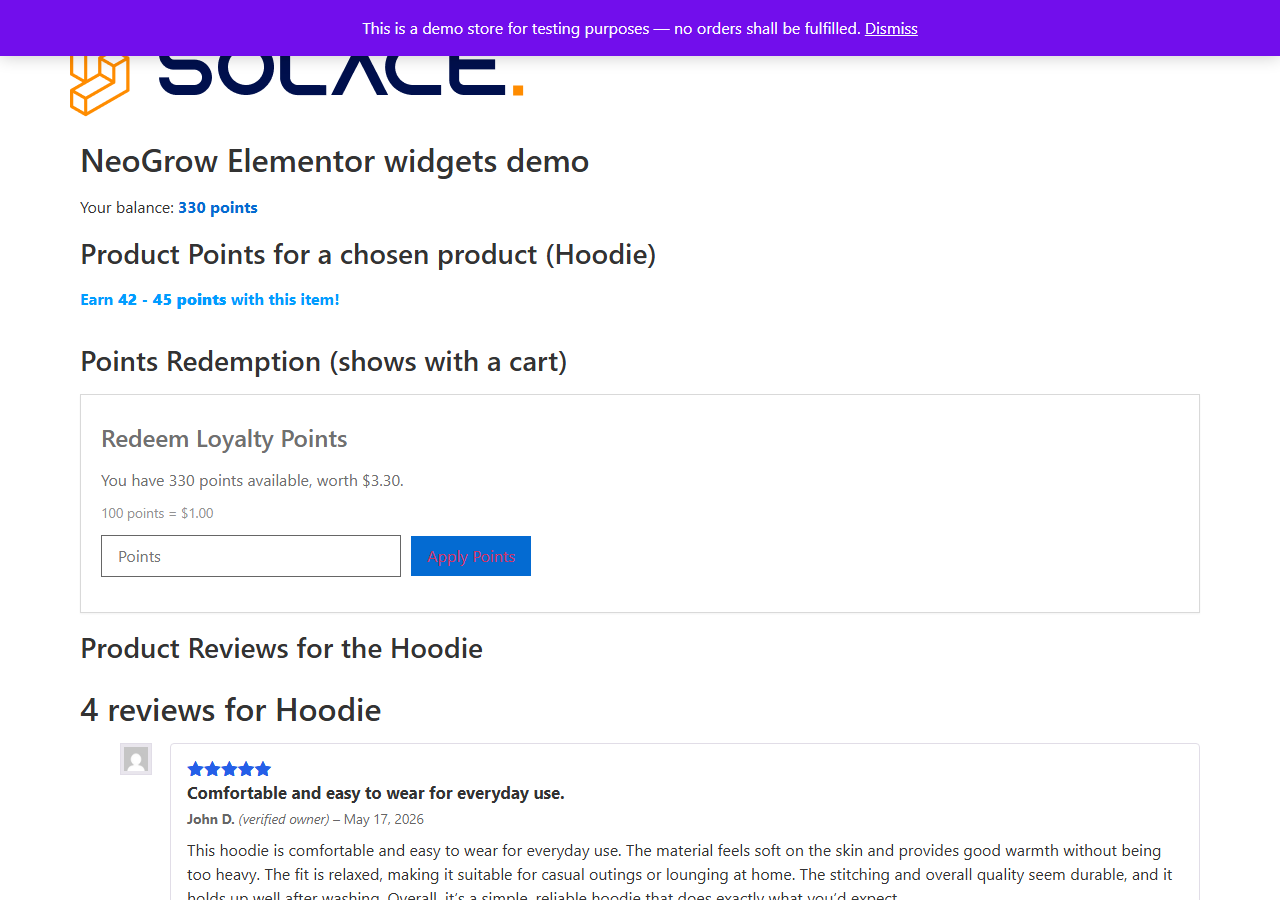
In the editor
The editor has no customer and often no product, so the widgets show samples: Points Balance and Points Redemption use a 500-point sample balance, labelled as a sample, and Product Points and Product Reviews show your newest product when the template has no product in context. Nothing is written to any customer’s points.
Other page builders
Divi, Bricks, Oxygen, Beaver Builder and custom themes use the shortcodes: [neogrow_product_points] for the points message, [neogrow_points_balance] for the balance, and [neogrow_cart_redemption] for the redemption form. See 9.1 Shortcodes. The automatic position above the add-to-cart button relies on WooCommerce’s own add-to-cart form, which most builders’ add-to-cart modules render; it has been tested with Elementor Pro. If the message is missing on another builder’s template, place the shortcode.
7. Design & Customization
A loyalty program should feel like a natural part of your brand, not a bolt-on. NeoGrow is built to inherit your theme's fonts and styles by default, but it also provides granular controls for you to fine-tune the appearance.
7.1 Branding Settings (No-Code)
Navigate to the Marketing > NeoGrow > Design tab. Here you can configure the core color palette that NeoGrow uses for its frontend elements without writing a single line of code.
| Setting | Effect & Usage |
|---|---|
| Primary Brand Color |
Controls the main interactive elements like the "Apply Points" button and key headings.
Default: WooCommerce Blue (#2271b1) |
| Accent / Success Color |
Used for positive reinforcement messages, such as the "Earn 50 Points" nudge on product pages and success notifications.
Default: Growth Green (#46b450) |
| Border Radius |
Adjusts the roundness of NeoGrow's buttons and input fields to perfectly match your theme's UI (e.g., Square vs. Rounded).
Default: 4px |
7.2 Advanced CSS Customization
For developers or designers who need pixel-perfect control, NeoGrow wraps all elements in semantic CSS classes. You can add custom CSS to your theme's stylesheet or the WordPress Customizer > Additional CSS section.
Core CSS Classes
.neogrow-product-message— The "Earn X Points" container on single product pages..neogrow-review-upload— The container for the photo upload button in the review form..neo-card— The main container for the Loyalty Card in the My Account area..neogrow-redemption-form— The redemption panel at checkout/cart.
Cart & Checkout Block Classes
The block-based Cart and Checkout render their own redemption panel, placed directly above the Add coupons row so points are applied before any total is calculated. It has its own stable class names, which will not change between releases:
.wp-block-neogrow-points-redemption— The outer block wrapper. Use this to control spacing and position relative to the coupon form and totals..neoplugin-block-redemption— The panel itself (also carries.neoplugin-card). Use this for background, border, padding and radius..neoplugin-block-redemption__title— The "Redeem Loyalty Points" heading..neoplugin-block-redemption__input— The points number field..neoplugin-block-redemption__apply— The "Apply Points" button..neoplugin-block-redemption__remove— The "[Remove]" control shown once points are applied..neoplugin-applied-notice— The "You are using 200 points for a $2.00 discount." line.
Note on specificity: many themes style all button elements (Astra, for example, repaints them as primary buttons). If a rule of yours appears to be ignored, scope it the way the plugin does — .neoplugin-block-redemption button.neoplugin-block-redemption__apply — rather than reaching for !important.
The panel already follows your Design > Border Radius setting through the --neo-border-radius custom property, so changing the radius in settings restyles the panel and its button without any CSS.
Copy-Paste CSS Snippets
Example 1: Highlight the "Earn Points" Message
/* Increase visibility with a background color */
.neogrow-product-message {
    font-size: 16px !important;
    background: #f0fdf4; /* Light Green Background */
    border: 1px solid #c6f6d5;
    padding: 12px;
    border-radius: 8px;
    margin-bottom: 15px;
}
Example 2: Style the "Upload Photo" Button
/* Make the upload button match a dark theme */
.neogrow-review-upload label.button {
    background-color: #000000 !important;
    color: #ffffff !important;
    text-transform: uppercase;
    font-weight: bold;
    letter-spacing: 1px;
}
Example 3: Restyle the Cart & Checkout block panel
/* Tint the panel and make it read as a promotion */
.neoplugin-block-redemption {
    background: #f5f3ff;      /* Light violet */
    border-color: #ddd6fe;
    padding: 24px;
}

.neoplugin-block-redemption__title {
    text-transform: uppercase;
    letter-spacing: 0.04em;
}

/* Scoped so it beats the theme's generic button styling */
.neoplugin-block-redemption button.neoplugin-block-redemption__apply {
    background-color: #7c3aed;
    color: #ffffff;
}

/* Pull the panel tighter to the coupon row below it */
.wp-block-neogrow-points-redemption {
    margin-bottom: 8px;
}
8. Troubleshooting & FAQ
Find answers to the most common questions about NeoGrow. If you can't find what you're looking for, please visit our support forum.
8.1 Common Issues (Troubleshooting)
"I don't see the Redeem form on Checkout!"
Since 1.1.0 the panel appears automatically in both the Cart and Checkout blocks and in the classic checkout, so no manual placement is needed. If you cannot see it, the usual cause is that it has nothing to show: the panel is only rendered for a logged-in customer who has a points balance.
Still missing? Confirm you are running 1.1.0 or later, then check you are not on a heavily customized checkout template that strips WooCommerce's own hooks. If you deliberately want the form somewhere else, place [neogrow_cart_redemption] by hand as described in Section 2.4 — but remove the manual copy if the automatic panel is also showing, or you will have two.
"Why redemption form is not visible?"
If user is not logged in or if the user has no point to redeem, the redemption form will not be visible.
"Points weren't awarded after purchase!"
Please check the following:
- Is the Order Status Completed? (Processing orders do not award points).
- Did you initialize the database? (Go to Marketing > NeoGrow > Settings and click Save).
- Was the user logged in? (Guest checkout does not earn points).
"Images aren't uploading to reviews!"
This is usually a server permission issue. Ensure your /wp-content/uploads/ folder is writable (755 permissions). Also, check that the file size is not larger than your server's upload_max_filesize limit.
8.2 General & Compatibility
Is NeoGrow compatible with HPOS?
Yes, 100%. NeoGrow uses custom database tables (wp_neogrow_points) instead of the legacy post-meta table. This ensures your order queries remain lightning-fast.
Will this plugin slow down my website?
No. We do not load heavy JavaScript on pages where it isn't needed (like your blog posts), and our database queries are optimized for high-volume stores.
Does it work with my Theme?
Almost certainly. NeoGrow renders through standard WooCommerce hooks, so any theme that fires them works, and we test rather than assume: 154 themes are verified so far, including the premium WoodMart theme, each checked in a real browser on the seven places NeoGrow’s output appears. Review titles and photos also render on block themes that use WooCommerce’s block-based product reviews. Every verified theme is listed on the NeoGrow theme compatibility page; a theme that is not listed has not been tested yet, which is not the same as not working.
Does NeoGrow work with Elementor?
Yes, with the free version and with Elementor Pro, and nothing needs setting up. On Elementor Pro product templates the “Earn N points” message appears above the add-to-cart button by itself, and reviews, the redemption panel, the order-received notice and the My Account balance work through Elementor Pro’s own widgets. To place things yourself, NeoGrow adds four free widgets — Product Points, Product Reviews, Points Balance and Points Redemption — in a NeoGrow category in the Elementor panel. Other builders use the shortcodes. See 6.6 Elementor & Page Builders.
Does NeoGrow work on a multi-currency store?
Yes, as of version 1.2.0. Points are always calculated against your store's base currency, using the exchange rate recorded on the order, so the same basket earns the same points whatever currency the customer paid in. Redemption converts the other way, so the discount is quoted and applied in the currency the shopper is browsing. WooPayments, CURCY (Multi Currency for WooCommerce) and FOX (Currency Switcher Professional) are all supported natively with no configuration, and other currency switchers can be connected with two documented filters. Points awarded by versions before 1.2.0 are not recalculated. See 3.4 Multi-Currency Stores.
Why don't my dashboard stats update immediately?
To keep your WordPress admin fast, NeoGrow updates the dashboard statistics (chart and cards) once every hour. Your live data is safe, it just takes a moment to reflect in the analytics view.
Does NeoGrow count my past reviews or orders?
No. NeoGrow is not retroactive.
The plugin starts tracking data and awarding points from the moment you install and activate it. It does not scan your database history to award points for past orders or count pre-existing reviews in the Growth Dashboard.
8.3 Loyalty Points Logic
Are Shipping/Taxes included in points?
No. NeoGrow calculates points on the order subtotal — the value of the products themselves — so tax, shipping and fees never earn points. Sale prices are already reflected in the subtotal; coupon discounts are not, so a coupon does not reduce what a customer earns. The neogrow_earn_base_amount filter changes the base if you want different behavior.
What happens if I refund an order?
The NeoGrow free version does not automatically readjust points in the event of an order refund or cancellation. If you wish to correct the user's balance, you must manually adjust the points by navigating to Users > Edit User > Adjust Points.
Do points expire?
Yes. In the NeoGrow free version, points expire 6 months after they were earned — the window is fixed. We use a FIFO (First-In-First-Out) system, so the oldest points are always spent first. Choosing your own expiry window, or turning expiry off entirely, is available in NeoGrow Pro, a separate add-on.
8.4 Photo Reviews
When are review points awarded?
Points are awarded only after you Approve the review. You can manage and approve reviews by navigating to Products > Reviews in your WordPress dashboard.
What image formats are supported?
We support standard web formats: JPG/JPEG, PNG and WebP. The maximum file size is 5 MB. Both the accepted types and the size cap are filterable — see neogrow_review_upload_allowed_mimes and neogrow_review_upload_max_bytes in 9.2 Hooks & Filters.
8.5 How to Uninstall
We're sorry to see you go! If you wish to remove NeoGrow, please note we follow standard WordPress data procedures:
- Deactivating: If you simply Deactivate the plugin, your points and configuration data will be kept safe in the database in case you return.
- Deleting: If you completely Delete the plugin from your dashboard, all NeoGrow-related data will be permanently deleted.
9. Developer Notes
9.1 Shortcodes
You can use these shortcodes anywhere on your site—in pages, posts, sidebar widgets, the header/footer, or even within your PHP template files (using do_shortcode()).
1. The Balance Badge
Displays the user's current points with your brand styling (Primary Color + Bold Text).
[neogrow_points_balance]
Attributes:
label(optional): Change the text suffix. Default is "Points".
Example:[neogrow_points_balance label="Credits"]outputs 500 Credits.class(optional): Add a custom CSS class to the wrapper span.
Example:[neogrow_points_balance class="my-custom-badge"].
2. The Raw Balance
Returns only the number (integer) of points. Perfect for inline text or when you want to build your own UI around the value.
[neogrow_points]
Example usage in a sentence: "You currently have [neogrow_points] tokens in your wallet."
3. The Redemption Form
Outputs the "Redeem Points" form for use on custom Cart or Checkout pages. This is particularly useful when integrating NeoGrow with Gutenberg Block themes.
[neogrow_cart_redemption]
Since 1.2.18 the form renders once per page. If a page already shows it — the built-in cart panel, or an Elementor widget — a second copy stays empty.
4. The Product Points Message
Added in 1.2.18. Places the “Earn N points with this item!” message anywhere: a product template your page builder composes, a landing page, a category description. It is the same message as on a standard product page, including the update when a shopper picks a variation.
[neogrow_product_points]
Attributes:
id(optional): a product ID. Without it, the shortcode uses the product being viewed, and shows nothing where there is none.
Example:[neogrow_product_points id="123"]on a landing page.class(optional): extra CSS classes on the message.
Example:[neogrow_product_points class="my-earn-line"].
9.2 Hooks & Filters
As of 1.1.0 NeoGrow has a public, documented hook surface. Everything below is stable and intended for use by add-ons and custom code. Filters return a modified value; actions are notifications and return nothing. As of 1.2.18 the extension API is at version 2.2; add-ons should compare against NEOGROW_API_VERSION rather than the plugin version.
functions.php. Do not edit NeoGrow’s own files — your changes would be lost on the next update.
Earning points
| Hook | Type | Purpose |
|---|---|---|
neogrow_should_earn_points | filter | Whether an order earns points at all. |
neogrow_earn_points_for_order | filter | The number of points an order earns. Runs last: if your callback computes points itself instead of adjusting the figure it receives, multiply by the $rate argument or a tier/role multiplier applied via neogrow_earn_rate is silently lost. |
neogrow_earn_base_amount | filter | The monetary amount points are calculated from. |
neogrow_earn_rate | filter | The earn rate (points per currency unit). |
neogrow_earn_trigger_statuses | filter | Which order statuses award points. |
neogrow_earn_rate_is_personal | filter | Return true if your earn rate varies per customer. The product-page message then renders the store’s figure and fetches each customer’s own after load, so a cached page never shows one customer’s rate to another. Since 1.2.9. |
neogrow_customer_tier | filter | A customer’s membership tier, as slug, name and multiplier. NeoGrow ships it empty; an add-on supplies it, and API\Points::get_tier() reads it. Descriptive only — pricing still goes through neogrow_earn_rate. Since 1.2.9. |
neogrow_earn_log_entry | filter | The points-log text recorded for an order’s earn entry. |
neogrow_points_earned | action | Fires after points have been awarded for an order. |
Redemption
| Hook | Type | Purpose |
|---|---|---|
neogrow_redemption_allowed | filter | Whether redemption is permitted for a cart. |
neogrow_min_redeemable_points | filter | The minimum points redeemable in one go. |
neogrow_max_redeemable_points | filter | The maximum points a user may redeem. |
neogrow_redeem_rate | filter | The redemption rate. |
neogrow_points_to_amount | filter | The currency discount a points amount is worth. |
neogrow_redeem_discount_amount | filter | The discount written onto the cart for the points being redeemed. |
neogrow_redeem_discount_label | filter | The label shown against the loyalty discount line. |
neogrow_points_redeemed | action | Fires after points have been redeemed against an order. |
neogrow_points_reversed | action | Fires after an order’s points have been taken back, with the reason. |
Photo reviews
| Hook | Type | Purpose |
|---|---|---|
neogrow_review_should_award | filter | Whether a review earns points. |
neogrow_review_points | filter | The points a review earns, given whether it has a photo. Must never depend on the rating: rewarding sentiment is what the FTC’s review rule prohibits. |
neogrow_review_points_quote | filter | The most a review could earn, quoted before one is written (review form, reminder email). Raise it whenever you raise neogrow_review_points, or the store promises less than it pays. |
neogrow_review_text_points_quote | filter | The quote for a surface where no photo can be attached, such as WooCommerce’s Review Order page. Since 1.2.16. |
neogrow_review_earnings_note | filter | The line on the review form saying what a review earns. Since 1.2.8. |
neogrow_review_media_ids | filter | The media attached to a review. |
neogrow_review_media_html | filter | The markup for one review media item. Return an empty string to omit it. |
neogrow_review_upload_allowed_mimes | filter | The MIME types accepted for review photos. |
neogrow_review_upload_max_bytes | filter | The maximum accepted photo size, in bytes. |
neogrow_review_rewarded | action | Fires after a review has been rewarded. |
neogrow_review_media_attached | action | Fires after a photo has been attached to a review. |
Expiry
| Hook | Type | Purpose |
|---|---|---|
neogrow_expiry_months | filter | Months before points expire. Default 6; NeoGrow Pro supplies its configured window here, and 0 or less disables expiry. |
neogrow_expiry_batch_size | filter | How many users are processed per expiry batch. |
neogrow_expiry_amount | filter | The points about to expire for a user. Return 0 to exempt them — how a never-expire tier is built. |
neogrow_before_expiry_run | action | Fires before an expiry batch is processed. |
neogrow_points_expired | action | Fires after points have expired for a user. |
Currency
Two filters, added in 1.2.0, let a currency switcher NeoGrow does not detect natively tell it how to convert. Both are no-ops on a single-currency store. See 3.4 Multi-Currency Stores for the behavior they drive.
| Hook | Type | Purpose |
|---|---|---|
neogrow_currency_rate | filter | The exchange rate from your base currency into a given currency code. Return a positive number; anything else is treated as unknown and no conversion is applied. |
neogrow_order_exchange_rate | filter | The rate a specific order was converted at. Use this if your switcher stores its own rate on the order, so historical orders stay correct as rates move. |
neogrow_currency_notice_enabled | filter | Whether NeoGrow watches for a switcher it cannot read a rate for, and warns in the admin. Return false to switch the check off — for a second currency genuinely pegged 1:1 to your base, which is the one case that reads as unresolvable when it is in fact correct. |
Example: connecting a third-party currency switcher
add_filter( 'neogrow_currency_rate', function ( $rate, $currency ) {
    // Return how many units of $currency one unit of your base
    // currency buys. Leave $rate untouched if you do not know.
    if ( function_exists( 'my_switcher_get_rate' ) ) {
        return (float) my_switcher_get_rate( $currency );
    }

    return $rate;
}, 10, 2 );
The ledger and balances
| Hook | Type | Purpose |
|---|---|---|
neogrow_user_balance | filter | A user’s points balance. |
neogrow_pre_transaction | filter | Whether a ledger entry may be written. Return false to block it. |
neogrow_transaction_data | filter | The row about to be inserted into the ledger. |
neogrow_transaction_recorded | action | Fires after a ledger entry has been written. |
neogrow_ledger_event_types | filter | Names each event type written to the ledger and says what its reference ID points at: order, review or nothing. An add-on that writes its own event type should declare it here; an undeclared type is shown by its key with no link. Since 1.2.21. |
Presentation
| Hook | Type | Purpose |
|---|---|---|
neogrow_points_label | filter | The word used for points. This is how you rename them store-wide. |
neogrow_points_format | filter | A rendered points amount. |
neogrow_points_log_columns | filter | The columns of the admin points log. |
neogrow_points_log_column_content | filter | The rendered content of a points log cell. |
Product page
| Hook | Type | Purpose |
|---|---|---|
neogrow_product_message_fallback_hooks | filter | Where the “Earn N points” message falls back to on page-builder templates that never fire the product summary, as action => priority. Default woocommerce_before_add_to_cart_form at 10; return an empty array to switch it off. Never prints inside the summary, only for the page’s own product, at most once. Since 1.2.18. |
neogrow_elementor_lazy_widgets | filter | Whether the four Elementor widgets register on the front end only when the page uses one. Default true; return false to register them on every request, as 1.2.18 did, for a store with an unusual render path where a widget goes missing. The Elementor editor always registers all four. Since 1.2.19. |
Review reminders
| Hook | Type | Purpose |
|---|---|---|
neogrow_core_owns_reminders | filter | Whether WooCommerce’s own review request is sending, in which case NeoGrow schedules nothing and only adds its points line to core’s email. |
neogrow_should_send_reminder | filter | The targeting veto, applied on every path that sends. A vetoed order is reconsidered if the rule changes. |
neogrow_reminder_review_url | filter | Where the email links each product to. Block themes without the classic #tab-reviews anchor should set this. |
neogrow_reminder_email_intro | filter | The email’s opening text. |
neogrow_reminder_sent | action | Fires after a reminder has been sent, with the outcome and context. |
neogrow_send_review_reminder | action | The Action Scheduler job that sends one order’s reminder (group neogrow). |
neogrow_reminder_sweep | action | The daily Action Scheduler job that finds orders due a reminder (group neogrow). |
neogrow_reminder_started_at | option | When reminders were switched on. The sweep never looks further back, so enabling reminders does not email your order history. |
Helpful votes and reports
| Hook | Type | Purpose |
|---|---|---|
neogrow_review_actions | filter | Extra controls in the bar under a review, beside the Helpful button. Return escaped markup. |
neogrow_review_vote_recorded | action | Fires after a helpful vote is recorded, with the new count. |
neogrow_review_reported | action | Fires after a review is reported, with the reason and the open report count. |
neogrow_review_reports_dismissed | action | Fires after a review’s reports are dismissed. |
neogrow_review_vote_redirect | filter | Where the shopper is sent back to after voting or reporting without JavaScript. |
Admin and lifecycle
| Hook | Type | Purpose |
|---|---|---|
neogrow_admin_capability | filter | The capability required to manage NeoGrow. |
neogrow_settings_tabs | filter | The tabs on the NeoGrow screen. An entry accepts order and a render callback; an add-on can also replace an existing tab’s callback. |
neogrow_settings_sections | filter | The sections on the settings screen. |
neogrow_settings_fields | filter | The fields on the settings screen. |
neogrow_settings_field_row_classes | filter | CSS classes applied to a settings row. |
neogrow_dashboard_metrics | filter | The dashboard summary metrics. |
neogrow_before_init | action | Fires before any NeoGrow module is constructed. |
neogrow_loaded | action | Fires once every module has been constructed. The right place to hook an add-on. |
neogrow_db_upgraded | action | Fires after the database has been upgraded. |
Example: renaming “points” to “credits”
add_filter( 'neogrow_points_label', function () {
    return 'Credits';
} );
Example: double points on orders over $100
add_filter( 'neogrow_earn_points_for_order', function ( $points, $order ) {
    return $order->get_subtotal() >= 100 ? $points * 2 : $points;
}, 10, 2 );
9.3 The Points API
For reading balances and writing ledger entries, use the NeoGrow\API\Points class rather than touching the database directly. It is the supported surface and handles caching, validation and logging for you. Every method was introduced in 1.1.0.
| Method | Returns |
|---|---|
get_balance( int $user_id ) | The balance as an integer. Zero for an unknown or logged-out user. |
add( $user_id, $points, $event_type, $ref_id = 0, $note = '' ) | true when the ledger entry was written. |
deduct( $user_id, $points, $event_type, $ref_id = 0, $note = '' ) | The points actually deducted. Zero when nothing was taken. |
get_history( int $user_id, array $args = [] ) | Ledger rows. Accepts limit (default 20, max 500), offset, event_type and ref_id. |
get_total_for_reference( $user_id, $ref_id, $event_type = '' ) | Net points for one reference. Positive when credited, negative when debited. |
get_earn_rate( ?int $user_id = null ) | Points per currency unit, as a float. |
get_redeem_rate( ?int $user_id = null ) | The redemption rate, as a float. |
points_to_amount( int $points ) | The currency value of a points amount. |
amount_to_points( float $amount ) | The points equivalent of a currency amount. |
get_max_redeemable( int $user_id, ?WC_Cart $cart = null ) | The most the user may redeem against the given cart. |
Example: award points for a referral
use NeoGrow\API\Points;

Points::add( $user_id, 250, 'referral', $referred_user_id, 'Referred a new customer' );$event_type is a short machine key such as referral. It is what the Points Log groups and filters by, so pick one string per reason and stay with it.