
How to disable WooCommerce reviews and WordPress comments (and when not to)
Almost nobody wants to disable reviews.
What they want is for the spam to stop. Twelve submissions overnight about crypto and handbags, none of them from anybody who bought anything, and the quickest-looking way out is the checkbox that turns the whole thing off. It works, and it also throws away the single most valuable thing on a product page.
There are four different switches hiding behind the phrase "disable reviews", in three different places, and they do very different things. This is where each one lives, what it does mechanically, and which one you probably actually wanted.
The short version
- One checkbox turns product reviews off completely. WooCommerce → Settings → Products, untick Enable product reviews. The tab, the form and the displayed reviews go together, and nothing in
wp_commentsis deleted. - It takes your star snippet with it. With no ratings to publish, the
AggregateRatingin your product markup disappears, and so do the stars under your search result. - Hiding the tab is not closing it. Unsetting the tab in a filter, or hiding it with CSS, changes what a browser draws.
wp-comments-post.phpcarries on accepting submissions. - To stop the spam and keep the proof, require login before submitting — or, stricter, switch on Reviews can only be left by "verified owners", which needs an account with a paid order, not just an account.
- Disabling WordPress comments takes two steps. The Discussion setting governs new content only; everything already published needs a bulk edit.
- Media is where the spam you thought you stopped arrives. Attachments inherit that same default, so uploads made while it was on still accept comments.
The four things "disable reviews" can mean
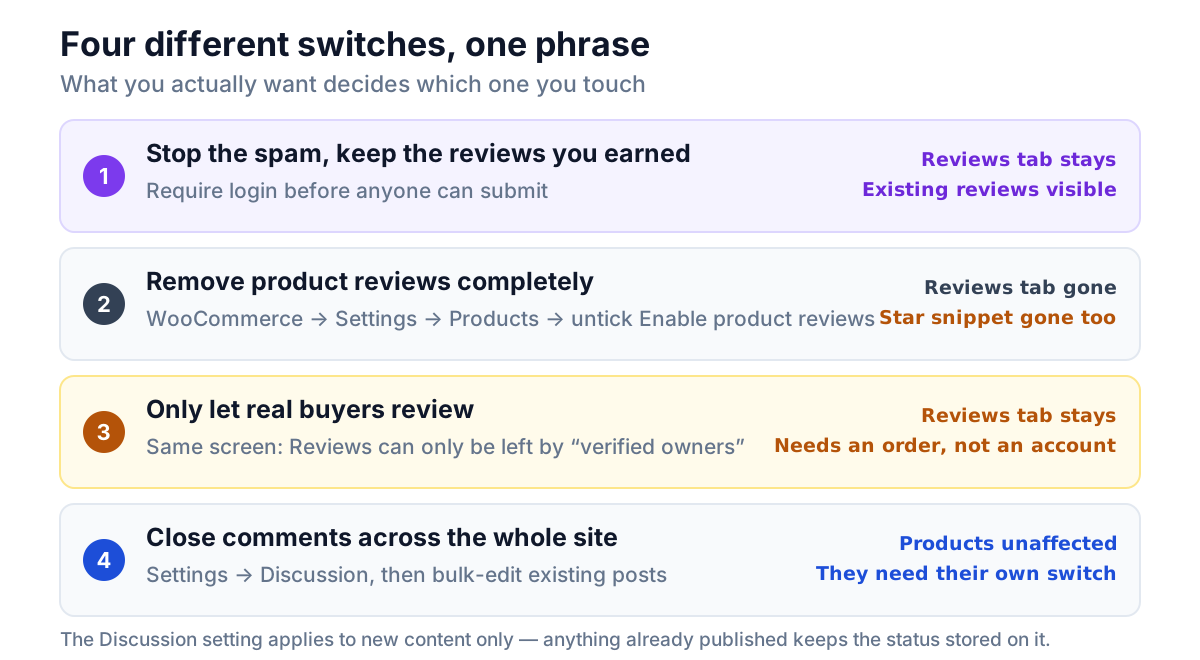
| What you actually want | Where it lives | What happens to the Reviews tab |
|---|---|---|
| Stop spam, keep the reviews you earned | Require login before submitting | Stays, with your message in place of the form |
| Remove product reviews completely | WooCommerce → Settings → Products | Disappears, along with your star markup |
| Only let real buyers review | WooCommerce → Settings → Products | Stays; the form is limited to verified owners |
| Close comments across the whole site | Settings → Discussion, plus existing content | Untouched — products need their own switch |
The last row is the one that causes the most confusion. WordPress comments and WooCommerce reviews are the same underlying system — a review is a comment, stored in wp_comments with a rating attached — but they are controlled by different settings, and turning off one does not turn off the other.
How to enable or disable product reviews in WooCommerce
One checkbox governs the whole feature.
Go to WooCommerce → Settings → Products, and look for the Reviews block:
- Enable reviews — the checkbox labelled Enable product reviews. Ticked by default.
Untick it, save, and product reviews are gone from the front end. Tick it, save, and they are back. That is also the answer to the reverse question — if your store has no reviews section at all and you cannot work out why, this is the checkbox to look at first.
What makes it worth understanding rather than just clicking is what it does underneath. WooCommerce does not hide the reviews with CSS. When the option is off, it stops declaring comment support on the product post type at all:
$supports = array( 'title', 'editor', 'excerpt', 'thumbnail', 'custom-fields' );

if ( 'yes' === get_option( 'woocommerce_enable_reviews', 'yes' ) ) {
	$supports[] = 'comments';
}
With comment support gone, comments_open() is false on every product — and the Reviews tab is only ever registered on that condition:
// Reviews tab - shows comments.
if ( comments_open() ) {
	$tabs['reviews'] = array(
		'title'    => sprintf( __( 'Reviews (%d)', 'woocommerce' ), $product->get_review_count() ),
		'priority' => 30,
		'callback' => 'comments_template',
	);
}
So one checkbox removes the tab, the form and the displayed reviews together, and it does so properly: there is no hidden form left behind for a bot to post to. That is the standard to hold any other method against.
What it does not do
It does not delete anything. Every review stays in wp_comments exactly where it was. Tick the box again and they all come back, ratings included.
It does remove your star snippet. WooCommerce writes an AggregateRating into each product page's structured data — the average score and the review count — and that is what a search engine reads to decide whether to draw the yellow stars under your listing. Switch reviews off and there is no rating to publish, so the stars go. Your competitor's result keeps theirs. That trade is the whole subject of why product reviews matter more than price in WooCommerce, and it is why "turn it all off" is a costly way to solve a spam problem.
The setting most spam-hit stores should try first
Two rows below the one everybody clicks, on the same screen, sits the lever that actually targets the problem:
- Reviews can only be left by "verified owners" — off by default.
Switch it on and only a customer whose order contains that product can submit a review of it. Not "a logged-in user", not "somebody who filled in an email field" — somebody who bought the thing. For spam specifically this is stronger than requiring an account, because an account is free and an order is not.
It has a real cost, so decide it deliberately: genuine customers who checked out as guests under a different email address can no longer review, and neither can anyone who received the product as a gift. On a store with a long tail of guest checkouts that can be most of your would-be reviewers.
The neighbouring settings on that screen are worth knowing while you are there:
| Setting | Default | What it does |
|---|---|---|
| Show "verified owner" label on customer reviews | On | Marks reviews left by actual purchasers |
| Reviews can only be left by "verified owners" | Off | Restricts submission to purchasers |
| Enable star rating on reviews | On | The 1–5 star control on the form |
| Star ratings should be required, not optional | On | A review cannot be submitted without one |
Leave the verified-owner label on regardless of what else you decide. It costs nothing and it is the one badge on the page that a competitor cannot fabricate.
How to remove the WooCommerce reviews tab (and why bots still post)
Sometimes the requirement is narrower: keep collecting reviews, but stop showing the tab on the product page — you display them somewhere else, or the tab does not fit the design.
The tabs are assembled through a filter, so removing one is three lines:
add_filter( 'woocommerce_product_tabs', function ( $tabs ) {
	unset( $tabs['reviews'] );
	return $tabs;
}, 98 );
A priority above WooCommerce's own default (its tabs are added at the standard priority and sorted at 99) makes sure the tab exists by the time you unset it.
Be clear about what this does and does not achieve. It removes the tab from the page. It does not close anything: comments_open() is still true for that product, so the endpoint that accepts review submissions is still accepting them. A bot posting directly to wp-comments-post.php never looked at your tabs in the first place.
This is the single most common mistake in this area, and it applies equally to the CSS one-liner that sets #tab-reviews { display: none }. Hiding the form is not the same as refusing the submission. If your goal is spam, a change that only affects what a browser renders has not addressed it.
How to disable WordPress comments globally
Now the other half: blog posts, pages, and everything that is not a product.
Go to Settings → Discussion. Two checkboxes matter:
- Allow people to submit comments on new posts — this is the
default_comment_statusoption. - Users must be registered and logged in to comment — this is
comment_registration.
The first one is the trap, and the label tells you why if you read it closely: on new posts. It sets the default for content created from now on. Every post you already published keeps the comment status stored on it, so unticking that box on a five-year-old blog changes nothing at all about the five years of posts collecting the spam.
To close comments on existing content, use a bulk edit:
- Posts → All Posts, set the screen to show everything.
- Tick the checkbox in the header to select the page of posts.
- Bulk actions → Edit → Apply.
- Set Comments to Do not allow, then Update.
- Repeat for Pages, and for any custom post type that has comments turned on.
Do both — the setting for the future, the bulk edit for the past — and comments are genuinely off site-wide. That is what "disable comments completely" requires, and why the settings screen alone so often feels like it did not work.
If you would rather keep discussion but require an account, the second checkbox — Users must be registered and logged in to comment — does exactly that, everywhere, including on product reviews.
How to disable comments on WordPress media attachments
Here is where spam keeps arriving on a site whose owner is certain comments are off.
Attachments are a post type, and WordPress registers them with comment support:
'supports' => array( 'title', 'author', 'comments' ),When a new attachment is created, its comment status comes from get_default_comment_status(), which special-cases only pages:
if ( 'page' === $post_type ) {
	$status = 'closed';
} elseif ( post_type_supports( $post_type, $supports ) ) {
	$status = get_option( "default_{$option}_status" );
} else {
	$status = 'closed';
}
So every image you uploaded while Allow people to submit comments on new posts was ticked has comment_status set to open, and if your theme has an attachment template, each of those URLs is a page that accepts comments. Thousands of them, none linked from your menu, all indexable, none of them anything you would ever read.
Unticking the Discussion box fixes future uploads and leaves every existing one open. To close the existing ones you can bulk-edit from the Media list view, or settle it in code for every attachment at once:
add_filter( 'comments_open', function ( $open, $post_id ) {
	return 'attachment' === get_post_type( $post_id ) ? false : $open;
}, 10, 2 );
comments_open() is checked before a comment is accepted, not merely before the form is drawn, so this refuses the submission rather than hiding the form — the distinction from the tab-removal section above.
What to look for in a disable comments plugin
Plenty of plugins do this, and the good ones are very small. The questions worth asking before you install one:
- Does it close submissions, or only hide the form? A plugin that removes markup and leaves the endpoint open has not stopped anything. If the description talks about hiding, look at what it does on POST.
- Does it touch your data? Setting a comment status is reversible. Deleting comments is not. Nothing about "disable" should involve a
DELETE. - What happens when you deactivate it? A plugin that worked through render-time filters leaves your content exactly as it found it. One that rewrote
comment_statuson every row has changed your database, and deactivating does not change it back. - Does it load anything on the front end? This is a settings change. It should not put CSS or JavaScript on your storefront to accomplish it.
- Does it distinguish products from posts? Reviews and blog comments are the same system but not the same decision, and a plugin that cannot tell them apart forces you to make one choice for both.
The middle path: require login instead of switching reviews off
Back to where we started. The spam is real, and both obvious answers are bad: moderate forever, or lose the social proof.
There is a third option that the default settings make awkward to reach. Bots submit as guests. Real customers have accounts. Requiring an account in order to submit — while leaving every existing review on display — removes most of the first group and very little of the second.
WordPress can already do this; the problem is that comment_registration is all-or-nothing and site-wide. You cannot require login for product reviews while leaving your blog open to guests, which for most stores is exactly the shape they want.
That gap is what NeoLite Disable Reviews fills. It is two independent switches:
| Switch | Scope |
|---|---|
| Disable guest reviews (WooCommerce) | Product reviews only. Nothing else on the site changes. |
| Disable global guest comments | The whole site — posts, pages, everything. |
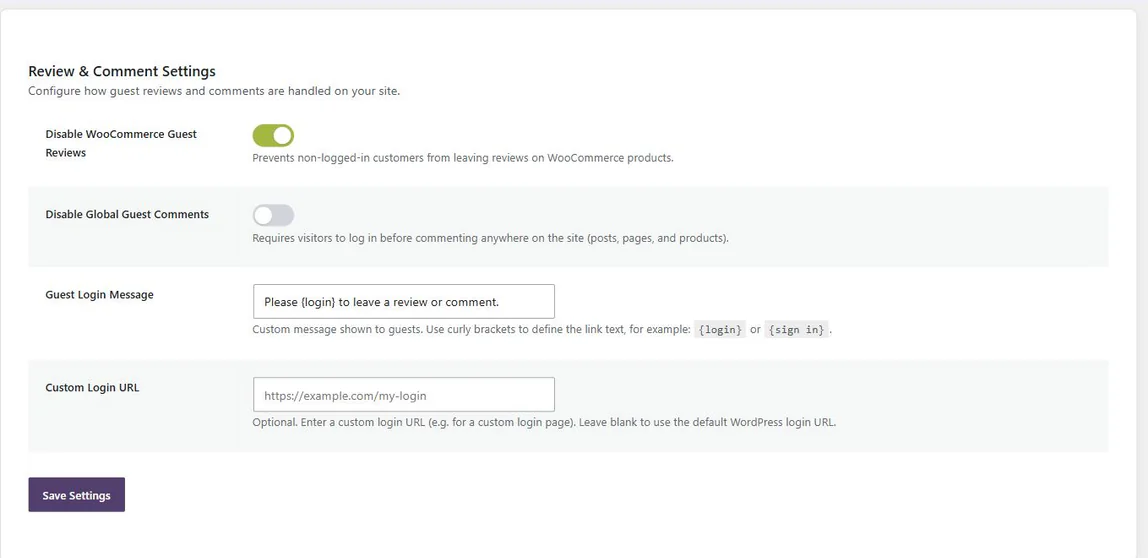
Guests get a message where the form would be, and you write it. Curly brackets mark the text that becomes the login link, so the wording is yours:
Please {login} to leave a review or comment.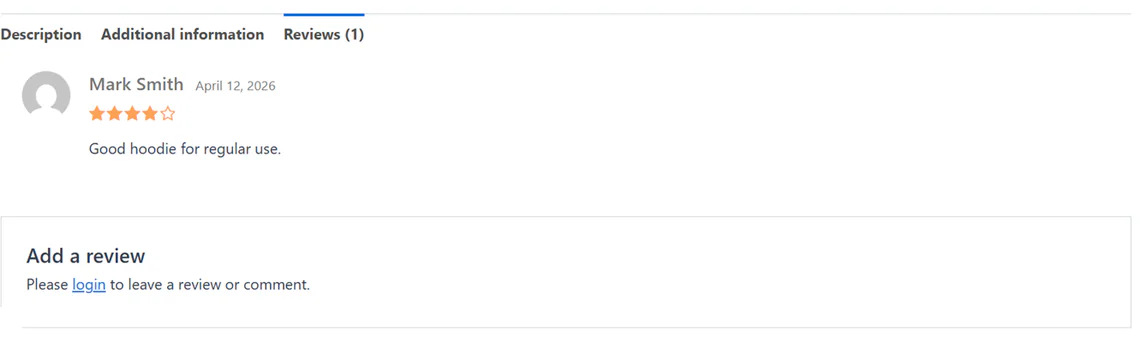
The mechanism matters, for the same reason it mattered twice above. Rather than hiding the form, it filters WordPress's own comment_registration option for guests — narrowed to product context for the first switch — and replaces the must log in message through the standard WooCommerce and comment-form hooks. The restriction is applied when the page renders and is never written to your content, so deactivating brings the guest forms straight back, and block themes behave the same as classic ones because the logic is nowhere near the templates.
It needs WordPress 6.0, WooCommerce 8.0 and PHP 7.4. There is no spam service behind it, no API key, no external request, no database table, and nothing loaded on your storefront — the plugin's only assets are admin CSS and JS on its own settings page. Full details are in the manual.
Frequently asked questions
How do I disable WooCommerce reviews?
Go to WooCommerce → Settings → Products, find the Reviews block, and untick Enable product reviews. That removes the review form, the displayed reviews and the Reviews tab from every product at once, because WooCommerce stops declaring comment support on the product post type. Nothing is deleted — every review stays in the database and reappears if you tick the box again.
How do I enable product reviews in WooCommerce?
The same checkbox. WooCommerce → Settings → Products → Reviews → Enable product reviews, ticked, then save. It is on by default, so if a store has no reviews section this is usually either that box, or a theme that does not render the tabs. Star ratings have their own checkbox — Enable star rating on reviews — just below it.
How do I remove the WooCommerce reviews tab without disabling reviews?
Unset it from the woocommerce_product_tabs filter at a priority above 99. Understand the limit, though: removing the tab removes it from the page and does not close submissions, so the endpoint that accepts reviews is still open. If the goal is spam rather than layout, change the setting instead of the markup.
Will disabling reviews delete my existing reviews?
No. Reviews are rows in wp_comments, and none of these settings removes a row. Disabling controls whether the submission form and the review list are rendered. The one thing that does disappear immediately is the AggregateRating in your product's structured data, which is what produces the star snippet in search results.
How do I disable WordPress comments globally?
Two steps, and most guides only give the first. Untick Allow people to submit comments on new posts in Settings → Discussion — which applies to content created from then on — and then bulk-edit your existing posts and pages, setting Comments to Do not allow. Without the second step, everything already published keeps accepting comments.
How do I disable comments on media attachments?
Attachments support comments and inherit the same Discussion default, so uploads made while that box was ticked have comments open. Unticking it only affects future uploads. Close the existing ones by bulk-editing from the Media list view, or filter comments_open to return false for the attachment post type, which refuses the submission rather than hiding the form.
Can I require login for product reviews but keep my blog comments open to guests?
Not with core settings alone — comment_registration is site-wide. Scoping the requirement to products needs a plugin that narrows it to product context, which is the first of the two switches in NeoLite Disable Reviews. The second switch is the site-wide one, deliberately kept separate because the two decisions are rarely the same.
Is requiring login the same as blocking spam?
No, and it is worth being precise. Requiring an account raises the cost of submitting from nothing to something, which removes the drive-by guest submissions that make up the bulk of review spam. It is not a content filter, and a determined spammer can register. For product reviews specifically, Reviews can only be left by "verified owners" is the stricter setting, because it requires a paid order on the account, not just an account.
The bit worth remembering
The checkbox that disables reviews works perfectly and is almost always the wrong one to reach for. It solves a spam problem by removing the asset the spam was attached to — along with the star snippet in your search results and the reason a stranger believes you.
Work out which of the four things you actually want first. If it is "stop the spam", the switch you want is not the one that turns reviews off.
If you keep them, the complete guide to WooCommerce product reviews covers the settings that matter, collecting more, and moderating without losing the honest ones.
NeoLite Disable Reviews is a free WooCommerce plugin that restricts review or comment submission to logged-in users, keeps every existing review on display, and adds nothing to your storefront. Two switches and a message you write yourself.