
WooCommerce product schema: the complete 2026 guide
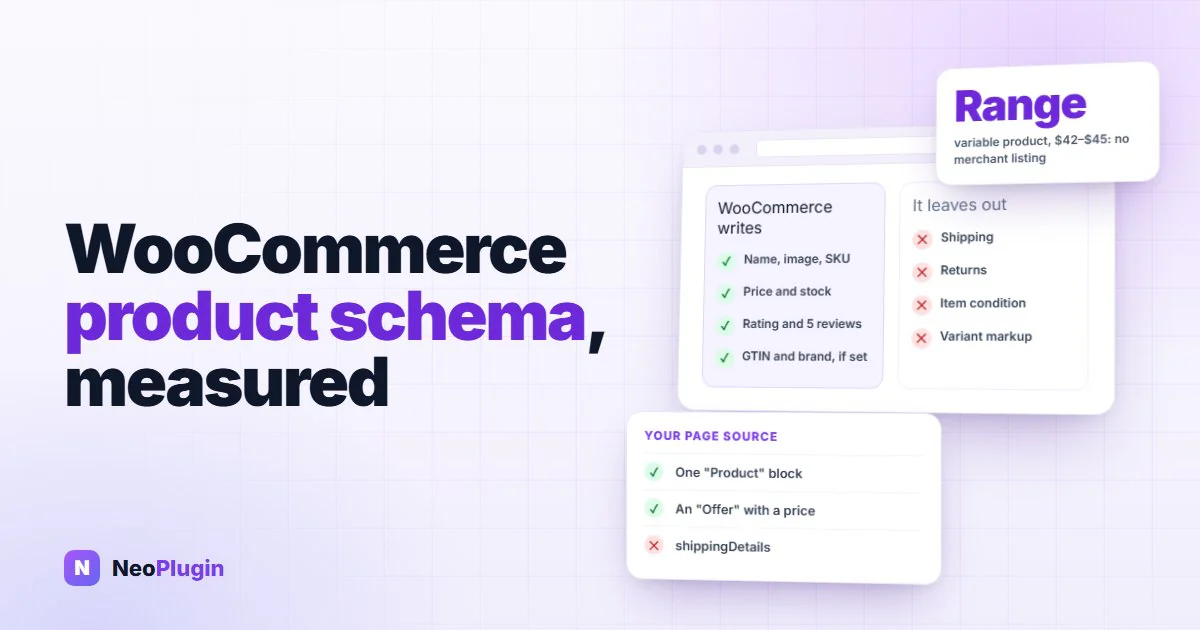
Every WooCommerce store already has product schema. WooCommerce writes it into each product page by itself, as JSON-LD that Google reads to show prices, stock and review stars in search. What most store owners don't know is exactly what's in it, what's missing, and when it quietly disappears.
So we measured it. We read WooCommerce 11.1's own schema markup from a test store's products, one of each type, with no other plugin active, and checked it against Google's current documentation. This guide is the result: what WooCommerce's product schema contains, what it leaves out, where it breaks, and how to fix each part. Our guide to fixing merchant listings issues in Search Console covers the warnings those gaps cause.
Quick answer. WooCommerce writes product schema on its own: a
Productwith the name, description, featured image, SKU and an offer with the price, currency and stock status, plus a rating and up to five reviews when the product has rated reviews, agtinwhen one is entered, and abrandwhen one is assigned. It leaves out shipping, returns, item condition, variant markup and extra images. A variable product whose variations cost different amounts gets a price range (AggregateOffer), which Google doesn't accept for merchant listings. Shop and category pages get no product markup at all, and a block template without an Excerpt or Product Summary block loses it entirely.
The short version
- WooCommerce's schema is real but thin. It covers everything Google requires for a merchant listing (name, image, a priced offer) and few of the fields Google recommends.
- Variable products are the big gap. With mixed variation prices, WooCommerce writes a price range, and Google needs a single
Offerfor a merchant listing. - The markup can vanish. Shop and category pages never get it, and a block template missing two particular blocks drops it on product pages too.
- It can also double. WooCommerce doesn't check whether another plugin writes product markup as well.
- Most gaps are fixable without a plugin, through two WooCommerce filters. A plugin saves you keeping that code in step with your store.
How we tested
Our test store runs WordPress 7.1.4, WooCommerce 11.1.2, the Astra theme and PHP 8.3. For the measurements every other plugin was switched off, so the markup below is WooCommerce's alone. We fetched each product page over HTTP and read the JSON-LD from the page source:
| Product | Type | What it tests |
|---|---|---|
| T-Shirt | Simple | The baseline |
| Belt | Simple, on sale, 10 reviews | Sale prices and ratings |
| Hoodie | Variable, $42–$45, a brand assigned | Price ranges, brands, a variation on sale |
| Hoodie, one variation's link | Variable, every attribute in the URL | Single-variation offers |
| Logo Collection | Grouped | Grouped products |
| WordPress Pennant | External | Products sold elsewhere |
We also gave the T-Shirt a GTIN for one test and removed it afterwards, and ran the same pages with NeoSERP, our schema plugin, switched on to see how a plugin's markup replaces WooCommerce's. Afterwards the store went back exactly as it was.
What WooCommerce product schema is, and where it comes from
Product schema in WooCommerce, as anywhere else, is a description of the product written for machines, in the vocabulary from schema.org. WooCommerce writes it as JSON-LD: a block of data inside a <script type="application/ld+json"> tag, invisible on the page. Google reads it to decide what it can show about the product in search results.
WooCommerce builds it in two stages:
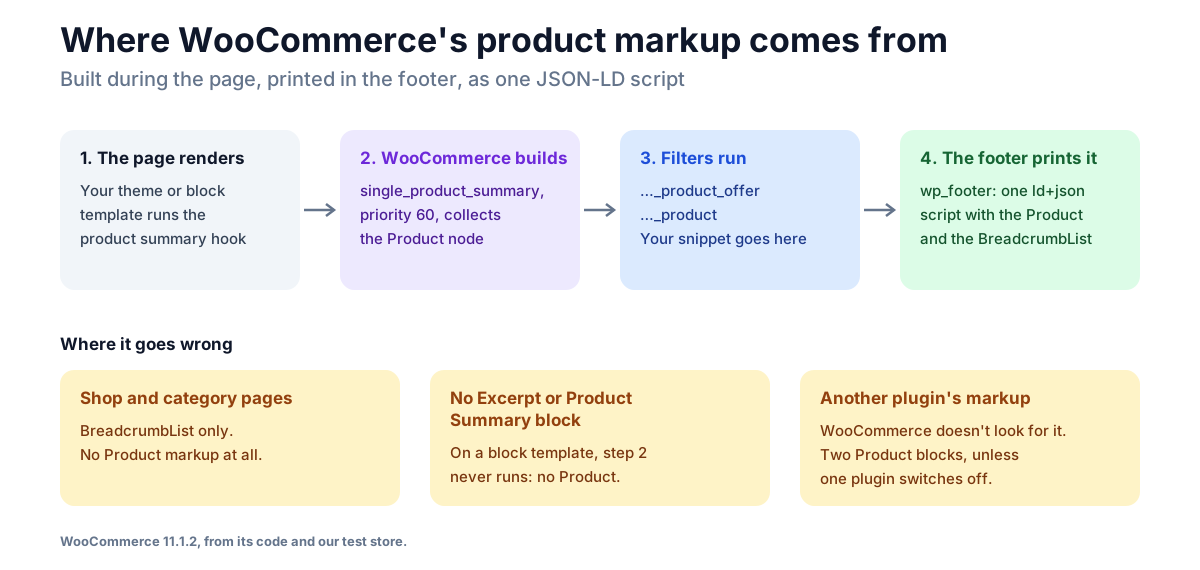
- While the page renders, WooCommerce collects the product's data on the
woocommerce_single_product_summary action, at priority 60, which every classic product template runs.
- In the footer, on
wp_footer, it prints everything it collected as one
JSON-LD script: the Product, and a BreadcrumbList from the breadcrumbs.
That split explains most of the problems further down. If the summary action never runs, there's nothing to print. And because the data is printed late, in the footer, it's easy to miss when you look at a page's source from the top.
What WooCommerce's product schema contains
This is what WooCommerce 11.1.2 printed for our products, property by property:
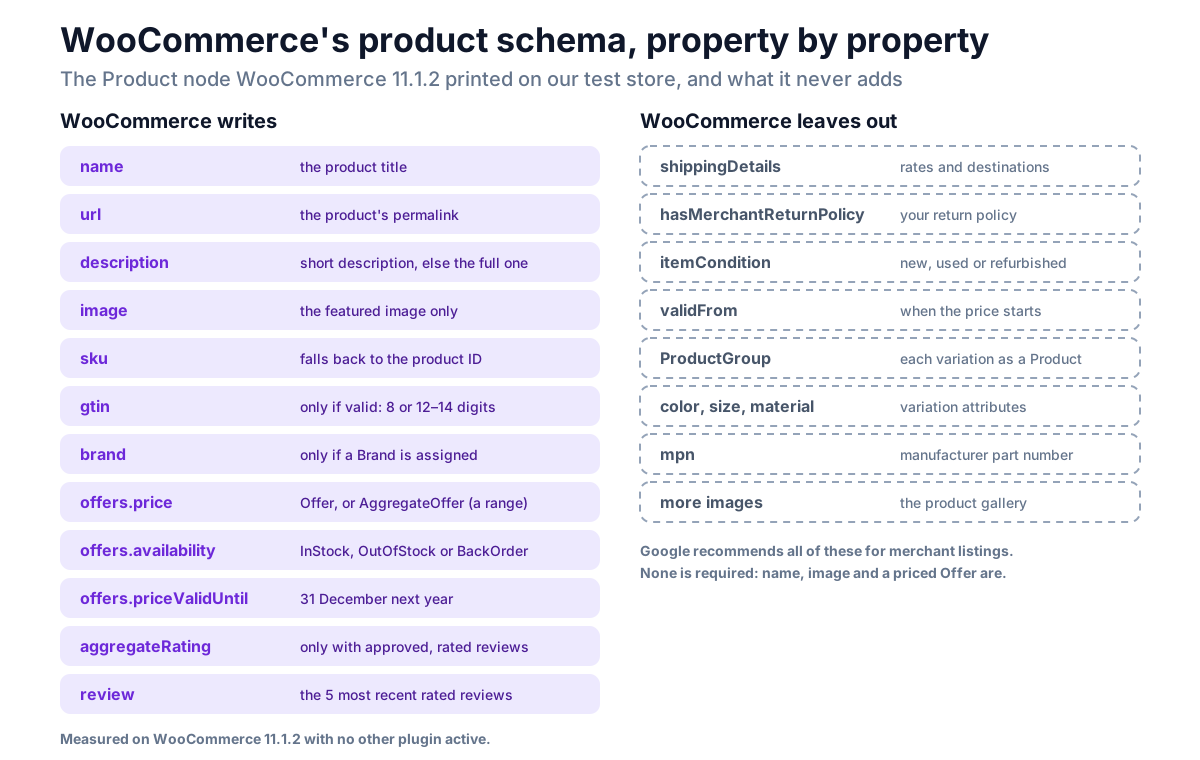
A few of those deserve a closer look:
descriptionis the short description. When a product has none,
WooCommerce uses the full description instead, with the HTML stripped out.
imageis the featured image only. Gallery images are never included.skufalls back to the product's database ID when the product has no
SKU, so a product without one still gets an sku, just not a meaningful one.
gtinappears only when the product's GTIN, UPC, EAN, or ISBN field
(on the Inventory tab) holds a valid number: 8, or 12 to 14 digits. Our T-Shirt printed it as soon as we entered one.
brandcomes from WooCommerce's built-in Brands. Assign a brand to
the product and a Brand with its name (and logo, if it has one) appears, as it did on our Hoodie. Products with no brand get no brand.
aggregateRatingandreviewappear only when the product has approved
reviews with a star rating and ratings are switched on in WooCommerce. The reviews are the five most recent rated ones. Our Belt has ten and printed five. Our post on star ratings not showing in Google covers everything that stops the rating.
priceValidUntilis always 31 December of next year (2027-12-31 when we
measured), unless the product is on sale with an end date, in which case it's the sale's end date.
selleris your store, as anOrganizationwith the site name and URL.
The offer depends on the product type
The offer is the part Google cares about most for a shop, and WooCommerce writes a different one for each kind of product:
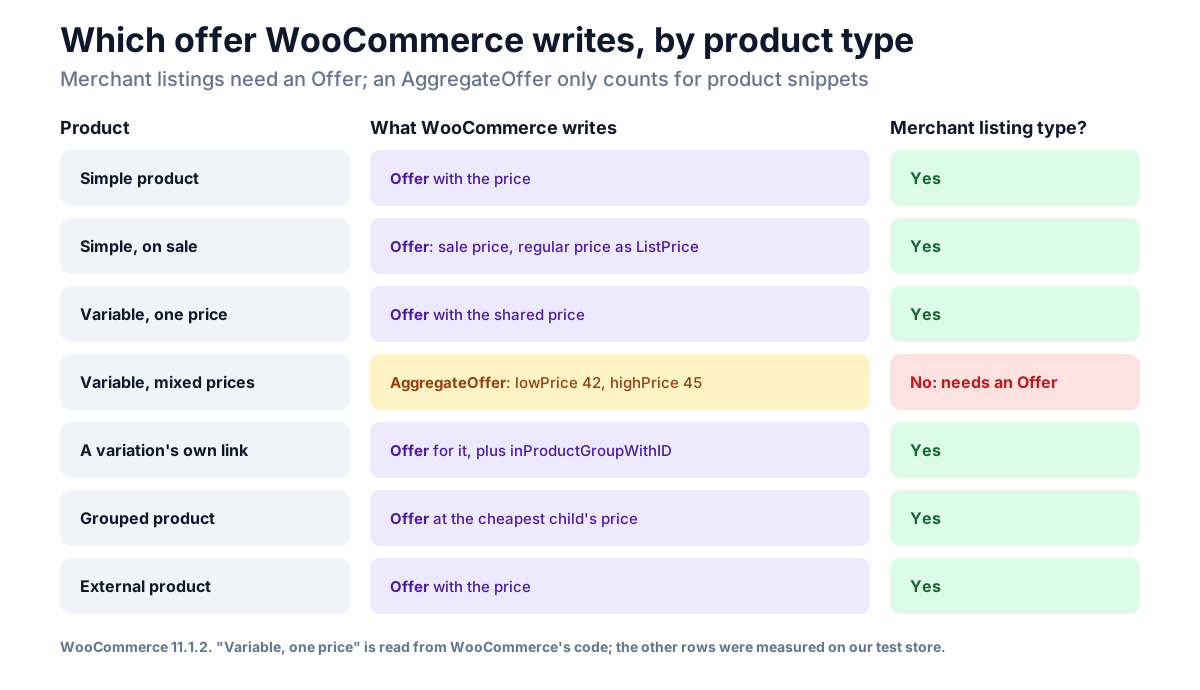
| Product | Offer type | Price in the markup |
|---|---|---|
| Simple (T-Shirt) | Offer | 18.00 |
| Simple on sale (Belt) | Offer | 55.00, with the regular 65.00 marked as ListPrice |
| Variable, mixed prices (Hoodie) | AggregateOffer | lowPrice 42.00, highPrice 45.00, 4 offers |
| One variation's link (Hoodie, blue with logo) | Offer | 45.00, plus inProductGroupWithID |
| Grouped (Logo Collection) | Offer | 18.00, the cheapest product in the group |
| External (WordPress Pennant) | Offer | 11.05 |
A variable product whose variations all cost the same gets a plain Offer instead of a range. That one we read from WooCommerce's code rather than measured, since none of our variable products has a single price.
The row that matters is the Hoodie's. Google's merchant listing documentation (updated 8 September 2026, checked 1 November 2026) is explicit that merchant listings require an Offer, not an AggregateOffer. So a variable product with different variation prices, which describes most variable products, isn't a merchant listing at all in WooCommerce's own markup. When we put the Hoodie's markup through Google's Rich Results Test for our merchant listings guide, it found product snippets and reviews but no merchant listing.
WooCommerce has a partial answer. When a visitor arrives on a link that names every attribute of one variation, such as /product/hoodie/?attribute_pa_color=blue&attribute_logo=Yes, it describes that variation alone with a single Offer and points back to the parent with inProductGroupWithID. That helps product feeds that link to each variation. It does nothing for the plain product URL that Google normally crawls.
Two sale-price details that don't match Google's docs
Both are small, and neither stopped our products from being valid, but you'll see them in your source:
- On a simple product on sale, WooCommerce marks the regular price with
priceType ListPrice. Google's documentation now asks for StrikethroughPrice on the original price and says that "for a transition period, ListPrice is also allowed".
- On a variable product with a variation on sale, WooCommerce adds the
lowest sale price to the AggregateOffer and marks it SalePrice. Our Hoodie's red variation is on sale at $42, so its markup carried that. Google's documentation says not to mark the active price with a priceType at all.
The snippet further down fixes both.
What Google does with WooCommerce structured data
Google uses product markup for two kinds of result, described in its introduction to product structured data (updated 10 December 2025, checked 1 November 2026):
- Product snippets are for pages about a product, including reviews and
editorial pages. They need a name and one of offers, review or aggregateRating, and they show things like review stars and a price.
- Merchant listings are for pages where people can buy the product. They
need a name, an image and an Offer with a price and currency, and they can show richer shopping details such as shipping costs and return windows.
A product page can qualify for both. WooCommerce's markup covers the required fields for both, as long as the product has a featured image and a price, and isn't a variable product with mixed prices. What it doesn't cover is most of the recommended list, which is why nearly every WooCommerce store sees non-critical warnings in Search Console. Markup only makes a product eligible; Google decides what to show.
What WooCommerce leaves out
| Missing from WooCommerce's markup | What it's for | How to add it |
|---|---|---|
shippingDetails | Shipping cost and destination | Missing field "shippingDetails" |
hasMerchantReturnPolicy | Your return window and costs | hasMerchantReturnPolicy for WooCommerce |
Variant markup (ProductGroup, hasVariant) | Each variation as its own product and offer | Variable products that never show up |
itemCondition | New, used or refurbished | The snippet below |
gtin and brand, when empty | Matching your product to the same item elsewhere | Fill in the GTIN field and assign a brand (details) |
validFrom | When the price takes effect | Rarely worth adding by hand |
color, size, material | The product's attributes | Part of variant markup |
mpn | Manufacturer part number | A filter, if you have them |
| More than one image | The product gallery | A filter, if you want them |
Google lists every one of these as recommended, not required. Shipping and returns are the two that show up in search as extra detail and the two that produce the most Search Console warnings, so they're the ones to fix first. Variant markup matters more than either if you sell variable products, because without it those products aren't merchant listings at all.
Three ways the markup disappears or doubles
Shop and category pages get none
WooCommerce writes product markup only on single product pages. Our shop page printed a BreadcrumbList and nothing else. That's normal, and not something to fix: Google's product results point at product pages.
A block template without an Excerpt or Product Summary block
On a block theme there's no PHP template to run woocommerce_single_product_summary, so WooCommerce fires it itself, just before the Excerpt or Product Summary block in your product template. Remove both and the action never runs, so WooCommerce writes no product markup at all, while the page itself still shows the price and the stars. We tested this on Twenty Twenty-Five for the star ratings post, which has a no-code fix and a tested code fix. Our test of what breaks on a block theme covers the other hooks that move or vanish.
Two plugins writing product markup
WooCommerce doesn't check whether something else on the page also describes the product. SEO and schema plugins usually switch WooCommerce's markup off and print their own, which is fine. When one doesn't, the page carries two Product blocks for the same product, often with different details, and Google has to pick. Search your page source for "Product" (see below): one block is right, whoever wrote it.
With NeoSERP active on our test store, each product page carried a single script with a single product description, built by NeoSERP. WooCommerce's own Product was gone.
How to add schema to WooCommerce without a plugin
You don't have to replace WooCommerce schema markup to improve it. WooCommerce gives you two filters to change it before it's printed:
woocommerce_structured_data_product_offerfor the offer: price,
availability, shipping, returns, condition.
woocommerce_structured_data_productfor the product: brand, images,
identifiers, attributes.
This snippet adds itemCondition and fixes the two sale-price details above. Add it to a small custom plugin or a code-snippets plugin, not to a theme that updates:
add_filter( 'woocommerce_structured_data_product_offer', function ( $offer, $product ) {
	// Every product in this store is sold new.
	$offer['itemCondition'] = 'https://schema.org/NewCondition';

	// Use the price types Google's merchant listing docs ask for.
	if ( ! empty( $offer['priceSpecification'] ) ) {
		foreach ( $offer['priceSpecification'] as $i => $spec ) {
			$type = $spec['priceType'] ?? '';
			if ( 'https://schema.org/ListPrice' === $type ) {
				$offer['priceSpecification'][ $i ]['priceType'] = 'https://schema.org/StrikethroughPrice';
			} elseif ( 'https://schema.org/SalePrice' === $type ) {
				unset( $offer['priceSpecification'][ $i ]['priceType'] );
			}
		}
	}

	return $offer;
}, 10, 2 );
We ran it on the test store. The T-Shirt, Belt and Hoodie offers all gained itemCondition. The Belt's regular price came out as StrikethroughPrice, and the Hoodie's sale price lost its SalePrice label. This is the Belt's offer afterwards, with the seller and url left out for length:
{
  "@type": "Offer",
  "price": "55.00",
  "priceCurrency": "USD",
  "priceSpecification": [
    { "@type": "UnitPriceSpecification", "price": "55.00", "priceCurrency": "USD", "validThrough": "2027-12-31" },
    { "@type": "UnitPriceSpecification", "price": "65.00", "priceCurrency": "USD", "validThrough": "2027-12-31",
      "priceType": "https://schema.org/StrikethroughPrice" }
  ],
  "priceValidUntil": "2027-12-31",
  "availability": "https://schema.org/InStock",
  "itemCondition": "https://schema.org/NewCondition"
}
If you sell used or refurbished items, set the condition per product instead of for the whole store.
The same filter is where shipping and returns go. The shippingDetails and return policy guides each have a tested snippet for it. Variant markup is a bigger job: it replaces the product node with a ProductGroup that lists every variation, which is more than a filter on the offer can do neatly.
How to read your own page source
You don't need a tool to see what your store publishes:
- Open a product page, right-click and choose View page source.
- Search for
application/ld+json. WooCommerce's script is near the
bottom, just before </body>. There may be others from your theme or plugins.
- Search for
"Product". One match per product page is right. None means
the markup is missing (check the block template above). Two means two plugins are writing it.
- Check the offer. Look for
"@type":"Offer"and aprice. If you see
"AggregateOffer", the product isn't a merchant listing as it stands.
- Check the extras. Look for
aggregateRating,gtin,brand,
shippingDetails and hasMerchantReturnPolicy, and compare with the table above.
Then paste the URL into Google's Rich Results Test, which reports which results the page is eligible for and lists the same warnings Search Console will. It needs a page Google can reach, so a staging site behind a login won't work.
The version that keeps itself up to date
Filters work, but they're code you maintain, and shipping and returns go out of date the moment you change a setting. NeoSERP, our free product schema plugin, builds the markup from what WooCommerce already stores and replaces WooCommerce's own. On our test store:
- Variable products came out as a
ProductGroupwith each variation as
its own Product, four for the Hoodie and three for the V-Neck T-Shirt, with variesBy naming the attribute that changes.
- Shipping came from the store's shipping zones, as
shippingDetailson
every offer.
- Returns appear once you fill in its Returns settings. Until then it
publishes no return policy rather than guess one.
- Ratings and reviews carry over, as in WooCommerce's markup.
It isn't free of warnings. Our T-Shirt, which has no brand assigned, got the store as its brand, which Google's test reports as Invalid object type for field "brand". Assign a brand and that goes. NeoSERP is in review at WordPress.org; until it's approved, you can download it from its page.
Every guide in this series
- Fix "Merchant listings structured data issues detected": every Search Console warning, its cause and its fix.
- Missing field "shippingDetails": shipping markup by hand, and the Organization-level alternative.
- hasMerchantReturnPolicy for WooCommerce: giving Google your return policy.
- Star ratings not showing in Google: the seven causes, in order.
- Selling variable products well: what variant markup gives the shopper.
- WooCommerce on a block theme: which hooks survive the block templates.
Frequently asked questions
Does WooCommerce add product schema automatically?
Yes. Every single product page gets a Product in JSON-LD with the name, description, featured image, SKU and an offer, plus a rating and up to five reviews when the product has rated reviews. You don't need to switch anything on. Shop and category pages get no product markup.
What is WooCommerce structured data?
It's the JSON-LD WooCommerce prints in the footer of each product page, describing the product in schema.org vocabulary: a Product, its Offer and its reviews, plus a BreadcrumbList. Google reads it to decide which search features the page can have, such as review stars and price details.
Do I need a plugin for WooCommerce rich snippets?
Not for the basics. WooCommerce's own markup is enough for review stars and prices on simple products, if the product has rated reviews and a featured image. You need more, by snippet or plugin, for shipping and returns details, and for variable products with different prices to count as merchant listings.
How do I add schema to WooCommerce?
Use the woocommerce_structured_data_product_offer and woocommerce_structured_data_product filters to add fields to WooCommerce's markup, as in the snippet above. Or use a schema plugin that replaces it. Avoid adding a second, separate Product by hand: that leaves Google two descriptions of one product.
Does WooCommerce output GTIN and brand?
Yes, when they're filled in. A valid number in the GTIN, UPC, EAN, or ISBN field (8, or 12 to 14 digits) becomes gtin, and a brand from Products → Brands becomes a Brand. Products without them get neither, which is the usual cause of the "No global identifier provided" warning.
Why does my product have two Product blocks in the source?
Two plugins are writing product markup, or a plugin is writing its own without switching WooCommerce's off. Keep one: switch the extra plugin's product schema off, or switch the plugin off. One accurate Product is better than two that disagree.
The takeaway
WooCommerce's product schema does the minimum well: every product page gets a valid description with a price and, when there are reviews, a rating. Where it falls short is the detail Google can show (shipping, returns, condition) and, more seriously, variable products with mixed prices, which its markup leaves out of merchant listings. Read your own source once, fix the block template if the markup is missing, then add what's missing, in order of what your store sells.