
How to fix "Merchant listings structured data issues detected" in WooCommerce
The email arrives from Google Search Console: "Merchant listings structured data issues detected", followed by a count of issues on your site and a button to open the report. If you run a WooCommerce store, you will almost certainly get it at some point. WooCommerce's own product markup leaves out several fields that Google asks for.
Most of those issues are harmless, and a few are not. This guide covers how to tell them apart. It then goes through every merchant listings warning a WooCommerce store is likely to see, with the cause and the fix for each, and explains how Validate fix works once you're done. We put WooCommerce 11.1's own markup, from a test store's products, through Google's Rich Results Test. Every warning text below is what the test printed.
Quick answer. "Merchant listings structured data issues detected" means Google found problems in the product markup on pages where people can buy something. Critical issues make a product invalid, so it can't appear as a merchant listing at all. Typical causes are a missing or unreachable image, or a price of zero. Non-critical issues leave the product valid and eligible, and only limit the extra details Google can show. On a stock WooCommerce store they are mostly shipping, returns and product identifiers. Fix the critical ones first, add the rest where you can, then click Validate fix in Search Console. Validation typically takes up to about two weeks.
The short version
- Critical means invisible, non-critical means less detail. Only critical issues remove a product from merchant listings.
- A stock WooCommerce product gets non-critical warnings. Our simple product passed with four: no global identifier, no
shippingDetails, nohasMerchantReturnPolicy, novalidFrom. - Variable products may not be in the report at all. When variations have different prices, WooCommerce marks the product up as a price range, and Google's test found no merchant listing in it.
- Shipping and returns are the warnings you can't switch off in WooCommerce. Core has no setting that publishes them. Search Console's own Shipping and returns settings give Google the policy with no code, and a short filter or a plugin adds it to the markup.
- Validate fix takes about two weeks. Google checks a sample of pages first, then the rest.
What "Merchant listings structured data issues detected" means
Google sorts product markup into two Search Console reports. Merchant listings covers pages where a shopper can buy the product, which is every product page on your store. Product snippets covers other product pages, such as reviews and comparison sites. A WooCommerce product page usually shows up in both, and the email you got is about the first.
A merchant listing is a product Google can show as something a shopper can buy from you, with its price, availability, and optionally shipping and returns. A product snippet is the extra product detail, such as stars, review count and price, that Google can add to an ordinary search result. They check the same markup against different rules:
| Merchant listings | Product snippets | |
|---|---|---|
| For | Pages where the shopper can buy the product | Product pages where they can't, such as reviews |
| Must have | A name, an image, and an Offer with a price above zero | A name, plus a review, a rating or an offer |
A price range (AggregateOffer) | Not detected as a merchant listing in our test | Accepted in our test |
| Shipping and returns | Recommended, flagged when missing | Not checked |
| Reviews and ratings | Recommended | Flagged when missing |
The email says how many merchant listings issues Search Console found and lists the top ones in two groups, critical and non-critical. In a copy one merchant posted in 2023, it opened: "Search Console has identified that your site is affected by…" and gave the count. The count is of types of issue, not of products. A store with 400 products and no shipping markup has one issue that affects 400 items.
Where to find merchant listings in Google Search Console
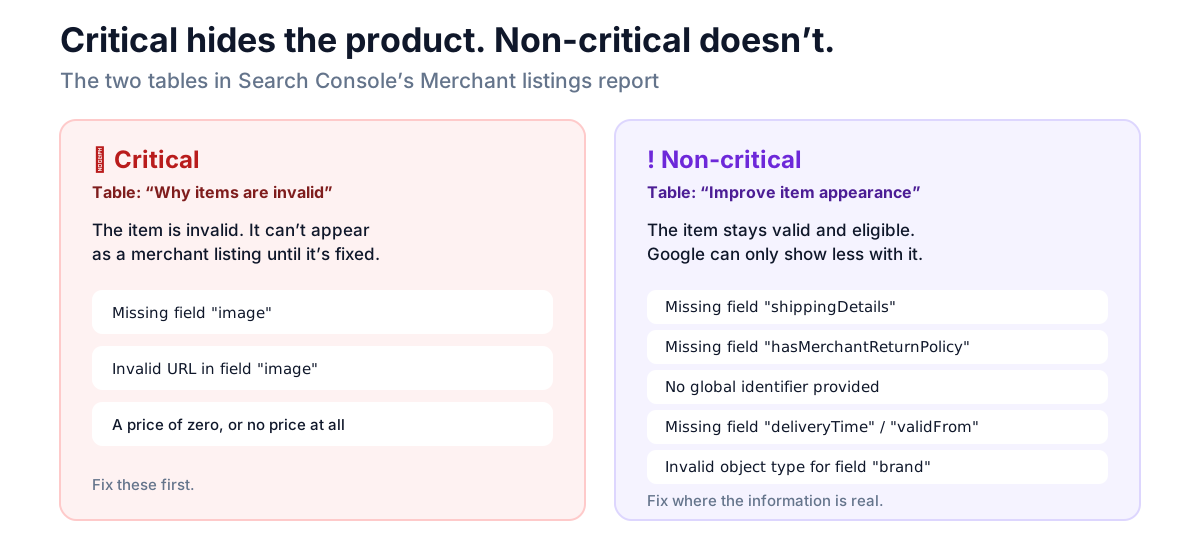
Open Search Console and choose your property. Then go to Shopping → Merchant listings in the left-hand menu (Product snippets sits next to it). The report has two tables, and their headings tell you which kind of issue you're looking at:
- Why items are invalid lists the critical issues. Google's
report documentation says these "prevent your structured data from being used by Google".
- Improve item appearance lists the non-critical issues. The item is
still valid and can still appear.
Click an issue to see the affected product pages, and click a page to inspect it.
What WooCommerce's own markup triggers
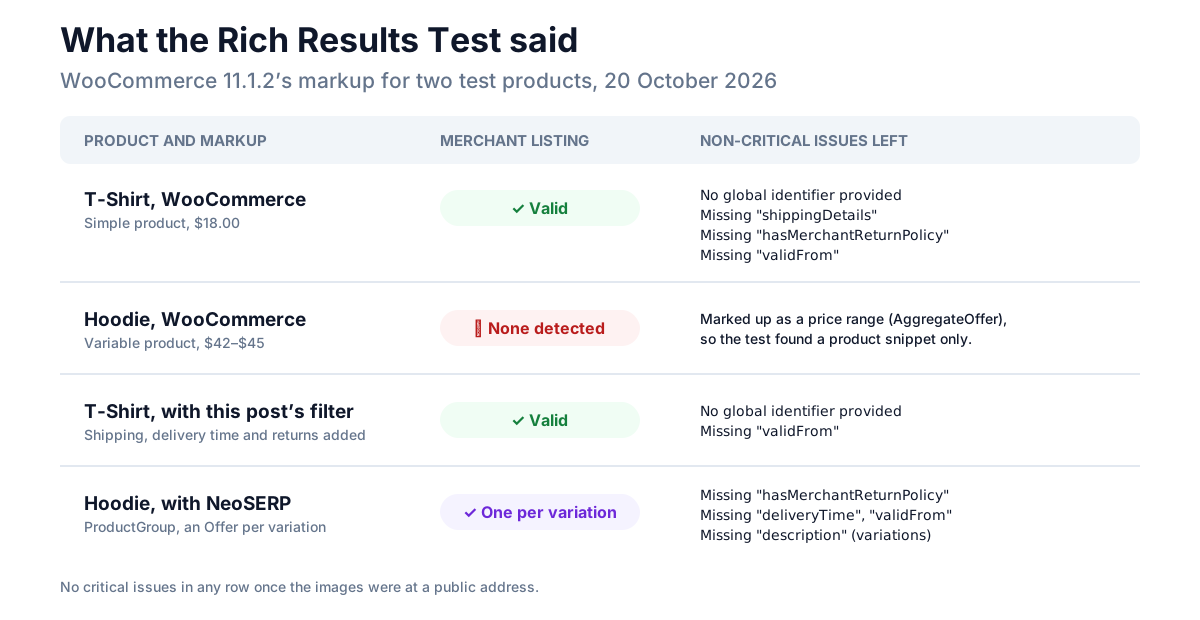
To see what a stock store starts with, we took the JSON-LD (the structured data in the page source) that WooCommerce 11.1.2 writes for two products on our test store. We switched off every plugin that changes it and put each one through Google's Rich Results Test on 20 October 2026. Google can't reach a local site, so we pasted the markup into the test's Code tab, with the store's address swapped for example.com.
The T-Shirt, a simple product at $18.00 with no brand, no GTIN and no reviews, was a valid merchant listing with four non-critical issues:
No global identifier provided (e.g., gtin, brand)Missing field "shippingDetails"Missing field "hasMerchantReturnPolicy"Missing field "validFrom"
Under Product snippets it was also valid, with Missing field "aggregateRating" and Missing field "review", because it had no reviews yet. Those two belong to the Product snippets report, not to merchant listings.
The Hoodie, a variable product with four variations priced $42 to $45, a brand and four reviews, produced something more surprising: no merchant listing at all. The test found a valid product snippet, review snippets and a breadcrumb, and nothing under Merchant listings. WooCommerce describes a variable product whose variations have different prices as one Product with an AggregateOffer, a price range. Google's merchant listing documentation asks for a nested Offer with one price. A range doesn't give it one.
That has a consequence worth knowing before you read the report. A product that isn't detected as a merchant listing doesn't appear in it. The report can look clean while your variable products aren't covered. Two cases do get a single Offer from WooCommerce 11.1: a variable product whose variations all cost the same, and a product page opened with every variation attribute in the address (the variation links a Merchant Center feed uses).
And one critical issue turned up by accident. On the first run, the product image still pointed at the test store's local address, and the T-Shirt came back invalid: Invalid URL in field "image". A staging copy of a store, or images served from a host Google can't fetch, does the same thing.
How to fix merchant listings structured data issues, one by one
Here is every issue a WooCommerce store is likely to see in the merchant listings report, roughly in the order you should deal with them.
| Search Console says | Critical? | Why WooCommerce triggers it | Fix |
|---|---|---|---|
Missing field "image" | Yes | The product has no product image set | Add a product image |
Invalid URL in field "image" | Yes | The image URL isn't public: a staging site, a blocked folder or CDN | Serve images from a public, crawlable address |
| No price, or a price of zero | Yes | Free products, or products with no price set | Merchant listings need a price above zero |
| Variable product missing from the report | Not an issue, an absence | Variations with different prices become a price range | Variant markup (ProductGroup) |
No global identifier provided (e.g., gtin, brand) | No | No GTIN and no brand on the product | Fill in the GTIN field, or assign a brand |
Missing field "shippingDetails" | No | WooCommerce never publishes shipping costs | Search Console settings, a filter, or a plugin |
Missing field "hasMerchantReturnPolicy" | No | WooCommerce has no return policy setting | Same as shipping |
Missing field "deliveryTime" | No | Shipping markup without a delivery time | Add handling and transit times |
Missing field "validFrom" | No | WooCommerce gives the price an end date but no start date | Safe to leave |
Invalid object type for field "brand" | No | Something wrote the brand as a type other than Brand | Make it a Brand |
Missing field "image" in Google Search Console
This one is critical. WooCommerce only writes image into the markup when the product has a product image (the featured image in the editor's sidebar). Gallery images alone don't count. Open each product the report lists and set one.
If the product has an image and the report still complains, look at the URL. That's where our Invalid URL in field "image" came from. Images have to be crawlable at a public address, in a format Google Images supports. Google also recommends several high-resolution images (at least 50,000 pixels, width times height) in 16:9, 4:3 and 1:1.
A price of zero, or no price at all
Google's documentation is direct about this: unlike product snippets, merchant listings "require a price greater than zero". A free product can't be a merchant listing. WooCommerce writes no offer at all for a product with an empty price, so that product can't be one either. If a product is free on purpose, let it go; it can still appear as a product snippet.
Variable products that never show up
The fix for the price-range problem is product variant markup: a ProductGroup that lists the variations in its hasVariant property, each one its own Product with its own Offer. WooCommerce core doesn't write it. Neither do the free versions of Yoast SEO and Rank Math. Yoast's paid WooCommerce SEO add-on and WPSSO do. Our guide to selling variable products covers what the variant markup gives the shopper. We'll cover the markup in detail in a later post.
No global identifier provided (e.g., gtin, brand)
A global identifier lets Google match your product to the same product sold elsewhere. WooCommerce 11.1 has both fields built in:
- GTIN, UPC, EAN, or ISBN on the product's Inventory tab, and on each
variation. WooCommerce only publishes it when it is a valid length (8, or 12 to 14 digits).
- Brands, under Products → Brands. Assign one and WooCommerce adds a
brand to the markup, as it did for our Hoodie.
If you make the product yourself and it has no GTIN, a brand is enough to clear the warning. Don't invent a GTIN to silence it.
Missing field "shippingDetails" and "hasMerchantReturnPolicy"
You can give Google your shipping and return policies without code, in Search Console's settings, or add them to WooCommerce's offer markup with a filter. Almost every WooCommerce store gets these two warnings, because core never writes its shipping zone rates into the markup, and it has no return policy setting at all.
The no-code route is in Search Console itself. Under Settings → Shopping → Shipping and returns, an owner or full user of the property can enter delivery times, shipping costs, the return window and who pays for returns. You don't need a Merchant Center account. If you already have one, it has to be linked to the property, and policies you set in Merchant Center are managed there. Shipping settings are approved automatically. Return policies are checked by hand, which Google says takes about 10 to 13 days.
Google's shipping and return policy documentation ranks these settings above any markup on your site, product-level or Organization-level. What it doesn't say is whether the merchant listings report then stops listing the missing-field warnings. The Rich Results Test only reads the page, so it will keep reporting them either way.
The markup route puts the policy on the page, where every tool can read it. Google's merchant listing documentation now recommends a store-wide policy in your Organization markup, with offer-level markup for products that differ. Offer-level markup on each product still works, and it's the quickest fix on WooCommerce, because WooCommerce lets you add to each offer through the woocommerce_structured_data_product_offer filter.
This adds one flat shipping rate to the US and a 30-day free-return policy to every offer, in your store's currency. Change the rate, the country and the policy to match your store, and add it with a code-snippets plugin or a small custom plugin:
add_filter( 'woocommerce_structured_data_product_offer', function ( $offer, $product ) {
	$offer['shippingDetails'] = array(
		'@type'               => 'OfferShippingDetails',
		'shippingRate'        => array(
			'@type'    => 'MonetaryAmount',
			'value'    => 5,
			'currency' => get_woocommerce_currency(),
		),
		'shippingDestination' => array(
			'@type'          => 'DefinedRegion',
			'addressCountry' => 'US',
		),
		'deliveryTime'        => array(
			'@type'        => 'ShippingDeliveryTime',
			'handlingTime' => array( '@type' => 'QuantitativeValue', 'minValue' => 0, 'maxValue' => 1, 'unitCode' => 'DAY' ),
			'transitTime'  => array( '@type' => 'QuantitativeValue', 'minValue' => 2, 'maxValue' => 5, 'unitCode' => 'DAY' ),
		),
	);
	$offer['hasMerchantReturnPolicy'] = array(
		'@type'                => 'MerchantReturnPolicy',
		'applicableCountry'    => 'US',
		'returnPolicyCountry'  => 'US',
		'returnPolicyCategory' => 'https://schema.org/MerchantReturnFiniteReturnWindow',
		'merchantReturnDays'   => 30,
		'returnMethod'         => 'https://schema.org/ReturnByMail',
		'returnFees'           => 'https://schema.org/FreeReturn',
	);
	return $offer;
}, 10, 2 );
We tested it on the T-Shirt. The shipping and returns warnings disappeared, and so did deliveryTime, because the snippet includes one. The two that remained were No global identifier provided and Missing field "validFrom".
The catch is that these are fixed values typed into code. If you change a shipping rate next month, the markup keeps telling Google the old one, and Google's guidelines ask for markup that matches what the shopper actually gets. The same goes for returns. Only publish a return policy your store really offers.
Our guide to Missing field "shippingDetails" goes further on shipping: rates for several countries, the store-wide policy, and why that policy didn't clear the warning in Google's test.
Missing field "deliveryTime"
You'll only see this once shipping markup exists without a delivery time. It asks for handling time (how long before you ship) and transit time (how long the carrier takes), in days. The snippet above shows the shape.
Missing field "validFrom"
Every offer we tested got this one, from WooCommerce and from the other markup alike. WooCommerce writes a priceValidUntil date (by default 31 December of next year, or the end of a scheduled sale) but no start date. It's optional, and a regular price doesn't need a start date. Leave it. It matters more for sale prices, which we'll come back to before Black Friday.
Invalid object type for field "brand"
Google wants brand to be a Brand with a name. You'll see this warning when a theme or plugin writes it as something else, for example an Organization. Look at the markup in the page source, find which plugin wrote it, and either switch that output off or give the product a real brand in Products → Brands.
Validate fix: how long it takes
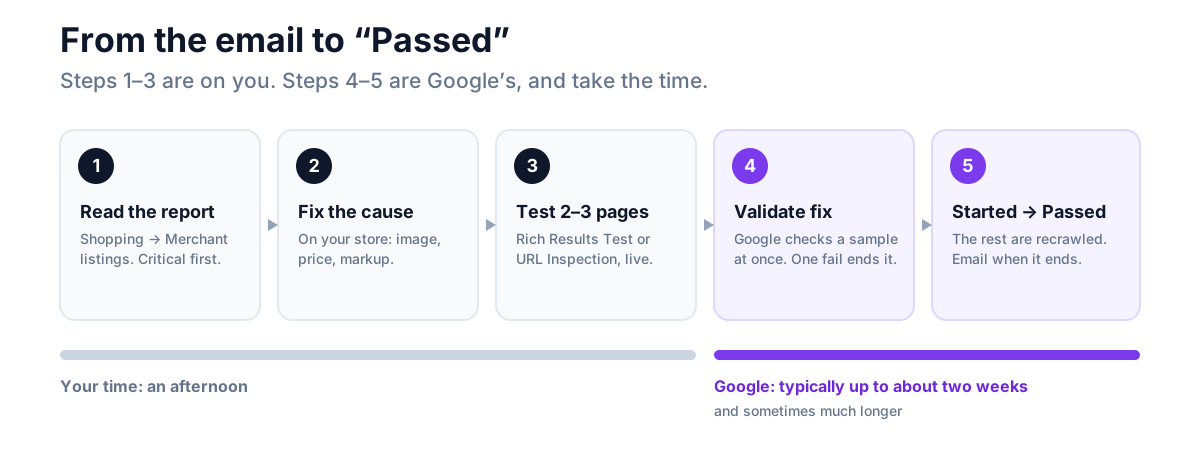
When you've fixed an issue, open it in the Merchant listings report and click Validate fix. Google's validation help page describes what happens next:
- Search Console checks a few affected pages straight away. If any still
has the issue, validation stops there, and you've saved yourself two weeks.
- If they pass, the status becomes Started, and Google recrawls the rest of
the affected pages over the following days.
- It ends as Passed or Failed, and Search Console emails you either
way.
Google says validation "typically takes up to about two weeks", and sometimes much longer. Before clicking, put two or three of the affected product URLs through the Rich Results Test, or Search Console's URL Inspection live test. A validation that fails on its first sample means starting the wait again.
Validating non-critical issues is optional. They don't stop a product being eligible, so validate them once the fix is in, and don't hold up the critical ones for them.
The version that keeps itself up to date
The filter above works, but you have to keep it in step with your settings by hand. NeoSERP, our free product schema plugin, builds the same fields from what WooCommerce already stores, on every page view:
- Shipping from your shipping zones. Change a rate and the markup changes
with it. Rates it can't state for a single product, such as a formula or free shipping above a minimum order, are left out rather than guessed.
- Returns from a short Returns section you fill in once. Until you do,
NeoSERP publishes no return policy, so the warning stays.
- Variable products as a
ProductGroup, with every variation as its own
Product and Offer.
We put its output for the same two products through the same test. The Hoodie went from no merchant listing to one valid merchant listing per variation. It is not warning-free, and we'd rather show you what's left than claim it is:
- Hoodie variations each kept
Missing field "hasMerchantReturnPolicy"
(our test store hadn't declared a policy), Missing field "deliveryTime", Missing field "validFrom", and Missing field "description" on the variations themselves.
- T-Shirt, which has no brand, came back with
Invalid object type for field "brand", because NeoSERP named the store as the brand. With a brand assigned, as on the Hoodie, the warning goes.
All of them are non-critical. NeoSERP is free and in review at WordPress.org; until it's approved, you can download it from its page.
Frequently asked questions
What does "Merchant listings structured data issues detected" mean?
Google found problems in the product markup on pages where people can buy from you. Critical issues make the affected products ineligible for merchant listings. Non-critical issues leave them eligible but limit what Google can show, such as shipping costs or the return window. Open Shopping → Merchant listings in Search Console to see which is which.
Why did I get a "new merchant listings structured data issues detected" email?
Because Search Console found merchant listing issues it hadn't reported before. That often happens after a change to your store, such as a new theme, a new SEO plugin, or a batch of new products, or when Google crawls more of your product pages. Open the report and check whether the new issues are critical.
Do I have to fix non-critical issues?
No. Google's documentation says to fix the critical ones; non-critical issues don't affect eligibility. They're worth fixing where the information is real, though. Shipping costs and a return window are what a shopper compares, and the more of Google's recommended properties you give, the better your listing can look.
How long does Validate fix take?
Typically up to about two weeks, and sometimes longer. Search Console tests a sample of pages first, then recrawls the rest. Check a few pages in the Rich Results Test before you click it, so it doesn't fail on the first sample.
Why are my variable products missing from the merchant listings report?
Because WooCommerce describes them as a price range. When a product's variations have different prices, WooCommerce marks it up with an AggregateOffer. In our test that produced a product snippet but no merchant listing. WooCommerce only writes a single Offer when every variation costs the same, or when the page is opened with every variation attribute in the address. Variant markup, a ProductGroup with an Offer per variation, makes each variation eligible.
Do I need Google Merchant Center for merchant listings?
No. Merchant listings can come from the structured data on your product pages, which is what this report checks. Merchant Center is a separate way to send Google the same product data as a feed, and many stores use both. For shipping and returns alone, Search Console's own settings (Settings → Shopping → Shipping and returns) work without a Merchant Center account.
Fix the critical ones, then the ones shoppers read
Start by sorting the report: anything under Why items are invalid is costing you listings, and is usually a missing image or price. Then look for what isn't in the report at all, which on most stores means variable products. Shipping and returns come next. They're the warnings every WooCommerce store shares, and the details a shopper compares before clicking. Check a couple of products in the Rich Results Test, click Validate fix, and give it two weeks.