
Google Merchant Center schema for WooCommerce: a feed, on-page markup, or both?
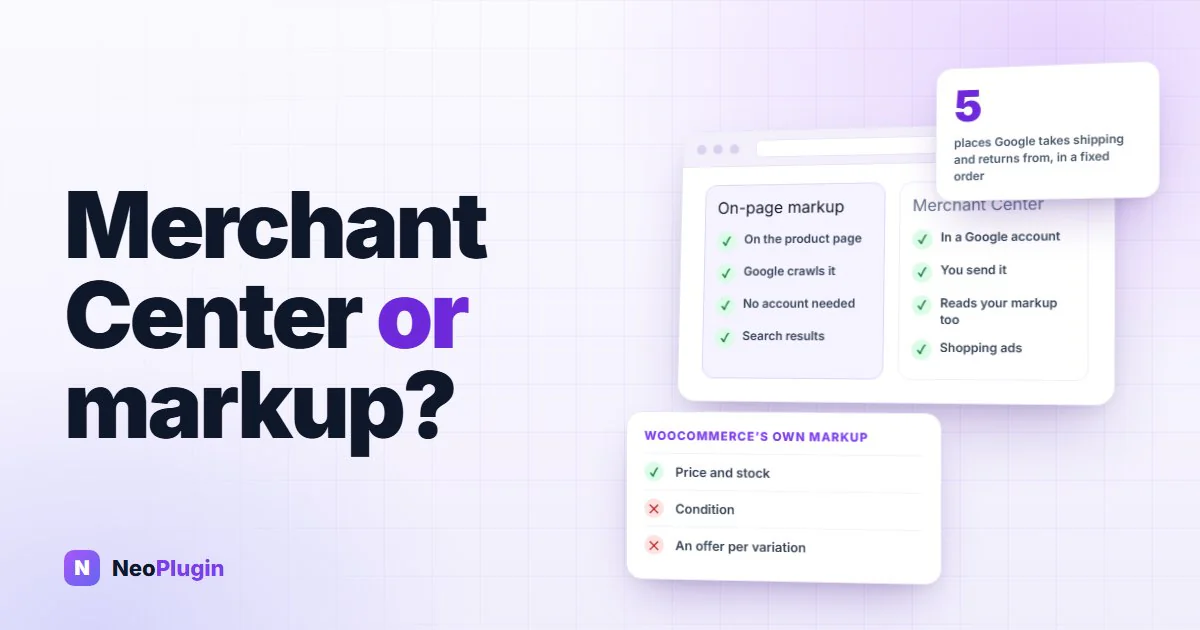
A WooCommerce store can tell Google about its products in two ways: in the markup on each product page, or through a Google Merchant Center account. Most advice treats them as rivals, or as the same thing. They're neither, and "Google Merchant Center schema" is a good name for where they meet: the structured data on your pages that Merchant Center itself reads.
This guide sorts out which one you need, what happens when you have both, and what WooCommerce's own markup is missing for the job. It's part of our WooCommerce product schema guide, which covers the markup itself in full.
The markup below was read from a WooCommerce 11.1.2 store on 15 November
- Google's rules come from its own documentation, read the same day and
linked where they're used. What the Google for WooCommerce plugin sends comes from its source code (version 3.10.0); we didn't install it.
Quick answer. Google Merchant Center schema is ordinary
Productstructured data on your product pages, which Merchant Center reads to check, update and even collect your products. You don't need a Merchant Center account for product results in Google Search: the page markup is enough for product snippets and merchant listings. You do need one for Shopping ads. If you have both, they aren't alternatives: Google compares the feed with the page, so price, availability and condition must agree. For shipping and returns, anything set in Merchant Center or Search Console outranks the markup.
The short version
- Markup is on the page; Merchant Center is an account. Google reads the first when it crawls, and you send data to the second.
- Search needs only the markup. Google says structured data shows product information in results "even without a Merchant Center account".
- Google recommends both, and says doing so "maximizes your eligibility".
- Merchant Center reads your markup. It uses it to correct prices and stock, and can build your product list from it with no feed.
- A mismatch can cost you the product. When the page and the feed disagree, Google says the product "may be disapproved instead of updated".
- Shipping and returns have a fixed order. Feed and account settings first, page markup after.
- WooCommerce's markup has gaps for this job: no condition, no shipping, no returns, and a price range instead of an offer per variation.
Find your setup first
What your markup has to do depends on which of three setups you have. Find yours, then read on; each is covered in full under Which setup is yours?
| Your setup | How Google gets your products | What the markup must do | What goes wrong |
|---|---|---|---|
| No Merchant Center account | It crawls the page markup | Be complete | Gaps show up as warnings in Search Console and as thinner listings |
| Merchant Center with a feed or plugin sync | The feed, and the page as a check | Agree with the feed | A mismatch can get a product disapproved |
| Merchant Center with no feed | It collects them from the page markup | Be the feed | A product with thin markup may not be collected |
Merchant Center vs structured data: what each one feeds
Both carry the same facts about a product: its name, picture, price, whether it's in stock. They differ in where the facts live and what Google does with them.
| On-page markup | Merchant Center | |
|---|---|---|
| What it is | Structured data in the product page's HTML | A Google account that holds a list of your products |
| How Google gets it | It crawls the page | You send it: a feed file, a plugin's sync, or Google collects it from your pages |
| Needs an account | No | Yes, with your site verified and claimed |
| What it's for | Product snippets and merchant listings in Search | Shopping ads; Google also points there for Shopping tab eligibility |
| Who keeps it current | WooCommerce, on every page load | The feed or plugin, on its schedule |
| Where you see problems | Search Console: Merchant listings and Product snippets reports | Merchant Center: product issues |
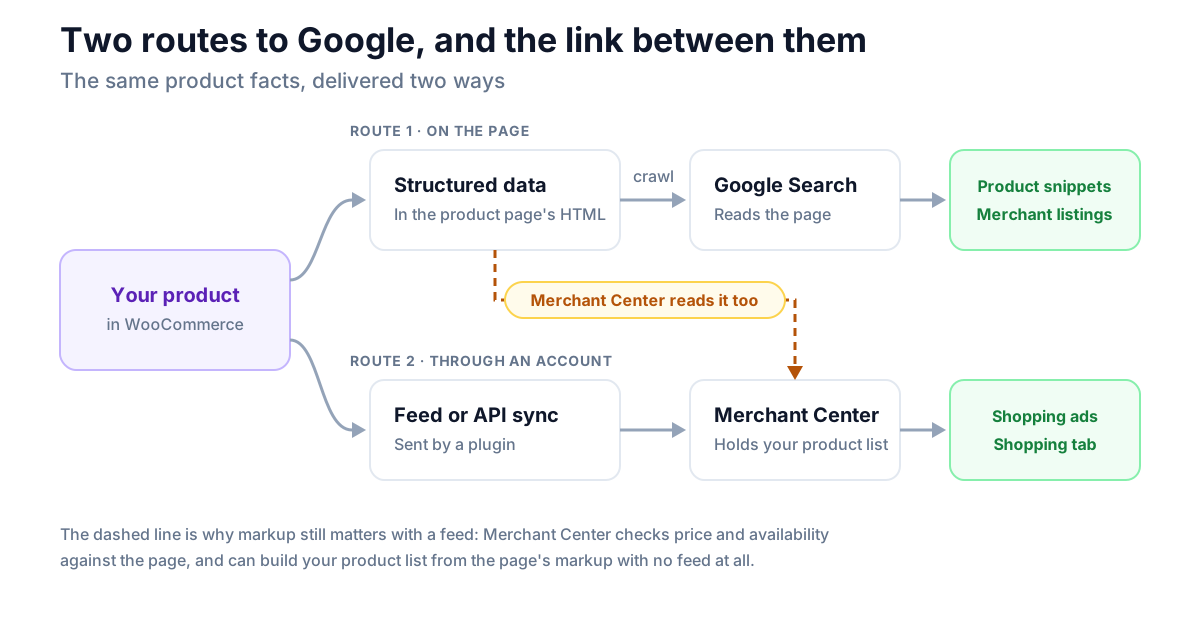
Google's introduction to product structured data puts the choice in one sentence: you can add Product structured data to your pages, upload feeds to Merchant Center, "or both". It then says which it prefers:
Providing both structured data on web pages and a Merchant Center feed maximizes your eligibility to experiences and helps Google correctly understand and verify your data.
The word to notice is verify. With both in place, each is a check on the other.
Google Merchant Center schema: the markup Merchant Center reads
There's no separate "Merchant Center schema" to add. Merchant Center reads the same Product and Offer markup that Search does, and it uses it for three things.
1. Correcting your prices and stock. Merchant Center's automatic item updates read your product pages and update the price, sale price, availability and condition in your account when the page says something different from the feed. Google's page says these "are enabled by default". It also says what happens when the two can't be reconciled: "The product may be disapproved instead of updated if we detect a mismatch."
2. Checking the page matches the product. Merchant Center's structured data page lists what the markup must have for those updates to work: price, priceCurrency, availability and condition. The markup has to be in the HTML the server sends, not added by JavaScript afterwards, and on a page with several offers each offer needs a SKU or GTIN that matches the product data.
3. Finding your products with no feed at all. Merchant Center can add products automatically from your online store: Google scans the site for product pages, reads their structured data and fills your account from it. Those products appear under Settings → Data sources, in a section called Found by Google, and Google "checks your website at least once every 24 hours". If you also upload the same product yourself, the uploaded version is kept.
That third one changes the question. A WooCommerce store with decent markup can have a Merchant Center product list without installing a feed plugin, and then the markup isn't one of two routes. It's the only one.
What WooCommerce's markup gives Merchant Center, measured
So how good is the markup WooCommerce writes? We read it from two products on the test store, a simple T-Shirt and a variable Hoodie, first with WooCommerce alone and then with NeoSERP switched on.
| Merchant Center wants | WooCommerce alone | With NeoSERP |
|---|---|---|
| Title, description, link, image | Yes | Yes |
| Price and currency | Yes | Yes |
| Availability | Yes | Yes |
| Condition | No | Yes, as new |
| Brand | Only when the product has a brand | Yes; a product with none points at the store |
| Shipping | No | Yes, from your shipping zones |
| Return policy | No | Yes, once you declare one |
| An offer for each variation | No: one price range, $42 to $45 | Yes: four variants, each with its own SKU and offer |
Three of those matter most for Merchant Center.
Condition. WooCommerce has no condition field and writes none. It's one of the four things Merchant Center's page asks the markup for. In a feed, condition is required only for used or refurbished products, so a store selling new goods can have a complete feed and still be missing it on the page.
Variations. For a variable product with mixed prices, WooCommerce writes one AggregateOffer with the lowest and highest price. A feed lists every variation as its own product. So the page offers a range where the feed has four exact prices, and the per-offer SKU or GTIN that Merchant Center's page asks for isn't there. Our post on ProductGroup schema covers the markup that fixes it.
Brand. The honest note on our own plugin: when a product has no brand, NeoSERP names the store as the brand, and Google's Rich Results Test flags that form. Give products a real brand, with WooCommerce's Brands, and both versions of the markup carry it.
What the difference looks like in the markup
Here is the T-Shirt's offer as WooCommerce writes it, trimmed to the properties that matter here, with the store's address swapped for example.com:
{
  "@type": "Offer",
  "price": "18.00",
  "priceCurrency": "USD",
  "priceValidUntil": "2027-12-31",
  "availability": "https://schema.org/InStock",
  "url": "https://example.com/product/t-shirt/"
}
Price, currency and availability are there. Condition isn't, and neither is anything about delivery. This is the same offer with NeoSERP on:
{
  "@type": "Offer",
  "price": 18,
  "priceCurrency": "USD",
  "priceValidUntil": "2026-12-31",
  "availability": "https://schema.org/InStock",
  "url": "https://example.com/product/t-shirt/",
  "itemCondition": "https://schema.org/NewCondition",
  "shippingDetails": {
    "@type": "OfferShippingDetails",
    "shippingRate": { "@type": "MonetaryAmount", "value": 0, "currency": "USD" },
    "shippingDestination": { "@type": "DefinedRegion", "addressCountry": "BD" }
  }
}
itemCondition is the property Merchant Center calls condition, and it now has all four of the things its page asks for. shippingDetails comes from the test store's one shipping zone, free delivery to Bangladesh; yours would list your own zones. There's no hasMerchantReturnPolicy because the test store hasn't declared a return policy, and no delivery time, which Google's test asks for; our shippingDetails post covers adding one.
WooCommerce does print a GTIN when you've entered one in the product's GTIN, UPC, EAN or ISBN field; the product schema guide has the full list of what it writes for each product type.
What Google for WooCommerce sends
The usual WooCommerce Google Merchant Center connection is Google for WooCommerce, the plugin built for it. It doesn't write a feed file. It sends each product to your account through Google's API and keeps it updated. From its code, this is what a product carries:
- Always, from the product itself: title, description, link, main image and gallery images, price, sale price with its start and end dates, availability, categories, weight and dimensions.
- GTIN, from WooCommerce's own GTIN field.
- For variations: each one is sent as a separate product, with the parent's ID as its item group.
- Only if you map them: brand, MPN, condition, color, size and the other attributes. They come from the plugin's attribute mapping rules or its per-product fields, not from the product by default.
- Shipping, as an account setting: the plugin sends shipping rates to your Merchant Center account, built from your WooCommerce shipping zones when you choose the automatic option, along with the delivery times you enter in the plugin.
- Return policy: nothing. We found no return policy in the code that sends products or shipping. Set it in Merchant Center yourself.
Two things follow. The sync and the markup read the same product, so price and stock normally agree without effort. And the sync fills some gaps the markup has (shipping) while sharing others (condition, unless you map it).
Shipping and returns: which source wins
This is where the two routes overlap most, and where Search Console's warnings come from. Google's merchant listing documentation gives the order it uses when shipping or return policies are defined in more than one place:
- Product-level feeds submitted in Merchant Center.
- Settings in the Content API for Shopping.
- Settings in Merchant Center or Search Console.
- Product-level merchant listing markup.
- Organization-level markup.
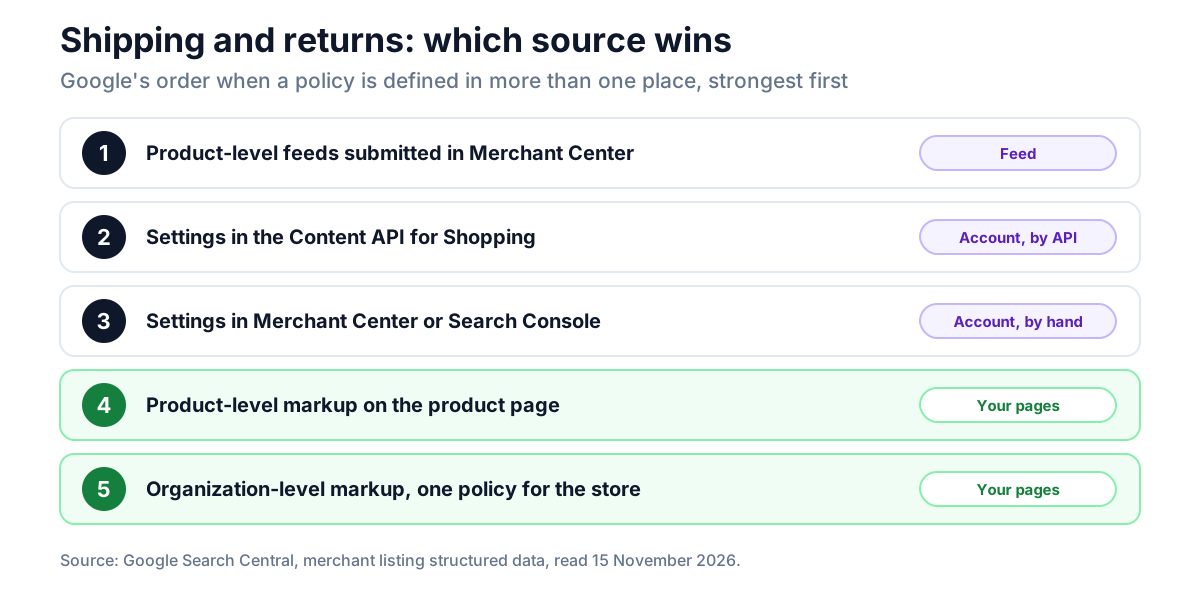
Everything with an account behind it outranks everything on the page. So:
- If you've set shipping and returns in Merchant Center, that is what Google uses, and the "Missing field" warnings on your markup aren't costing you anything in what Google shows. They stay in the Rich Results Test, which only reads the page.
- If you have no Merchant Center account, you can still use rung three. Search Console has its own Settings → Shopping → Shipping and returns, and Google's help page says you "don't need to create a Merchant Center account" to use it. If you have one, it must be linked to the property, and policies made in Merchant Center are managed there.
- If you set nothing in either, the markup is all there is, and WooCommerce writes neither. Our posts on shippingDetails and hasMerchantReturnPolicy cover adding them.
The order has one trap. A higher source wins even when it's the one that's out of date. If you change a return window on your site and in your markup but not in Merchant Center, Google goes on using the old one.
Which setup is yours?
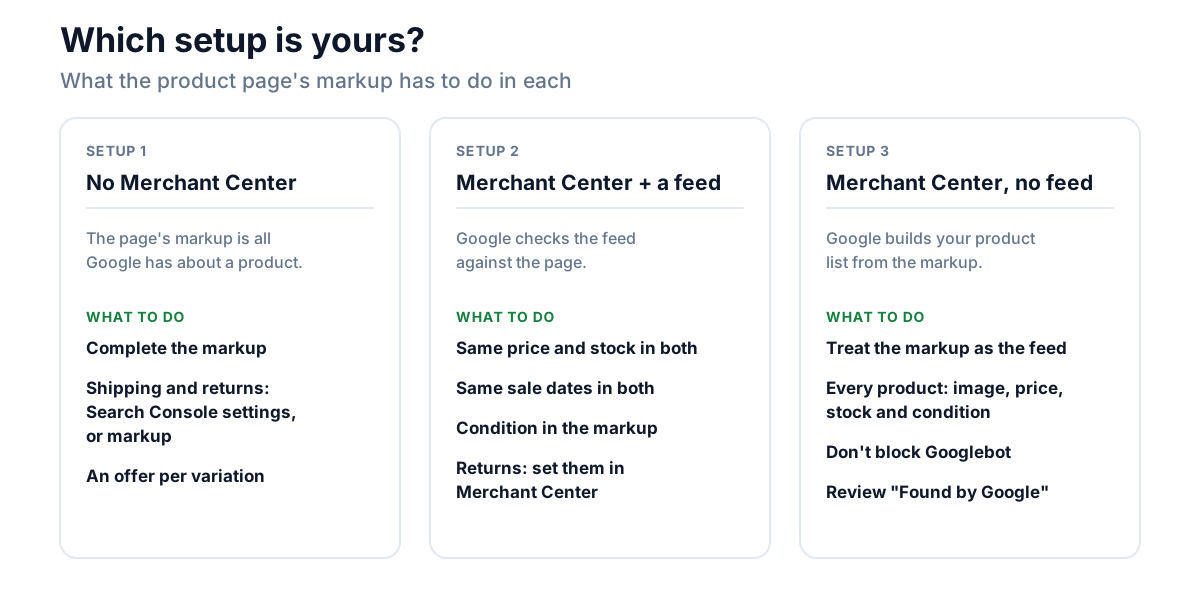
1. No Merchant Center. You don't run Shopping ads and haven't opened an account. The markup is everything Google knows about your products, so the gaps in the table above are gaps in your listings. Fix the markup, and use Search Console's settings or markup for shipping and returns. You don't need to open a Merchant Center account to get product results in Search.
2. Merchant Center with a feed or sync. The markup is now a second copy of the same data, and Google reads both. Your job is agreement: the same price, stock and sale dates in each, a condition in the markup, and policies set once, in Merchant Center.
3. Merchant Center with no feed. You've opened an account and let Google collect products from your site. The markup is your feed. A product with no image, no price or no markup at all simply isn't there, and Google's page warns that eligibility "depends on Google's ability to crawl and extract product data".
Keeping the feed and the page in agreement
When both exist, these are the places they drift apart:
- Sale prices. A sale has to start and end at the same moment in WooCommerce, on the cached page and in the feed. Our post on sale prices and priceValidUntil covers the ways it goes wrong, including the variable product that keeps an ended sale.
- Cached pages. A page cache can serve yesterday's price to Google after the feed has moved on. Clear it when prices change in bulk.
- Variations. If the feed has an entry per variation, the page should have an offer per variation.
- Condition. Say it in both, or in neither place wrongly. Selling new goods, that means
NewConditionin the markup. - Anything that changes the price after WooCommerce does. Currency switchers and role-based pricing plugins can change what the page shows without changing what the feed sends.
- Policies. One return policy, set in the highest place you use, and changed there first.
Then look in both reports. Merchant Center lists price and availability mismatches as product issues. Search Console's Merchant listings report shows what the page markup is missing; our guide to that report maps each warning to its fix.
Where NeoSERP fits
NeoSERP works on the page side only. It's a free plugin, on WordPress.org, that replaces WooCommerce's product markup with a fuller version: a condition on every offer, shipping built from your WooCommerce shipping zones, a return policy once you declare one, and a ProductGroup with an offer for each variation.
It is not a feed. It sends nothing to Merchant Center and doesn't replace Google for WooCommerce or a feed plugin. What it does for a store with a feed is make the page say the same things the feed says, which is what Google checks. For a store with no feed, it makes the markup complete enough to be the only source.
Frequently asked questions
What is Google Merchant Center schema?
It's the Product structured data on your product pages, as read by Merchant Center. There is no separate format. Merchant Center uses the same markup Google Search does, and its help page asks for four things in it: price, priceCurrency, availability and condition.
Do I need structured data if I use Google Merchant Center?
Yes. Merchant Center reads your product pages to check and update the price, sale price, availability and condition in your account, and Google says a product may be disapproved when the page and the feed don't match. Google also says providing both maximizes your eligibility.
Do I need Google Merchant Center if my products have schema?
Not for product results in Google Search. Google says structured data shows basic product information in search results even without a Merchant Center account. You need an account for Shopping ads.
How do I connect WooCommerce to Google Merchant Center?
There are three ways: the Google for WooCommerce plugin, which syncs products through Google's API; a feed plugin that produces a file Merchant Center fetches; or Merchant Center's own option to add products from your website, which reads the structured data on your product pages.
Which wins if the feed and the page markup disagree?
For shipping and return policies, Google has a fixed order: Merchant Center feeds first, then account settings in Merchant Center or Search Console, then the page's markup. For price and availability, Merchant Center's automatic item updates take the page's value, or disapprove the product if the mismatch can't be resolved.
Can Google add my WooCommerce products to Merchant Center without a feed?
Yes. Merchant Center can find product pages on a verified and claimed site, read their structured data and add the products to your account, where they appear as "Found by Google". Google checks the site at least once every 24 hours. A product you upload yourself replaces the one it found.
One set of facts, said twice
The feed and the markup aren't competing for the same job. One is what you tell Google directly; the other is what Google finds when it looks. Stores get into trouble when the two say different things, and Google has made clear which it believes about the price: the page.
So whatever you decide about Merchant Center, the markup isn't the optional half. Get it complete, keep it true, and the account, if you have one, becomes a second route for the same facts instead of a second set of them.