
Black Friday sale prices in Google: WooCommerce, priceValidUntil and the stale-price trap

Black Friday is Friday 27 November this year, and Cyber Monday is 30 November. Most WooCommerce stores will schedule a sale for those days, and Google will read the new prices from each product page's structured data. What it reads is not always the price the customer pays.
We scheduled sales on a test store and read WooCommerce 11.1's markup at every stage: before the sale, during it, at the moment it ends and after. Most of it works. Three things don't: a timezone that moves the end date by a day, a variable product that keeps advertising a sale after it has ended, and pages cached with the old price. This guide covers each, what Google does with a stale price, and what to check before the sale starts.
Quick answer. WooCommerce writes a sale into its product markup on its own: the sale price as the offer's price, the regular price marked as the old price, and a
priceValidUntilset to the sale's end date, or to 31 December next year when the sale has no end date. On WooCommerce 11.1 a simple product switches at the exact start and end time. Two things go wrong: on a store west of UTC, such as one set to New York time, the end date comes out a day late; and a variable product's price range keeps the ended sale until WooCommerce's daily sales run or someone saves the product. Google may not show a listing whosepriceValidUntilhas passed, and Merchant Center can disapprove a product whose page price and feed price disagree.
The short version
- Give every sale an end date. Without one, WooCommerce says the sale price is valid until 31 December next year.
- Check your timezone. West of UTC, a sale ending 30 November is marked as ending 1 December. A snippet below fixes it.
- Watch variable products after the sale. Their price range, on the page and in the markup, can keep the sale price for hours after it ends. Saving the product clears it.
- Clear your page cache when the sale starts and ends. A cached page keeps the old price and the old markup, whatever WooCommerce does.
- If you send Google a product feed, its sale dates have to match the ones on your products.
How we tested
Our test store runs WordPress 7.1.4, WooCommerce 11.1.2, the Astra theme and PHP 8.3, with every other plugin switched off for the measurements. We put the T-Shirt ($18) on sale at $14, and the Hoodie's red variation ($45) on sale at $42, and read three things at each stage: the price the page shows, the price WooCommerce's Store API reports (the one the cart uses), and the product's JSON-LD.
To see what happens in the gap between a sale's end time and the background job that ends it, we moved the sale dates directly in the database so the job hadn't run, then ran it. We repeated the test with the store set to New York time, and with NeoSERP, our schema plugin, switched on. Afterwards the store went back exactly as it was.
How a scheduled sale reaches the markup
A WooCommerce sale has a sale price and, optionally, a start and an end date, set with the Schedule link under the price on the product's General tab. The product editor stores the start as 00:00:00 and the end as 23:59:59 on the days you pick, in the store's timezone.
While the sale runs, WooCommerce's markup for the T-Shirt read as follows, with the url and seller left out for length:
"offers": [{
  "@type": "Offer",
  "priceSpecification": [
    { "@type": "UnitPriceSpecification", "price": "14.00", "priceCurrency": "USD", "validThrough": "2026-11-30" },
    { "@type": "UnitPriceSpecification", "price": "18.00", "priceCurrency": "USD", "validThrough": "2027-12-31",
      "priceType": "https://schema.org/ListPrice" }
  ],
  "priceValidUntil": "2026-11-30",
  "availability": "https://schema.org/InStock",
  "price": "14.00",
  "priceCurrency": "USD"
}]
The sale price is the offer's price, the regular price is marked as the higher, normal price, and priceValidUntil is the sale's last day. That's the shape Google's merchant listing documentation describes for a sale (updated 8 September 2026, checked 3 November 2026), with one detail: Google now asks for StrikethroughPrice where WooCommerce writes ListPrice, and accepts ListPrice for a transition period. Our product schema guide has a tested snippet that switches it.
Before the sale starts, the markup shows only the regular price, with nothing about the coming sale. After it ends, the regular price comes back with priceValidUntil at 31 December next year.
What priceValidUntil says, and where the date comes from
priceValidUntil is the date after which the offer's price is no longer available. Google's product snippet documentation lists it as recommended, not required, and both that page and the merchant listing page carry the same warning: "Your listing may not display if the priceValidUntil property indicates a past date."
WooCommerce always writes it when a product has a price. The date depends on the product:
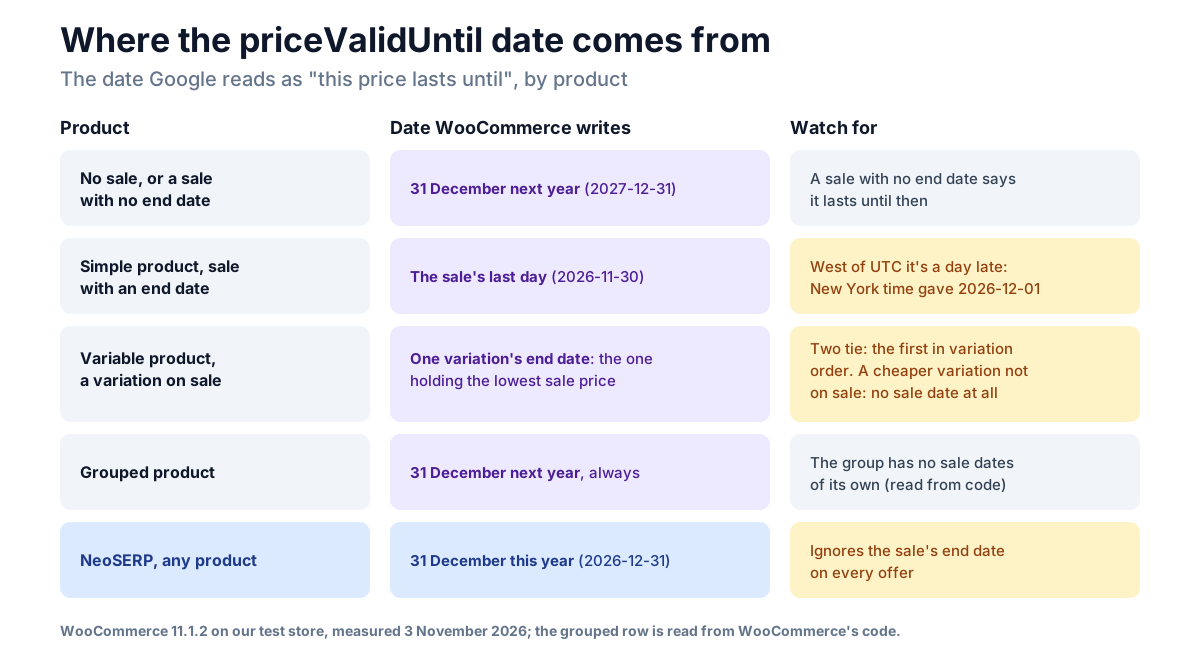
| Product on our store | priceValidUntil |
|---|---|
| T-Shirt, no sale | 2027-12-31 |
| T-Shirt, sale ending 30 November | 2026-11-30 |
| T-Shirt, same sale, store set to New York time | 2026-12-01 |
| Hoodie, red on sale until 30 November | 2026-11-30 |
| Hoodie, red until 27 November and blue until 2 December | 2026-12-02 |
| Hoodie, red on sale, another variation permanently $40 | 2027-12-31 |
Three rows need explaining.
The timezone moves the date a day
WooCommerce stores the sale's end as 23:59:59 in your store's timezone, then converts it to UTC before writing the date. East of UTC that's still the same day. West of UTC, which includes every store set to a timezone in the Americas, 23:59:59 on 30 November is already 1 December in UTC, so the markup says the sale price lasts a day longer than it does. Your timezone is under Settings → General → Timezone.
A variable product takes one variation's date
A variable product with different variation prices gets a price range (AggregateOffer), and WooCommerce takes its date from the variation holding the lowest sale price. When two variations are on sale at the same price, it takes the first in the product's variation order, not the one that ends first: our Hoodie said 2 December although the red variation's sale ended on 27 November. And when a variation that isn't on sale is cheaper than the sale price, as our $40 variation was, the sale's date is lost entirely, and the $40 is labelled as the sale price.
The simplest way round both is to give every variation in a sale the same dates, which the variations' bulk action Set scheduled sale dates does in one go.
A grouped product never uses the sale date
A grouped product reads its sale dates from the group itself, which has none, so it always says 31 December next year. That one we read from WooCommerce's code rather than measured.
When the sale switches on and off
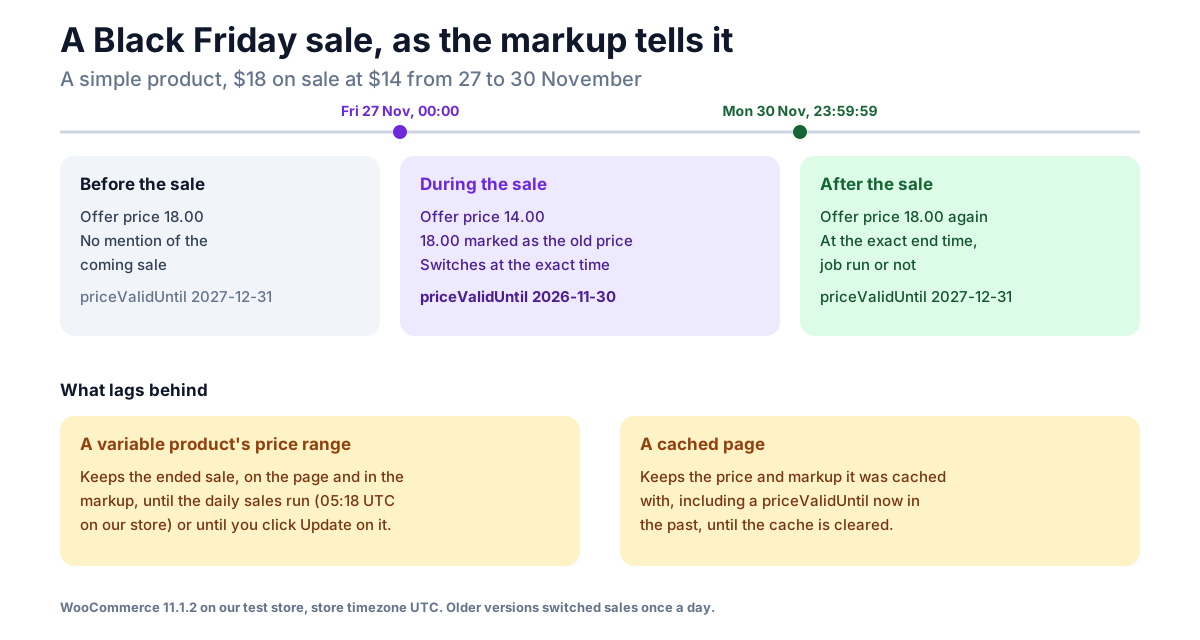
Older WooCommerce versions started and ended sales once a day, in a daily job that WooCommerce's own code comment says could leave sales "a day off". WooCommerce 10.5 added a background job for each sale, scheduled for its exact start and end time, and 11.1 added a correction that works out the right price from the sale dates whenever the job hasn't run yet.
So on our store, a simple product switched exactly on time. With the T-Shirt's end time passed and its job not run, the page, the Store API and the markup all said $18 straight away. The same was true of a start time passed with no job. WooCommerce's code notes one exception: on a store where another plugin already changes the price, such as a currency switcher, the correction steps aside and the old behaviour returns for that gap.
A variable product keeps the ended sale
The correction doesn't reach a variable product's price range. WooCommerce keeps the range in a cache, and its code says so: the range "can stay stale" until the job runs or the product is saved. We ended the red variation's sale and read the Hoodie's page:
| Page shows | Markup says | |
|---|---|---|
| Red's sale running | $42.00 – $45.00 | AggregateOffer from 42.00, sale price 42.00 |
| Red's sale ended, job not run | $42.00 – $45.00 | The same, with the sale "valid through" that day |
| Red's own end job run | $42.00 – $45.00 | The same |
| After the daily sales run | $45.00 | A single Offer at 45.00 |
Red itself reported $45 the moment the sale ended, and WooCommerce's code notes that the cart prices the variation itself, so customers pay the right price. But the product page and its markup kept the $42 sale. Running red's own end job didn't clear it either: the job checks whether the price still needs changing, and a variation already reports its regular price, so it stops there. What cleared it was WooCommerce's daily sales run, which finds every product whose stored price is out of step, and clicking Update on the Hoodie, which rebuilt the range at once.
WooCommerce schedules that daily run for midnight. On our test store it was due at 05:18 UTC, so after a sale ending at midnight the Hoodie would have advertised the old sale for about five hours.
A cached page keeps whatever it cached
Everything above happens when WooCommerce builds the page. A page served from a cache isn't built at all, so it keeps the price and the markup it had when it was cached: the sale price after the sale ends, with a priceValidUntil that's now in the past, or the regular price after the sale starts. Whether your cache clears a product when a scheduled sale switches depends on the caching plugin or host. If you can't tell, clear it yourself just after the sale starts and again just after it ends.
What Google does with a stale price
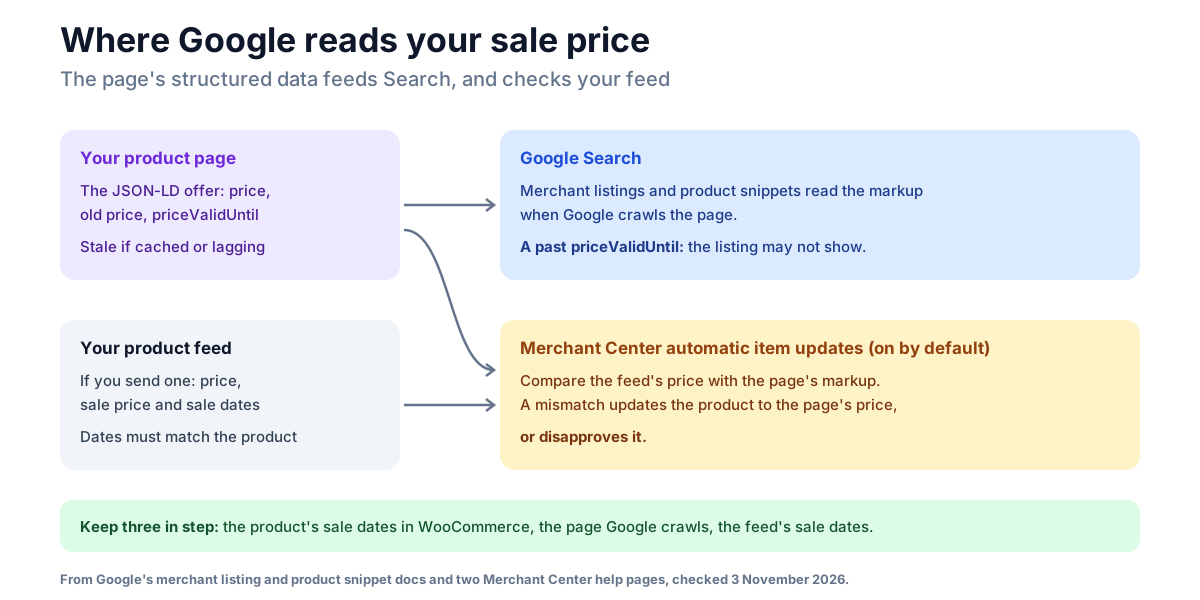
In Search, Google reads the markup when it crawls the page. A priceValidUntil in the past can keep the listing from showing, and a sale price that has ended is simply wrong until the next crawl.
In Merchant Center, if you send Google a product feed (from a plugin such as Google for WooCommerce, or another feed tool), the page's markup is checked against the feed. Google's help page on automatic item updates says they read the price from your page's structured data and are switched on by default, and that the product "may be disapproved instead of updated" when there's a mismatch. Google's page on the mismatched price issue (both checked 3 November 2026) tells you to check that the feed's sale period is set correctly, with the right timezone.
So a sale needs to say the same thing in three places: the product's sale dates in WooCommerce, the page Google crawls, and the sale dates in your feed. A cached page or a stale variable range breaks the second. A feed plugin that sends the sale price without its dates breaks the third.
Fixing the timezone date
This snippet makes a simple product's priceValidUntil, and its sale price's validThrough, use the sale's last day in your store's timezone. Add it to a small custom plugin or a code-snippets plugin:
add_filter( 'woocommerce_structured_data_product_offer', function ( $offer, $product ) {
	// Simple products only: a variable product's offer is built from its variations.
	if ( $product->is_type( array( 'variable', 'grouped' ) ) || ! $product->is_on_sale() || ! $product->get_date_on_sale_to() ) {
		return $offer;
	}
	// The sale's last day in the store's own timezone. WooCommerce converts
	// the end time to UTC first, which is a day late west of UTC.
	$last_day = wp_date( 'Y-m-d', $product->get_date_on_sale_to()->getTimestamp() );

	$offer['priceValidUntil'] = $last_day;
	foreach ( $offer['priceSpecification'] ?? array() as $i => $spec ) {
		// The sale price is the one without a priceType.
		if ( empty( $spec['priceType'] ) ) {
			$offer['priceSpecification'][ $i ]['validThrough'] = $last_day;
		}
	}
	return $offer;
}, 10, 2 );
With our store set to New York time, the T-Shirt's sale ending 30 November came out as 2026-11-30 again. It works alongside the sale-price snippet in our product schema guide.
Variable products are left alone on purpose. Their range takes a single date for several variations, and no filter on that range can say when each variation's price changes. The fix for that is variant markup, where every variation is its own offer with its own price, which our merchant listings guide explains.
A Black Friday checklist
Before the sale:
- Schedule every sale with an end date, rather than switching sale prices on and off by hand. A hand-made sale has no end date, so its markup says the price lasts until 31 December next year, and it stays on until you remember to end it.
- Give all the variations in a sale the same dates, with the Set scheduled sale dates bulk action.
- Check your timezone. If it's west of UTC, add the snippet above.
- Find out whether your page cache clears a product page when a scheduled sale starts and ends, or plan to clear it yourself.
- If you send a product feed, check that it sends each sale price with its start and end dates, in the same timezone as your store.
When the sale starts:
- Open a product on sale and view its page source. Search for
priceValidUntiland check it's the sale's last day, and that the offer'spriceis the sale price. Our product schema guide shows what to look for. Google's Rich Results Test shows the offer as Google reads it, from the same page a visitor gets, cache included. - Check one variable product the same way.
After the sale ends:
- Clear the page cache, then check a simple and a variable product again. If a variable product still shows the sale range, click Update on it.
- Watch Merchant Center for "Automatic updates: Mismatched price" over the following days, and Search Console's Merchant listings report for new issues.
What NeoSERP does with a sale
NeoSERP, our free product schema plugin, replaces WooCommerce's product markup, so it has to get sales right on its own. On our test store:
- The sale price came through at the right moment. The T-Shirt's offer
said $14 during the sale and $18 the moment it ended, job or no job.
- Each variation carried its own price. After the red variation's sale
ended, its own offer in NeoSERP's variant markup said $45 at once, although the group's overall price range still started at $42 until the cache cleared.
- It doesn't use the sale's end date. Its
priceValidUntilis 31 December
of the current year on every offer, sale or no sale, so a sale ending 30 November is described as lasting until 31 December.
- It doesn't mark the regular price. The offer carries only the price the
customer pays, so Google has no old price to show crossed out.
Neither of the last two breaks the markup, but both mean that for sale details, WooCommerce's own markup currently says more than NeoSERP's. NeoSERP is in review at WordPress.org; until it's approved, you can download it from its page.
Frequently asked questions
What is priceValidUntil in WooCommerce?
It's the date in a product's structured data after which the offer's price is no longer available. WooCommerce writes it on every product with a price: the sale's last day when the product is on a scheduled sale with an end date, and 31 December next year otherwise. Google lists it as recommended, not required.
Why does Search Console say "Missing field priceValidUntil"?
WooCommerce's own markup always includes it on a product with a price, so the warning usually means the product markup comes from somewhere else: a theme, an SEO plugin or a schema plugin that leaves it out. It's a non-critical warning. Add it in whatever writes the markup, or switch that markup off and let WooCommerce's through.
Do I need priceValidUntil for a sale?
No, Google doesn't require it. But if it's there, it must not be in the past: Google says the listing may not display when it is. That's the risk with cached pages and stale prices after a sale.
Will Google show my Black Friday price with the old price crossed out?
It can, if the markup marks the regular price as the old one. WooCommerce does, as ListPrice, which Google accepts for a transition period while asking for StrikethroughPrice; the snippet in our product schema guide switches it. Google decides whether to show it.
Why does my variable product still show the sale price after the sale ended?
WooCommerce keeps a variable product's price range in a cache that its sale-ending job doesn't always clear. It catches up at WooCommerce's daily sales run, which isn't necessarily at midnight. Clicking Update on the product clears it at once. The cart charges the right price throughout.
Should I schedule a sale or switch it on by hand?
Schedule it, with an end date. A scheduled sale gives Google a real end date, ends itself on time, and lets WooCommerce switch the price at the exact moment. A sale switched on by hand has no end date in the markup and lasts until someone switches it off.
The takeaway
WooCommerce 11.1 gets the basics of a sale right: a simple product's price and markup switch at the exact start and end time, with the end date in priceValidUntil. What goes wrong is around the edges, and it's all checkable before 27 November: a timezone west of UTC, variable products whose range lags behind, pages served from a cache, and a feed whose dates don't match. Schedule every sale with an end date, view one product's source when the sale starts, and clear the cache when it ends.